Accounts Payable Inquiries and reports
Product receipt
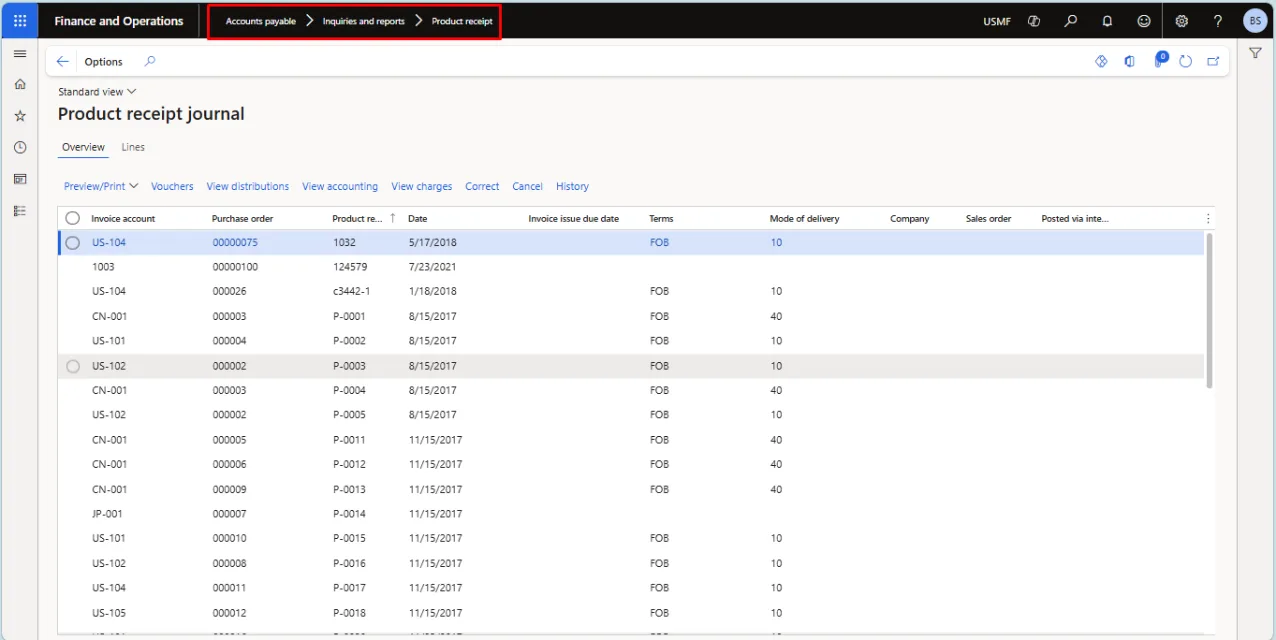
- To open the report, navigate to Accounts Payable > Inquiries and report > Product Receipt
- MS Learn - Product receipt report (PurchPackingSlip) | Microsoft Learn
- Details of Report –
- It lists all products received against the quantities ordered across purchase orders. The reporting period can be specified as required.
- It shows the vendor code but not the vendor name.
- Sample Report
Vendor Ageing Report
- To open the report, navigate to Accounts Payable > Inquiries and report > Vendor Ageing Report
- MS Learn - Vendor aging report - Finance | Dynamics 365 | Microsoft Learn
- Details of Report –
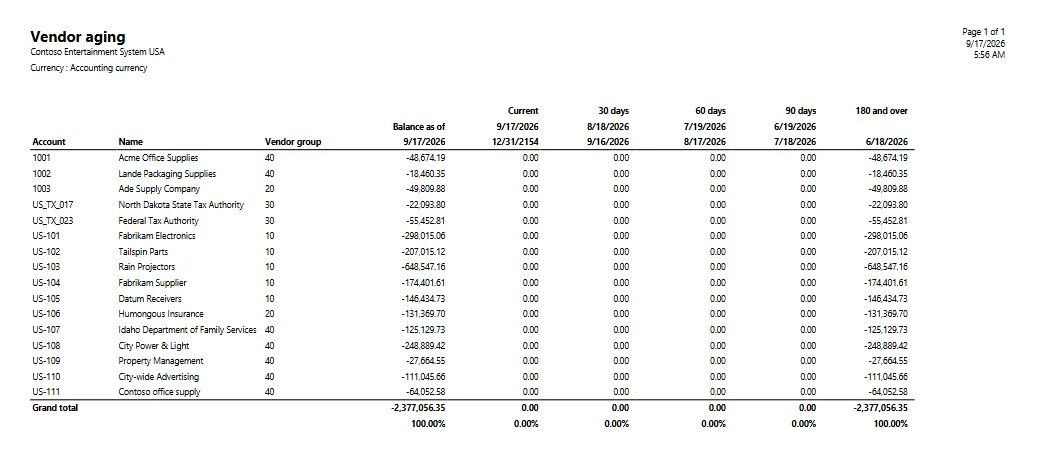
- It provides a summary of outstanding vendor balances across ageing buckets.
- For ex. 0-30 days, 30-60 days, 60-90 days and more than 90 days.
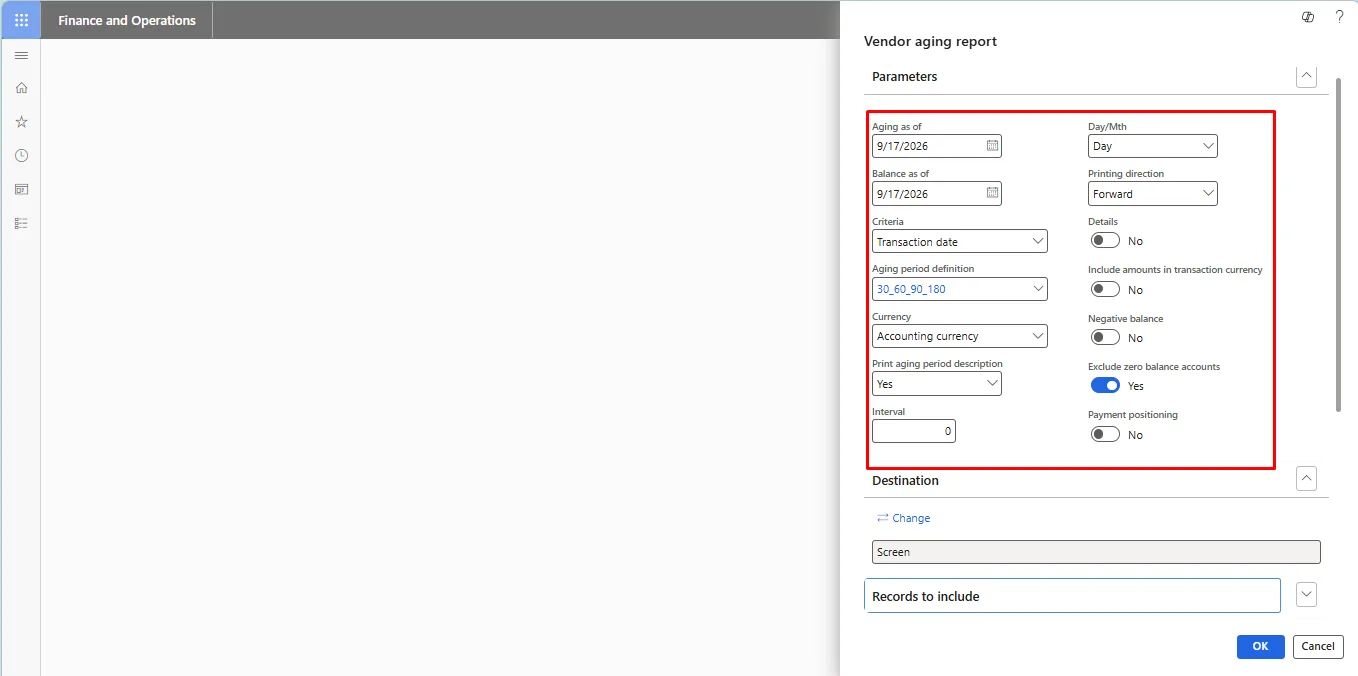
- User Input Parameters - When you generate the Vendor aging report, you see the following default fields. Use these fields to filter the data that appears on the report.
Field | Description |
Start date | Enter a date in the first period interval or aging period to include on the report. |
Balance as of | Enter the date to view the vendor balances for. |
Criteria | Select the type of date to base the report on: |
Transaction date – Use the posting date of the transactions (for example, an invoice date that's the basis for the calculation of the due date). | |
Due date – Use the due date of the transactions, based on the terms of payment. | |
Document date – Use a user-defined document date that's the basis for the calculation of the due date. | |
Aging period definition | Select an aging period definition. If you select an aging period definition in this field, the Interval field isn't used. Aging period definitions that have more than six aging periods (columns) can't be used on the printed report. |
| |
Note: You can set up aging periods on the Aging period definitions page. | |
Print aging period description | Select Yes to include aging period descriptions at the top of each aging period column on the report. Select No to print the report without column headers. |
Interval | Define the period to use by entering the number of day or month units in each period. For example, to show aging information at intervals of 15 days on the report, enter 15 in this field, and select Day in the Day/Mth field. To show aging information by month, enter 1 in this field, and select Month in the Day/Mth field. |
| |
Note: The value that you enter in this field is used only if you don't select an aging period definition in the Aging period definition field. | |
Day/Mth | Select the unit that defines the period in the Interval field. You can select either Day or Month. |
Printing direction | Select how you want to calculate balances and print the aging report for past or future periods, relative to the date that's selected in the Balance as on field. Select Backward to show information for past periods. Select Forward to show information for future periods. |
Details | Select this checkbox to list the transactions that are included in the balances that are shown on the report. |
Include amounts in transaction currency | Select this checkbox to include the amounts in the transaction currency. |
Negative balance | Select this checkbox to include negative balances. |
Exclude zero balance accounts | Select this checkbox to exclude vendors who have a zero balance. |
Payment positioning | Select this checkbox to include payments that aren't settled. These payments are shown in the first column of the report. |
Vendors | The information in this section depends on the query that's created. |
Current print destination | The information in this section depends on the printing options. |
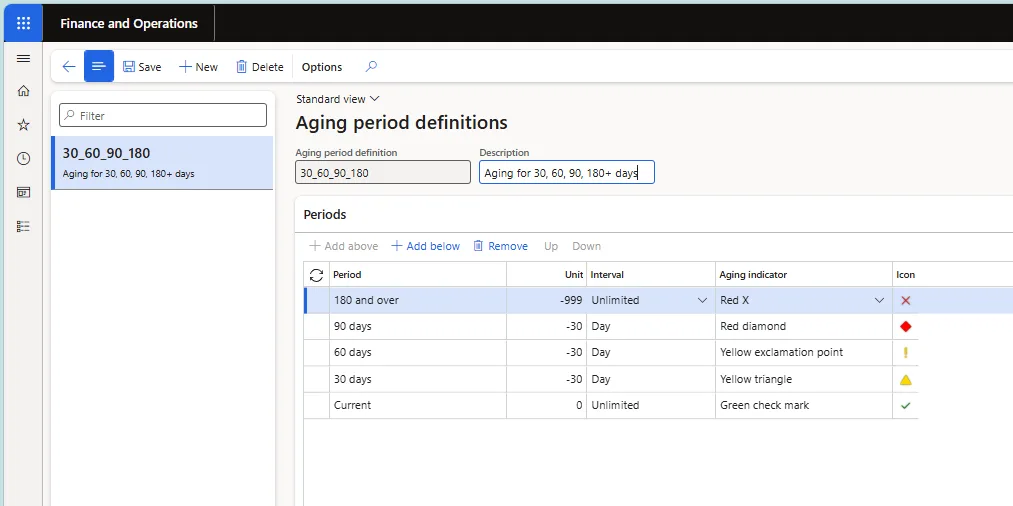
- Multiple Aging period definitions can be configured in D365 with ageing periods to suit the business requirement.
- Sample Report
Vendor Transactions Report
- To open the report, navigate to Accounts Payable > Inquiries and report > Vendor transactions Report
- MS Learn - Vendor transactions report (VendTransListReport) | Microsoft Learn
- Details of Report –
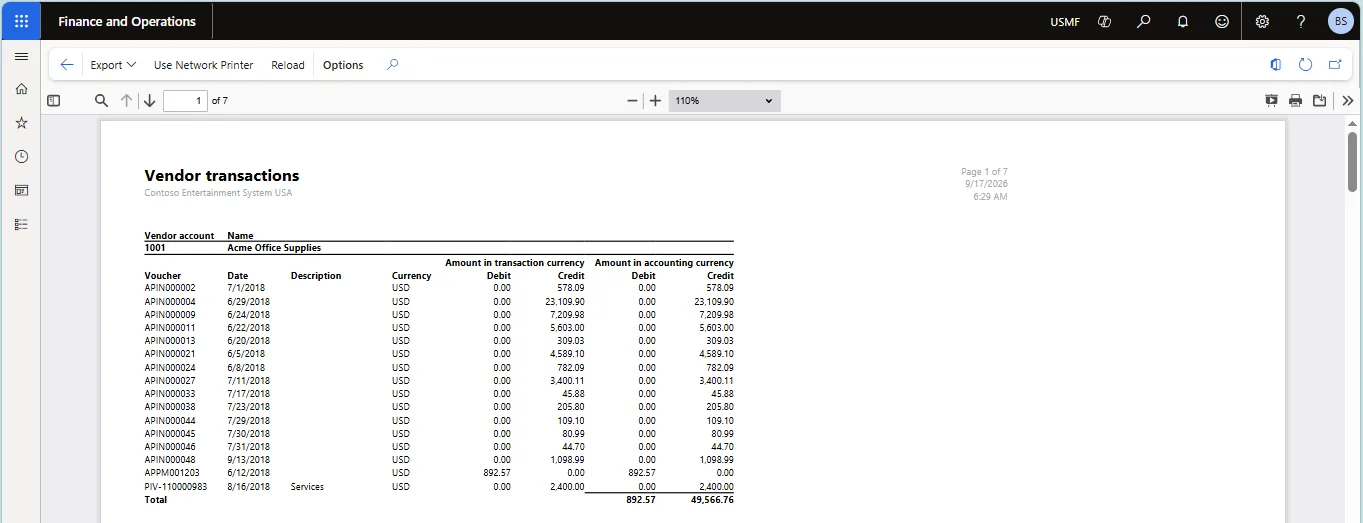
- It lists the transactions posted against vendors. The report does not show the opening and closing balance of the vendor, and it does not allow a date range to be specified.
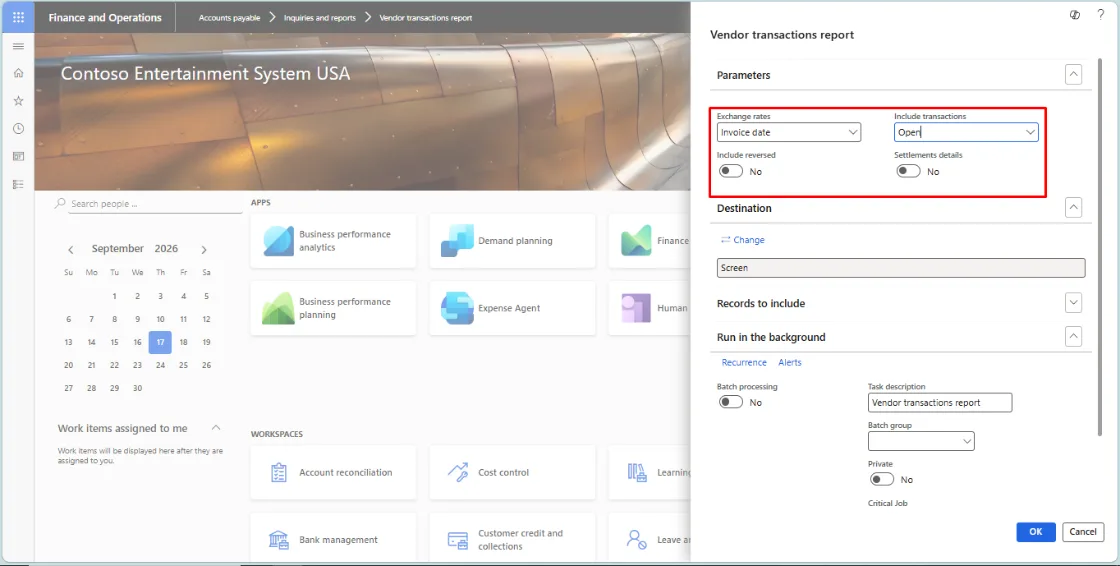
Set the transaction status parameter to Open, Closed or All, and filter by vendor account. An option is also available to include reversed entries.
- Sample Report
History By Transaction Report
- To open the report, navigate to Accounts Payable > Inquiries and report > History By Transaction Report
- MS Learn - History by vendor transaction report (VendLedgerTrans) | Microsoft Learn
- Details of Report –
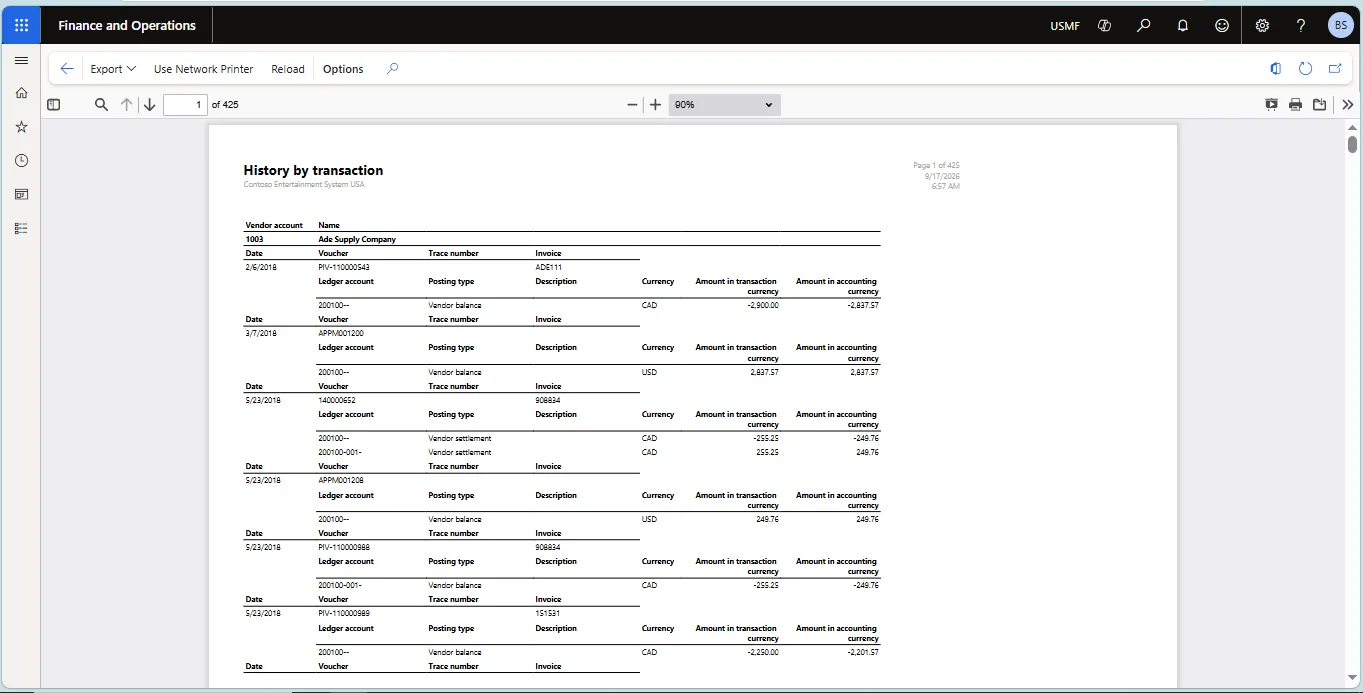
- This report lists the transactions posted against a vendor along with the related history and voucher. It can be filtered by vendor account or date.
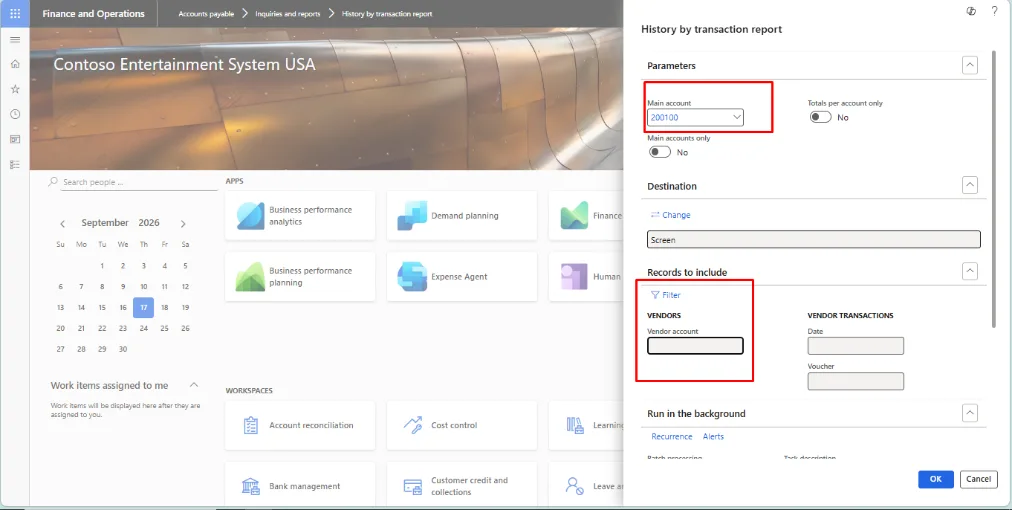
- It also lists vendor-wise historical transactions with the voucher number, ledger account and posting type.
- Sample Reports
Vendor Account Statement
- To open the report, navigate to Accounts Payable > Inquiries and report > Vendor Reports > Account Statement
- MS Learn - Vendor internal account statement report (VendAccountStatementInt) | Microsoft Learn
- Details of Report –
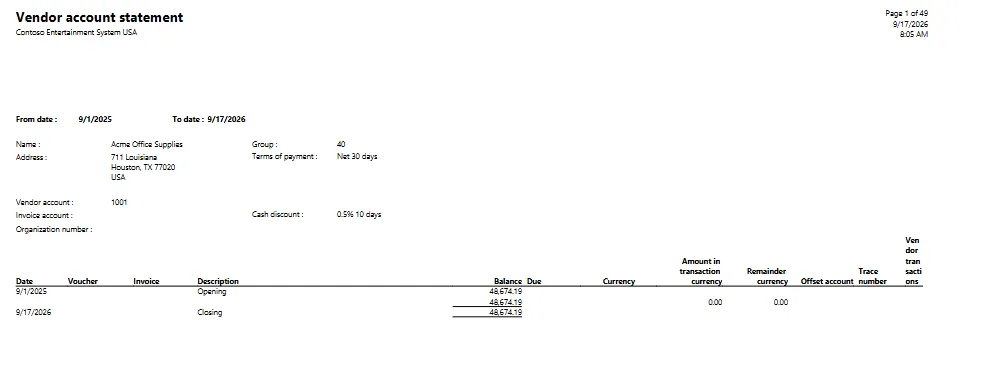
- It lists the transactions posted against vendors together with the opening and closing balance, and the remaining balance against each invoice.
- The reporting period can be specified when the report is generated.
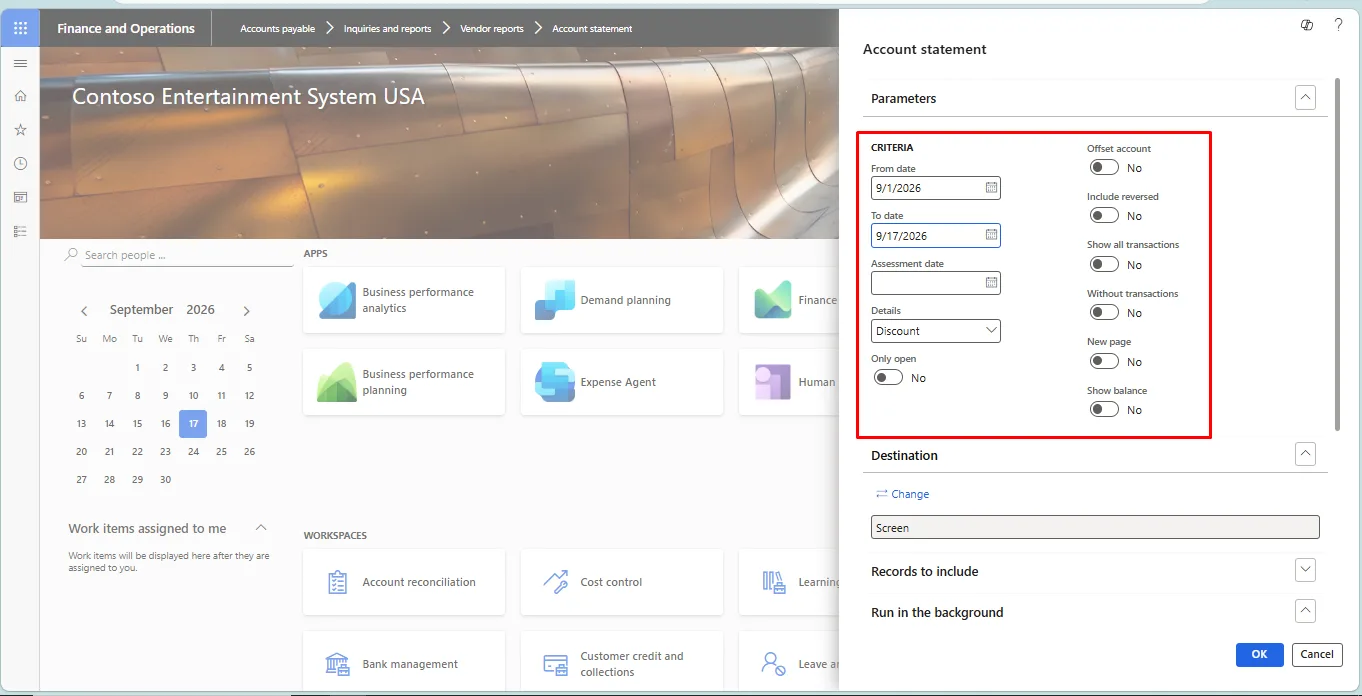
- User Input Parameters - When you generate the Vendor Account Statement report, you see the following default fields. Use these fields to filter the data that appears on the report.
Field | Description |
From date | The start date of the period for which the account statement is generated. |
To date | The end date of the period |
Assessment date | The date used to assess/calculate balances (e.g., for currency revaluation or aging purposes) as of a specific point in time, separate from the From/To date range. |
Details | Determines the level of detail shown on the statement. "Discount" shows cash discount-related information for the transactions |
Only open | includes only open (unsettled) transactions in the statement |
Offset account | Displays the offset (contra) account for each transaction, showing which account, each entry was posted against. |
Include reversed | Includes transactions that have been reversed |
Show all transactions | includes all transactions regardless of the date filters or open/settled status |
Without transactions | When set to Yes, includes vendors/accounts on the statement even if they have no transactions in the selected period (e.g., to show a zero balance). |
- Sample Report
Top 100 Vendors
- To open the report, navigate to Accounts Payable > Inquiries and report > Vendor Reports > Top 100 Vendors
- MS Learn - No dedicated article is published for this report. Refer to the module report index: Accounts payable reports | Microsoft Learn
- Details of Report –
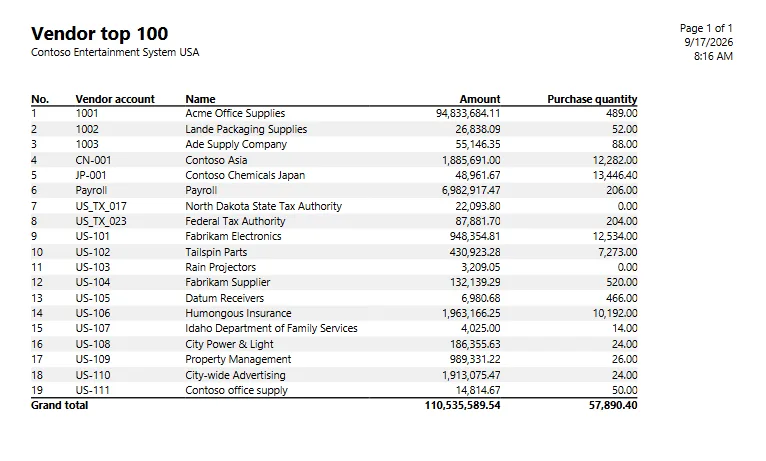
- It lists the top vendors by revenue, quantity and account. The reporting period can be defined when the report is generated.
- The number of vendors to be listed can also be defined, for example top 3 or top 10. GST is not included in the revenue figures.
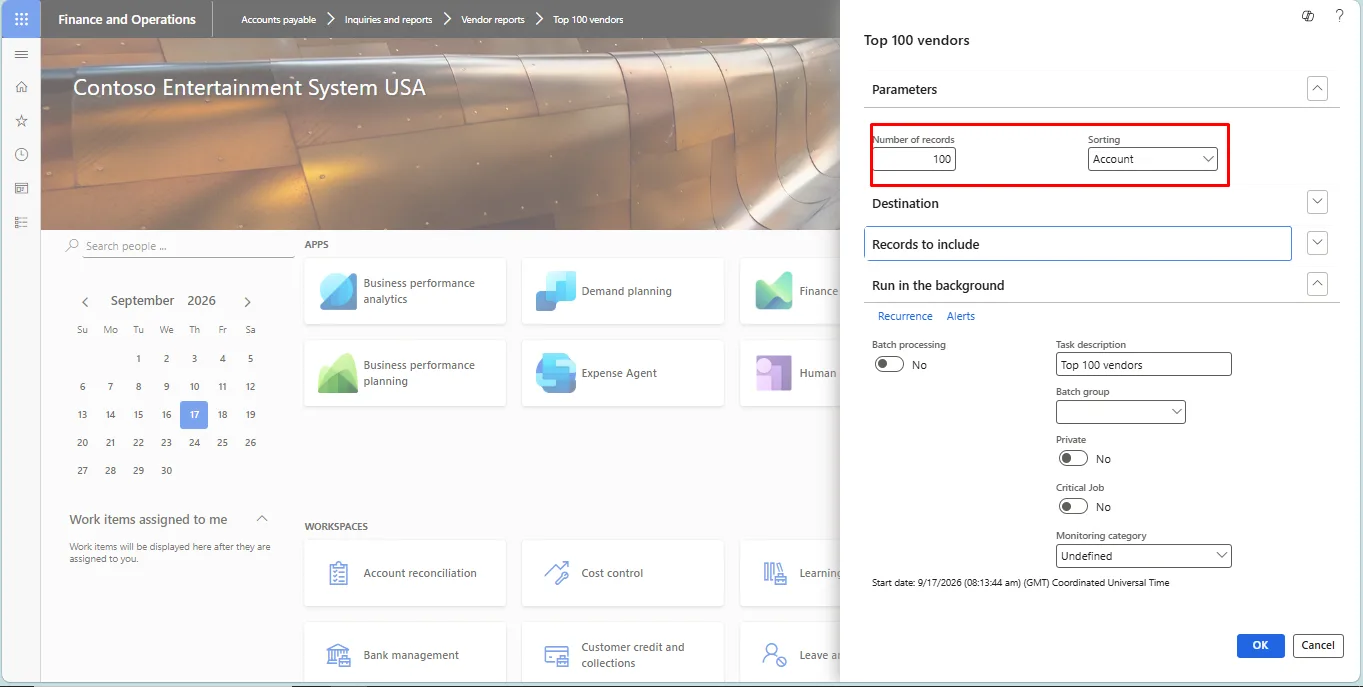
- Sample Report
Vendor Balance List
- To open the report, navigate to Accounts Payable > Inquiries and report > Vendor Reports > Vendor Balance List
- MS Learn: - Vendor balance list report (VendProvisionalBalance) | Microsoft Learn
- Details of Report –
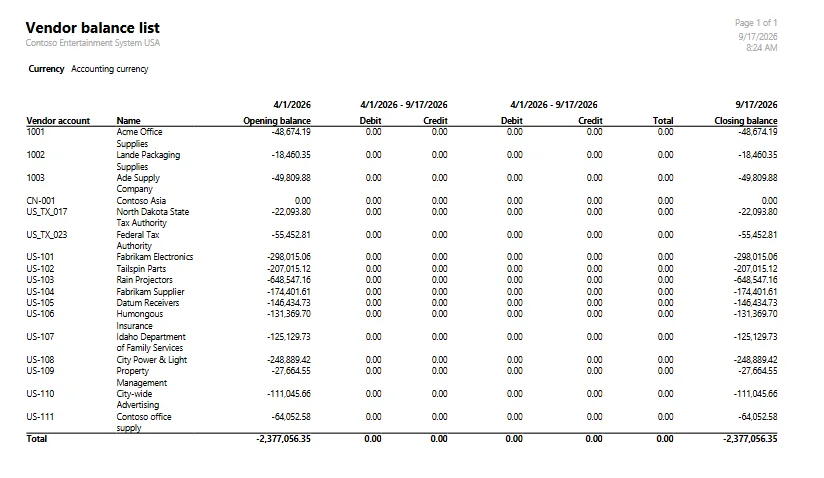
- It lists the outstanding vendor balances, showing the opening balance, total debit, total credit and closing balance.
- The reporting period can be specified as required.
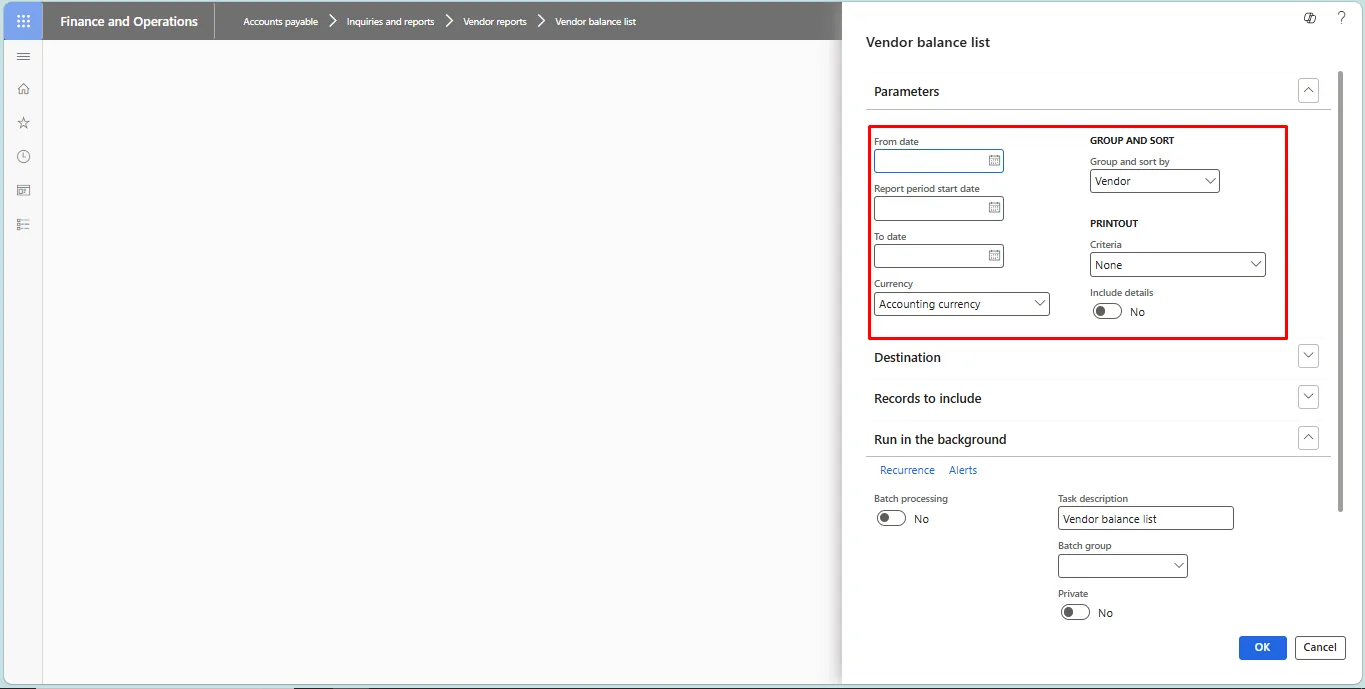
Set the parameters: from date, to date and Group by (vendor or main account).
- Sample Report
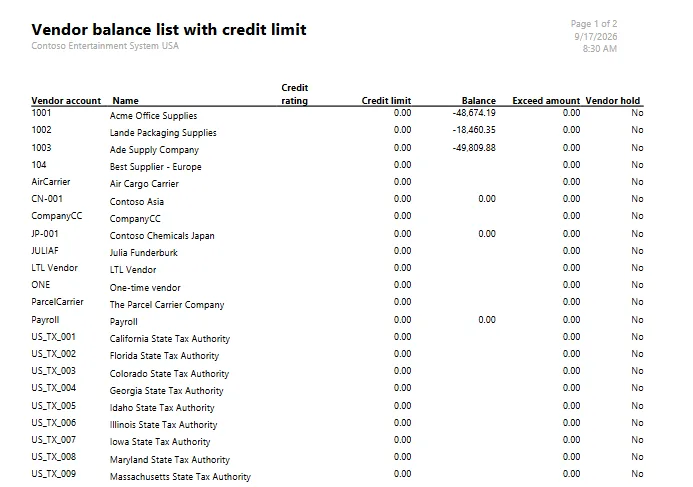
Vendor Balance List with credit Limit
- To open the report, navigate to Accounts Payable > Inquiries and report > Vendor Reports > Vendor Balance List with credit limit
- MS Learn: - Vendor balance list with credit limit report (VendBalanceList) | Microsoft Learn
- Details of Report –
- This report lists the outstanding vendor balances along with the credit limit held on the vendor master, and shows the amount by which each vendor has exceeded that limit.
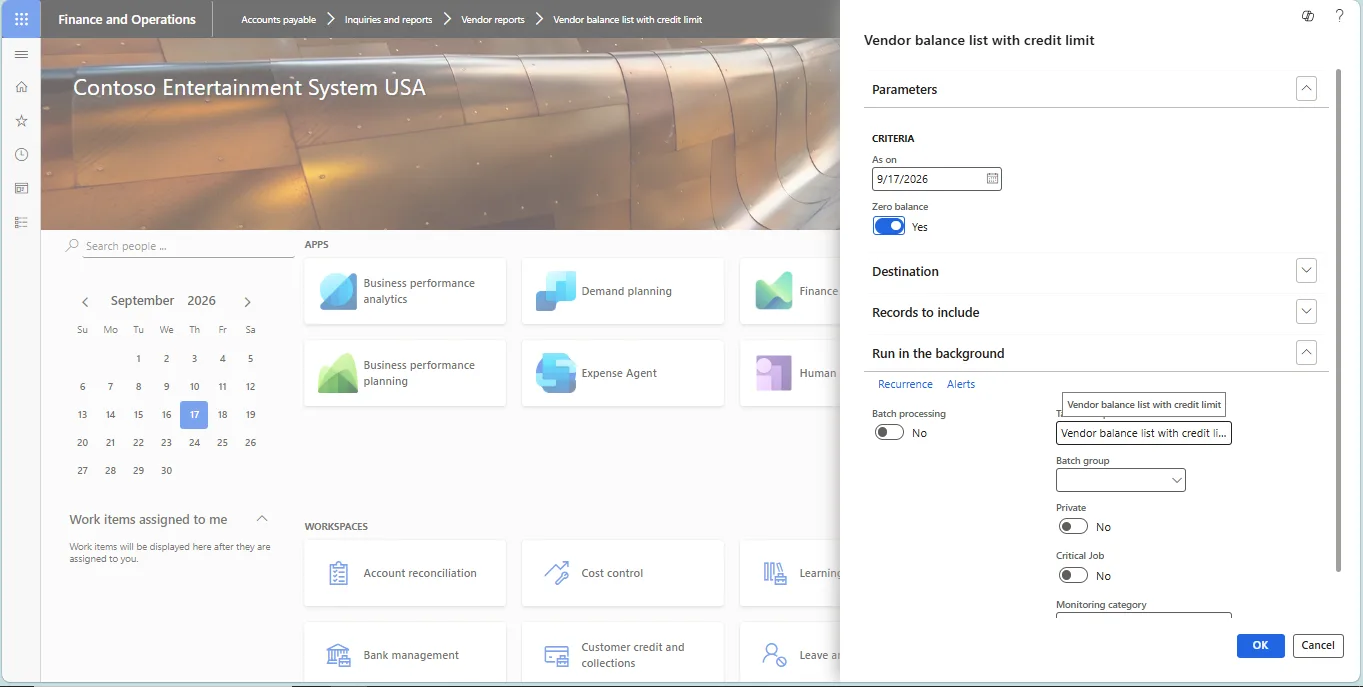
- Sample Report
Vendor Base Data
- To open the report, navigate to Accounts Payable > Inquiries and report > Vendor Reports > Vendor Base Data
- MS Learn - Vendor base data report (VendBaseData) | Microsoft Learn
- Details of Report –
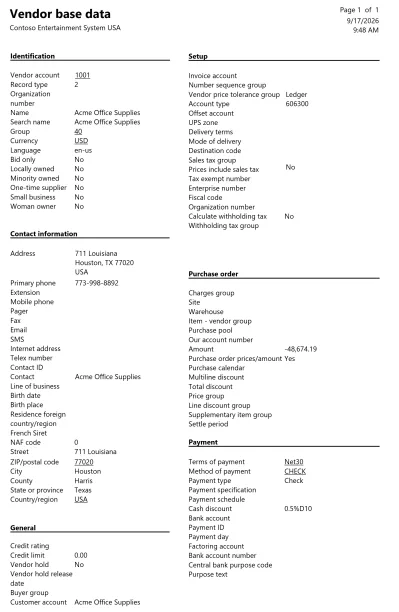
- It provides the master and balance details of a vendor, including vendor code, address, trading currency, payment terms, closing balance, withholding tax and credit limit.
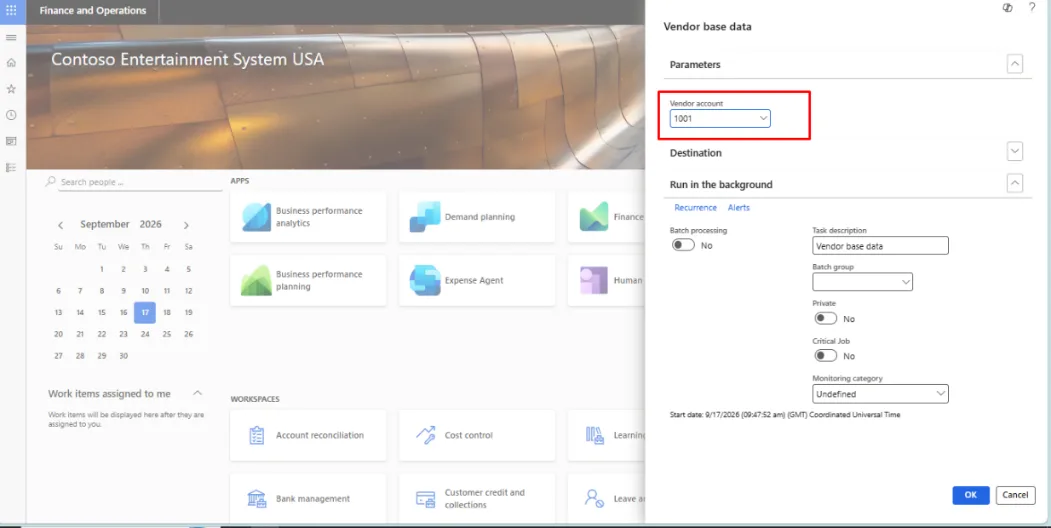
Select the vendor account number.
- Sample Report
Vendor Invoice Turnover
- To open the report, navigate to Accounts Payable > Inquiries and report > Vendor Reports > Vendor Invoice Turnover
- MS Learn - Invoice turnover report (VendInvoiceVolume) | Microsoft Learn
- Details of Report –
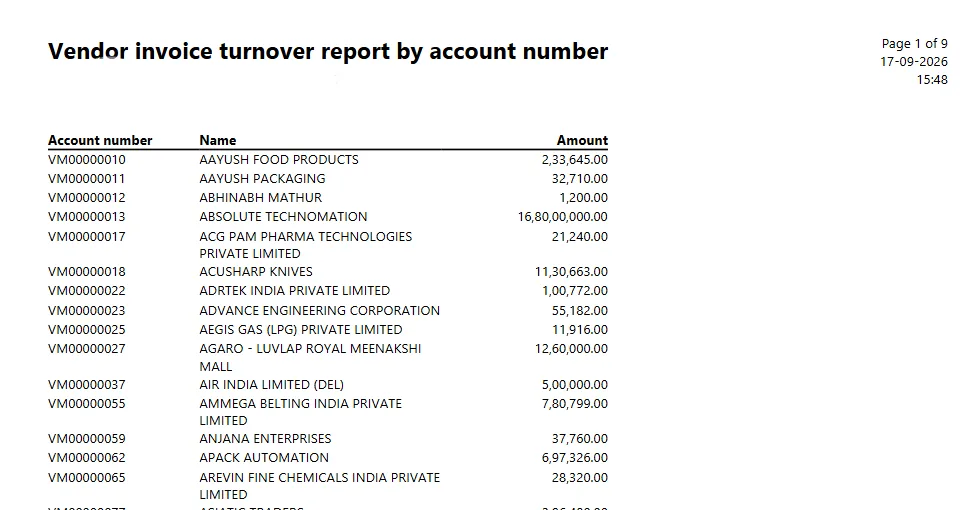
- This report prints the turnover for a vendor. Turnover is the total invoiced amount in a specified period, such as a year. The report can be generated inclusive or exclusive of tax.
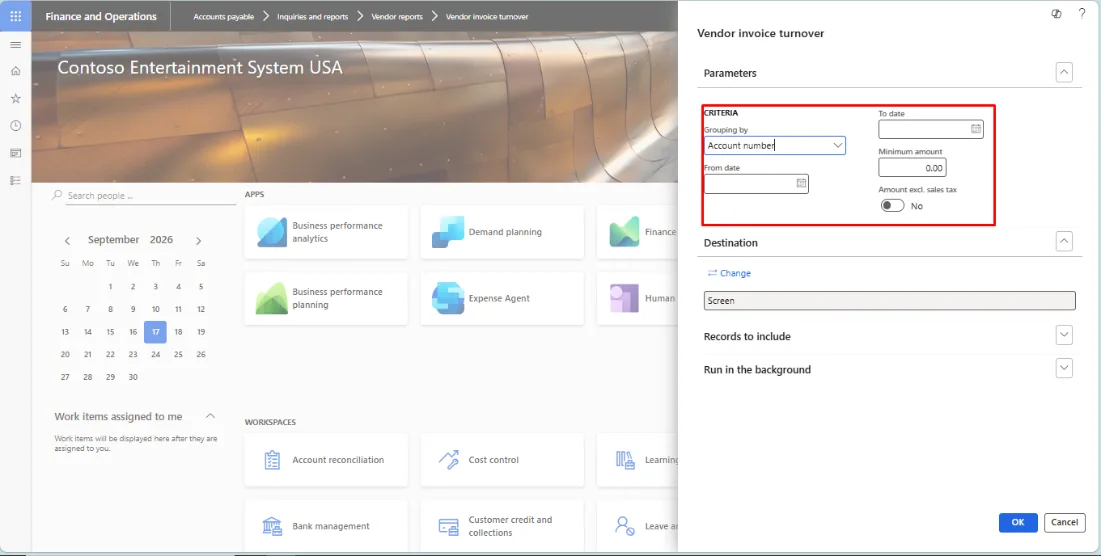
Set the parameters: Group by (account number or tax exempt number), from date and to date. A minimum invoice amount criterion can also be applied.
- Sample Report
Vendor Phone List
- To open the report, navigate to Accounts Payable > Inquiries and report > Vendor Reports > Vendor Phone List
- MS Learn: - Vendor phone list report (VendPhoneList) | Microsoft Learn
- Details of Report –
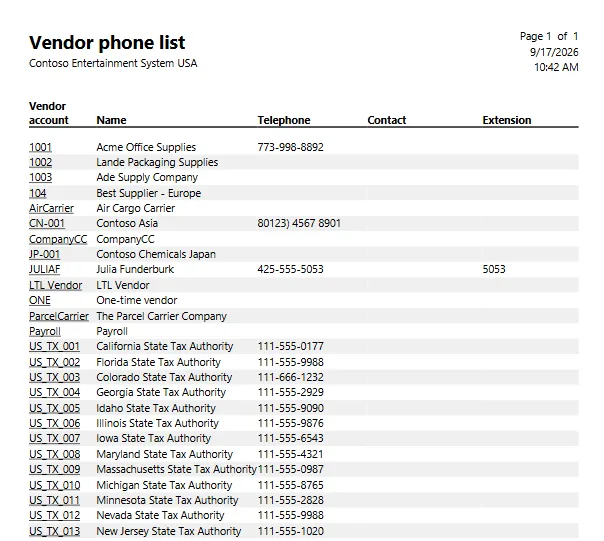
- It lists vendors along with the contact person and the related contact number, for use in day-to-day vendor coordination.
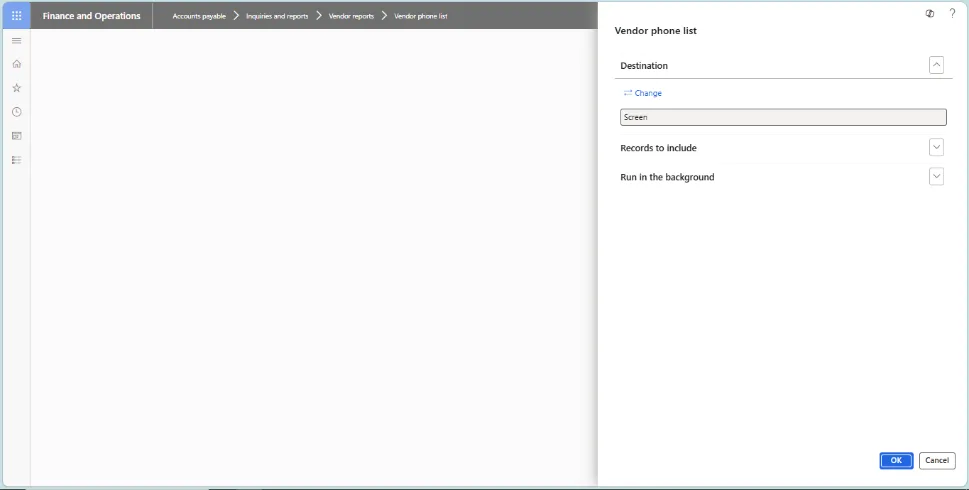
- Sample Report
Vendor Ledger Reconciliation
- To open the report, navigate to Accounts Payable > Inquiries and report > Vendor Reports > Vendor to Ledger Reconciliation
- MS Learn - Vendor to ledger reconciliation report (VendLedgerReconciliation) | Microsoft Learn | Account reconciliation (replaces the SSRS reconciliation reports from 10.0.44) | Microsoft Learn
- Details of Report –
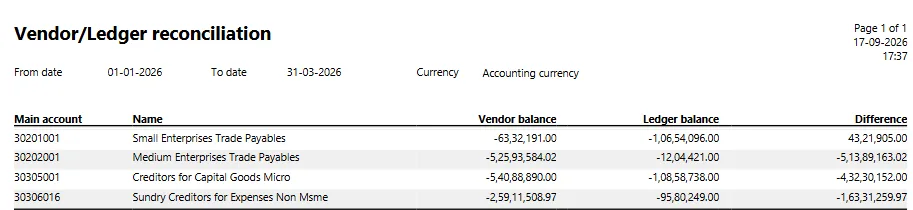
- This report checks whether the main ledger and the vendor sub-ledger agree. The difference should ideally always be 0. A difference indicates that manual general journal entries have been posted directly to the main accounts that are linked to the sub-ledger.
- To avoid this in future, it is recommended to enable “Do not allow manual entry” on the main accounts that are linked to the vendor posting profiles.
- Select the date range (from date and to date) and the posting profile.
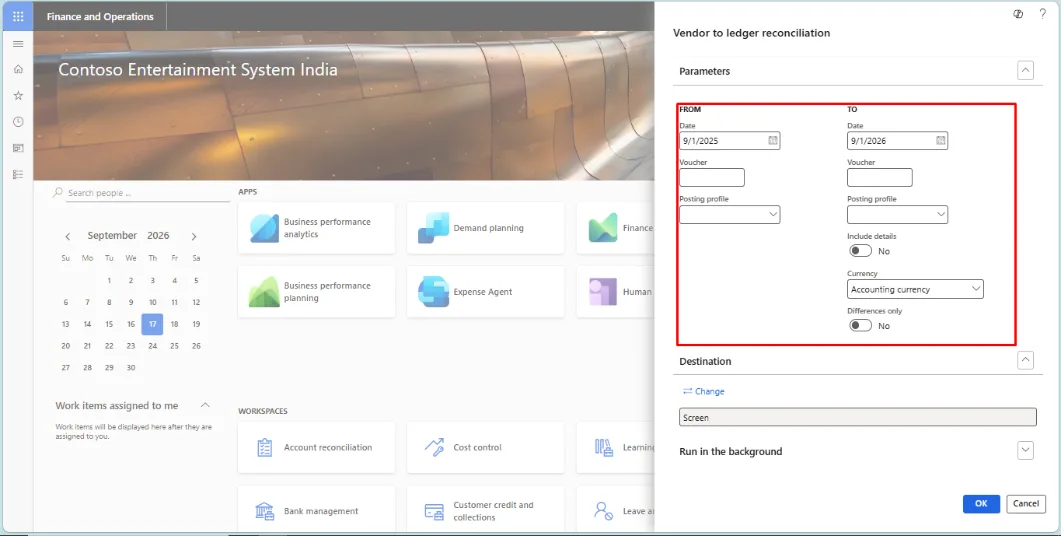
- Sample Report
Vendors
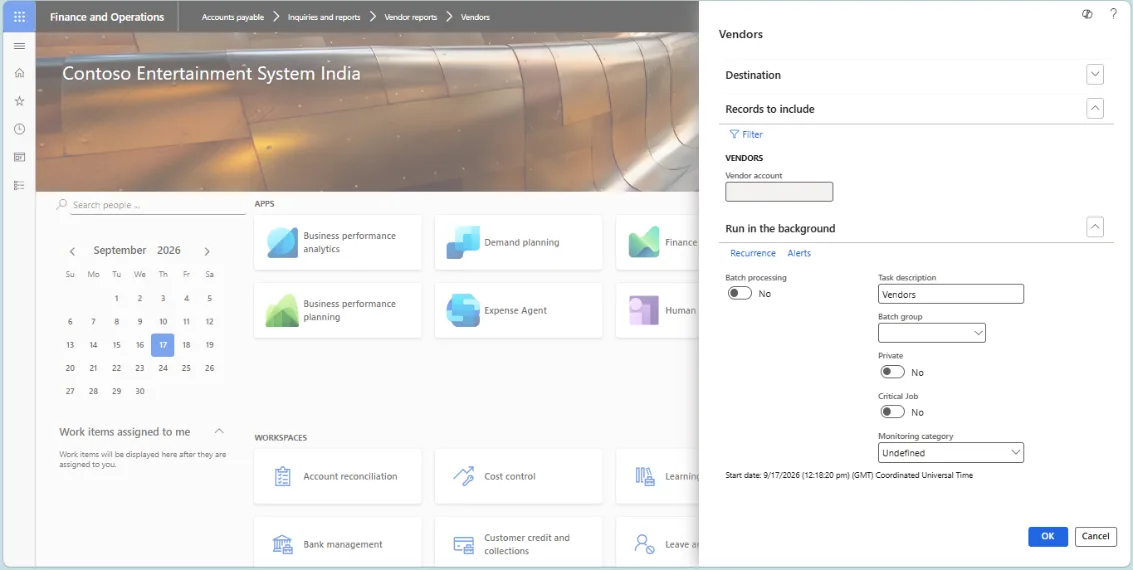
- To open the report, navigate to Accounts Payable > Inquiries and report > Vendor Reports > Vendors
- MS Learn - Vendors report (Vend) | Microsoft Learn
- Details of Report –
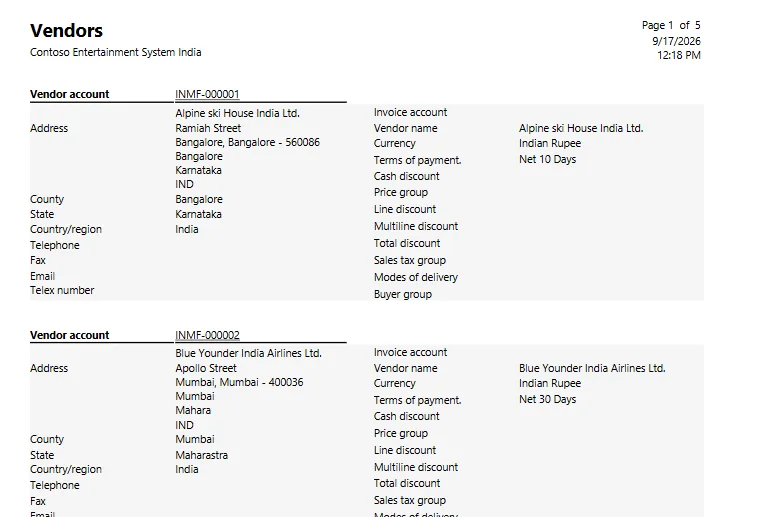
- It lists all vendors and their details in one place.
- It is similar to the Vendor base data report but carries fewer details. For example, it does not show the closing balance, or the default site and warehouse attached to the vendor master.
- Sample Report
Invoice History and matching Details
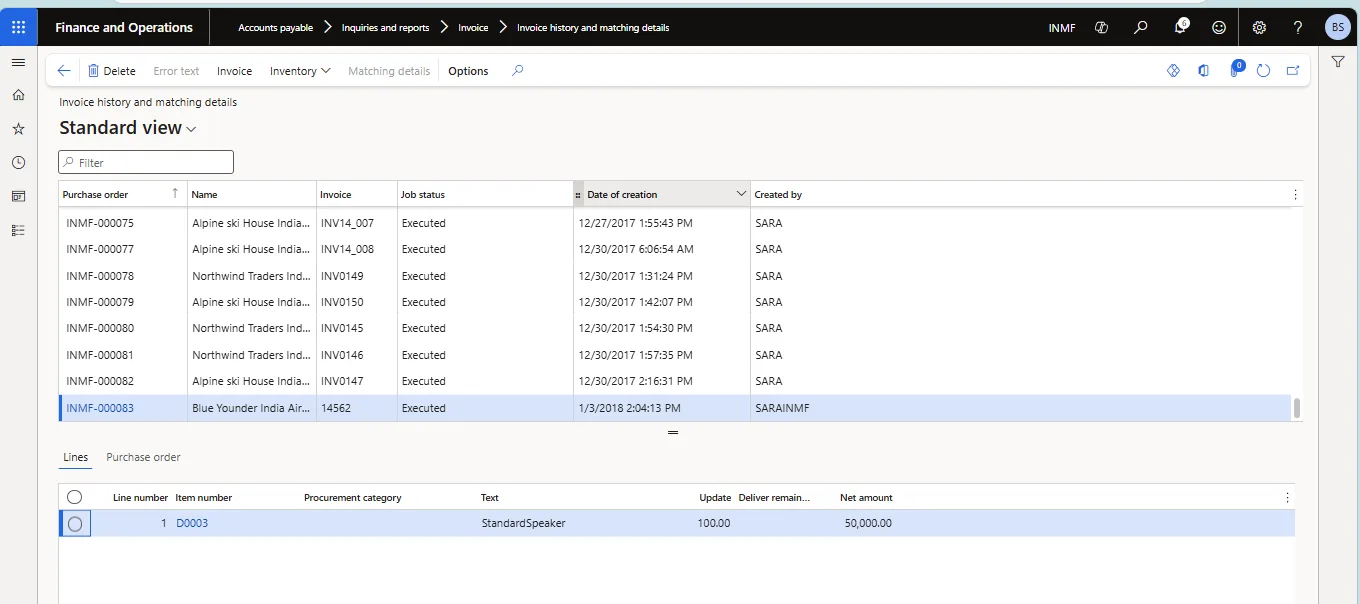
- To open the report, navigate to Accounts Payable > Inquiries and report > Invoice > Invoice History and matching Details
- MS Learn - Accounts payable invoice matching overview | Microsoft Learn
- Details of Report –
- It lists all purchase orders that have been invoiced, showing those invoiced with and without matching discrepancies. Where a discrepancy exceeds the tolerance defined in the matching policy, a match variance icon is displayed against the line.
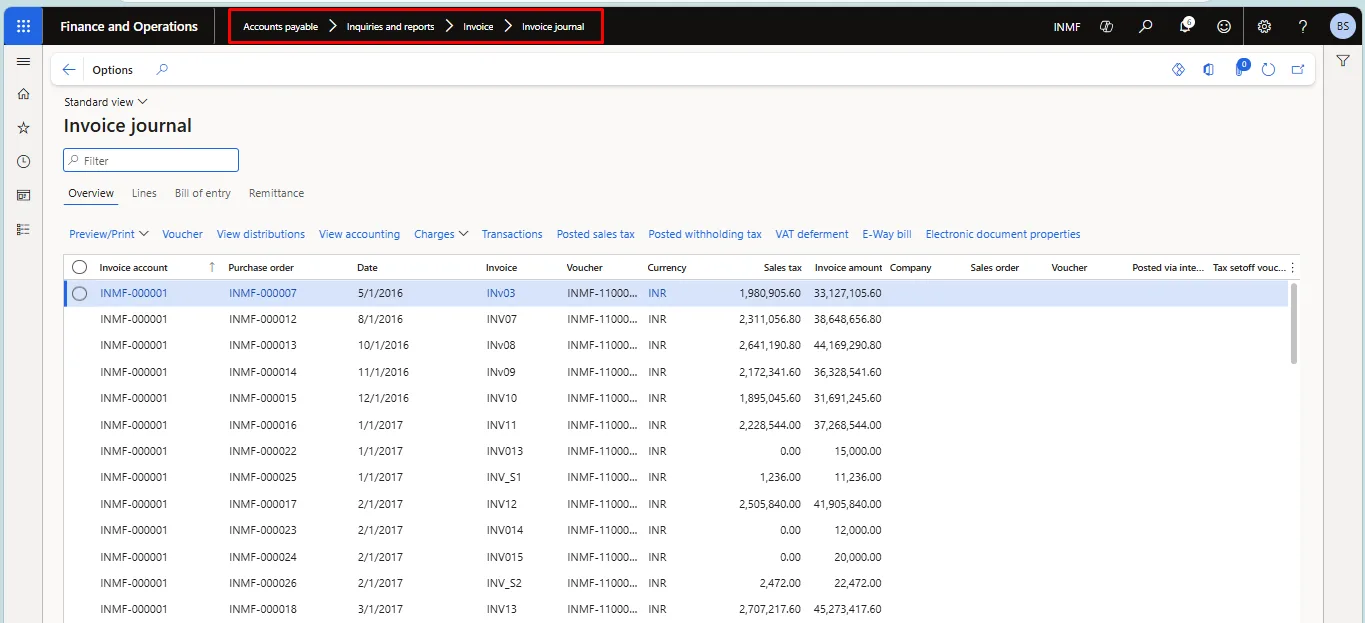
Invoice Journal
- To open the report, navigate to Accounts Payable > Inquiries and report > Invoice > Invoice Journal
- MS Learn - Invoice journal report (VendInvoiceJour) | Microsoft Learn
- Details of Report –
- This report provides the details of all posted invoices along with the total invoice amount and sales tax amount.
Accrued purchases excluding sales tax report
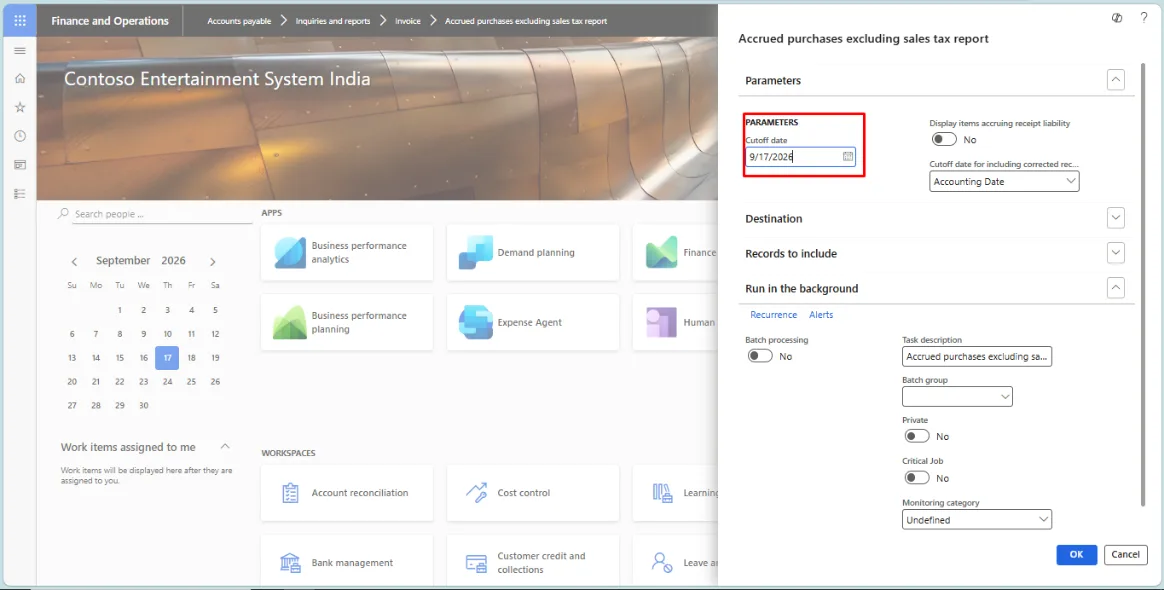
- To open the report, navigate to Accounts Payable > Inquiries and report > Invoice > Accrued purchases excluding sales tax report
- MS Learn - Add date option for generating the accrued purchases excluding sales tax report | Microsoft Learn
- Details of Report –
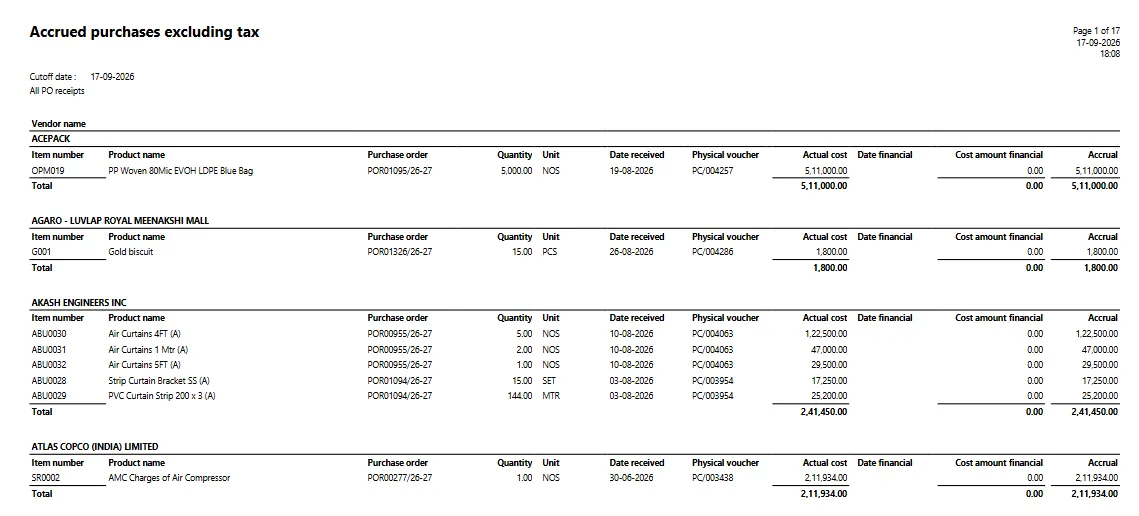
- It lists purchases accrued against product receipts that have been posted but not yet invoiced, i.e. goods received not invoiced. The cut-off date parameter controls the position as at the required date, which makes the report useful for period-end accrual reconciliation.
- Sample Report
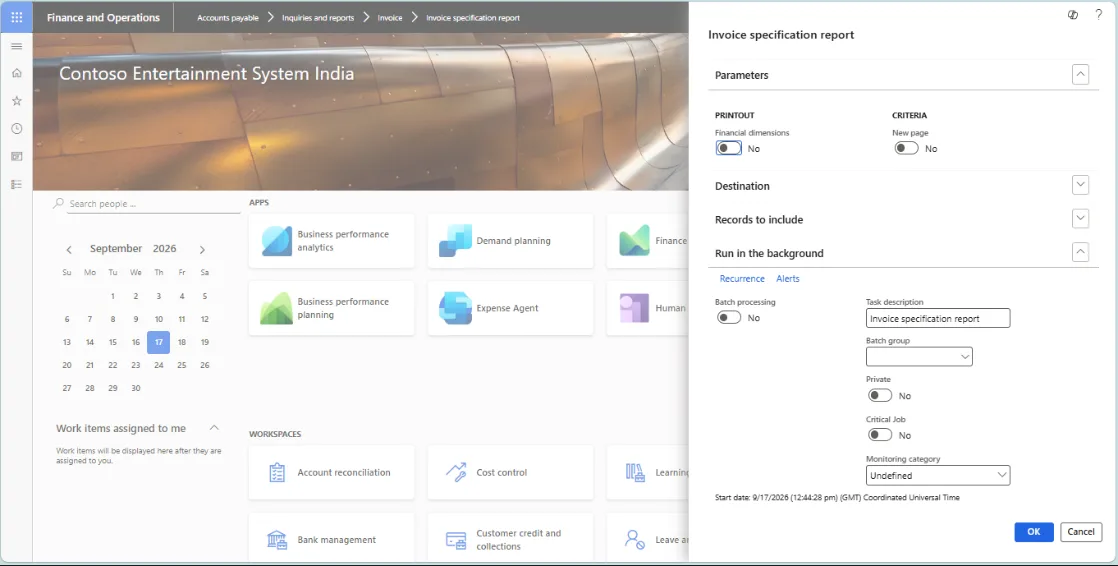
Invoice specification report
- To open the report, navigate to Accounts Payable > Inquiries and report > Invoice > Invoice Specification Report
- MS Learn - Invoice specification report (VendInvoiceSpec) | Microsoft Learn
- Details of Report –
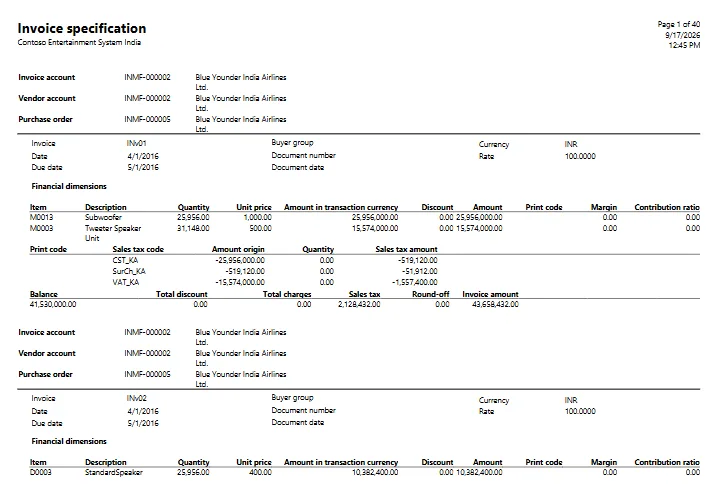
- This report lists all posted invoices along with their specifications, including invoice account, vendor account, purchase order, items, quantity, price and sales tax.
- Sample Report
Vendor Invoice Journal
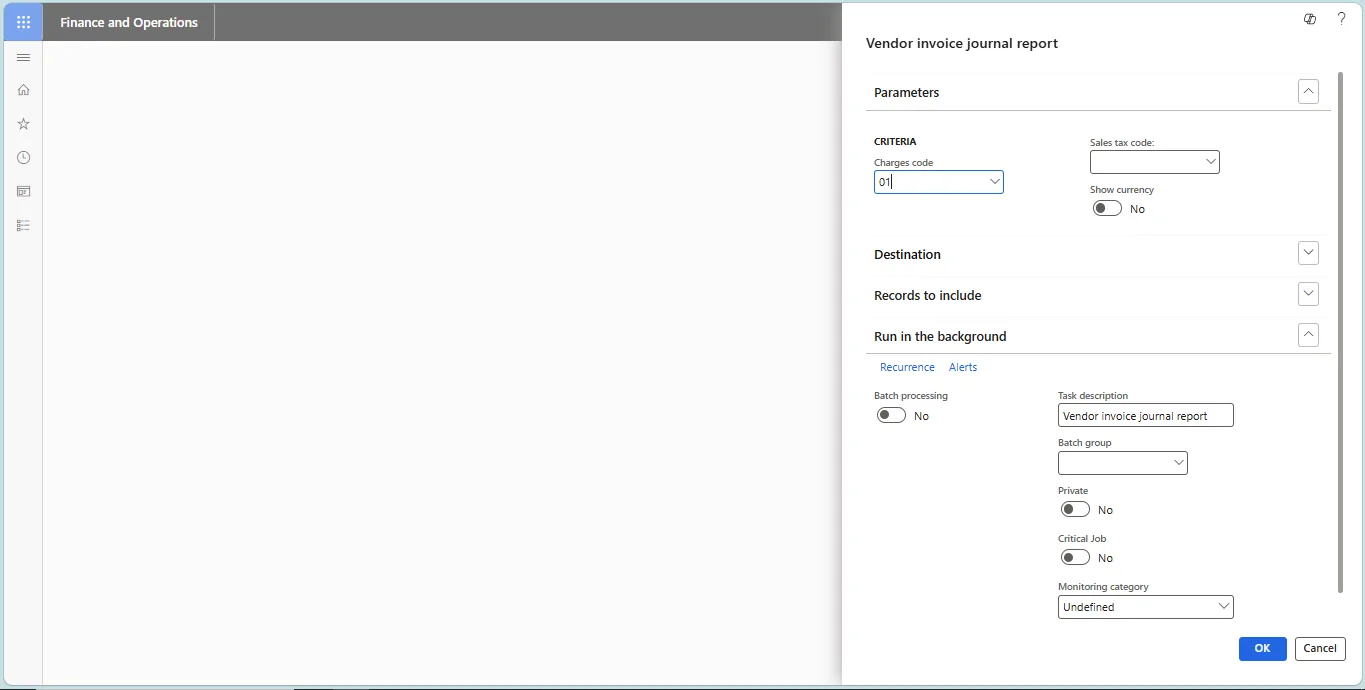
- To open the report, navigate to Accounts Payable > Inquiries and report > Invoice > Vendor Invoice Journal
- MS Learn - Documented under the underlying Invoice journal report: Invoice journal report (VendInvoiceJour) | Microsoft Learn
- Details of Report –
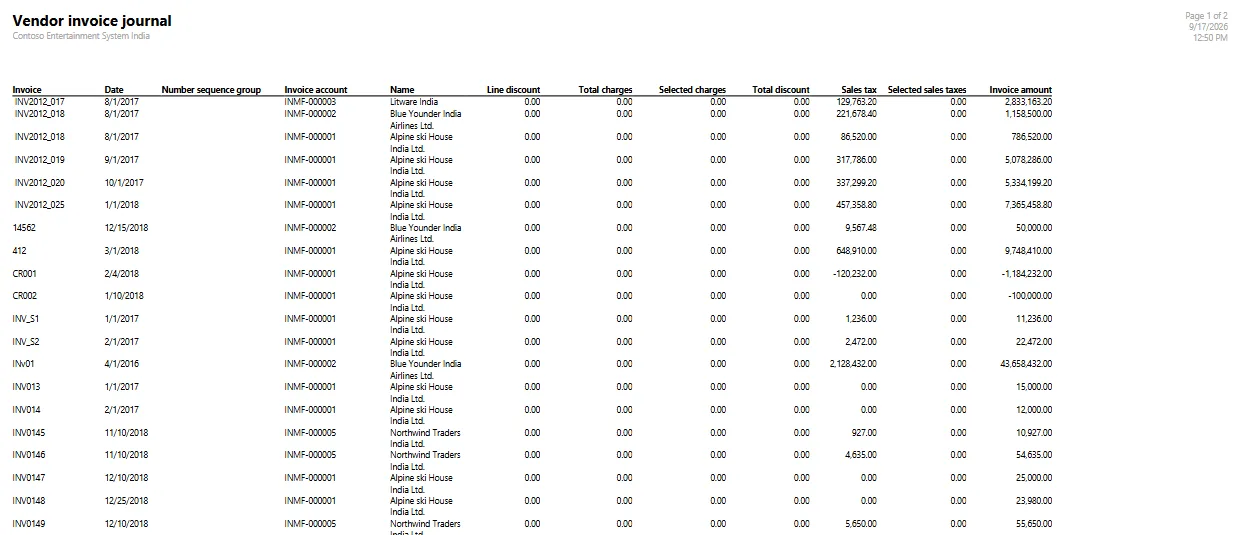
- This report is the same as the Invoice journal; the only difference is that the Invoice journal does not show the vendor name.
- Sample Report
Vendor Invoice Transactions Report
- To open the report, navigate to Accounts Payable > Inquiries and report > Invoice > Vendor Invoice Transactions Report
- MS Learn - Vendor invoice transactions report (VendInvoice) | Microsoft Learn
- Details of Report –
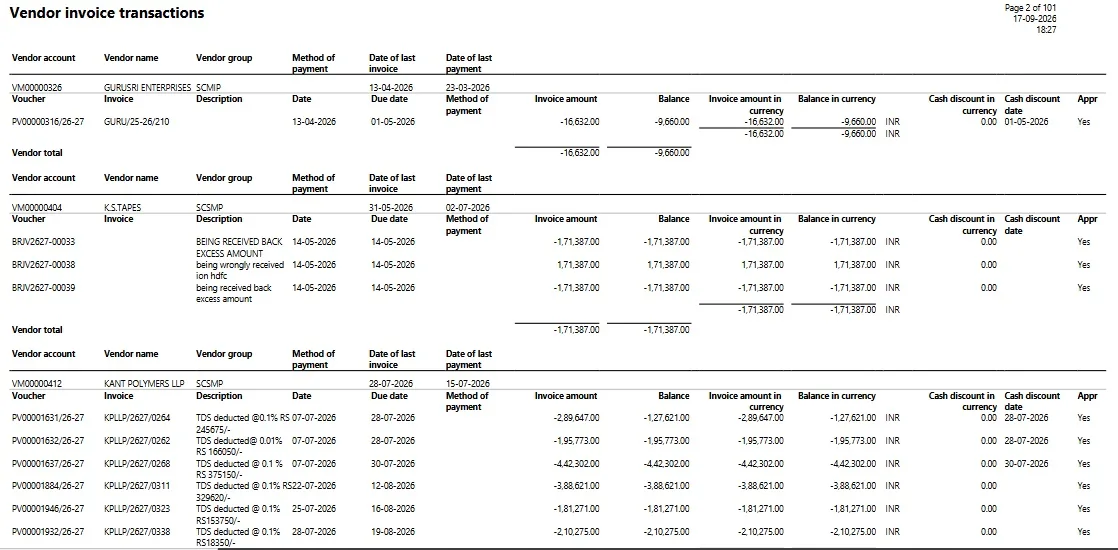
- This report provides details such as invoice number, invoice date, due date, invoice amount, the balance remaining against each invoice, and the dates of the last invoice and last payment.
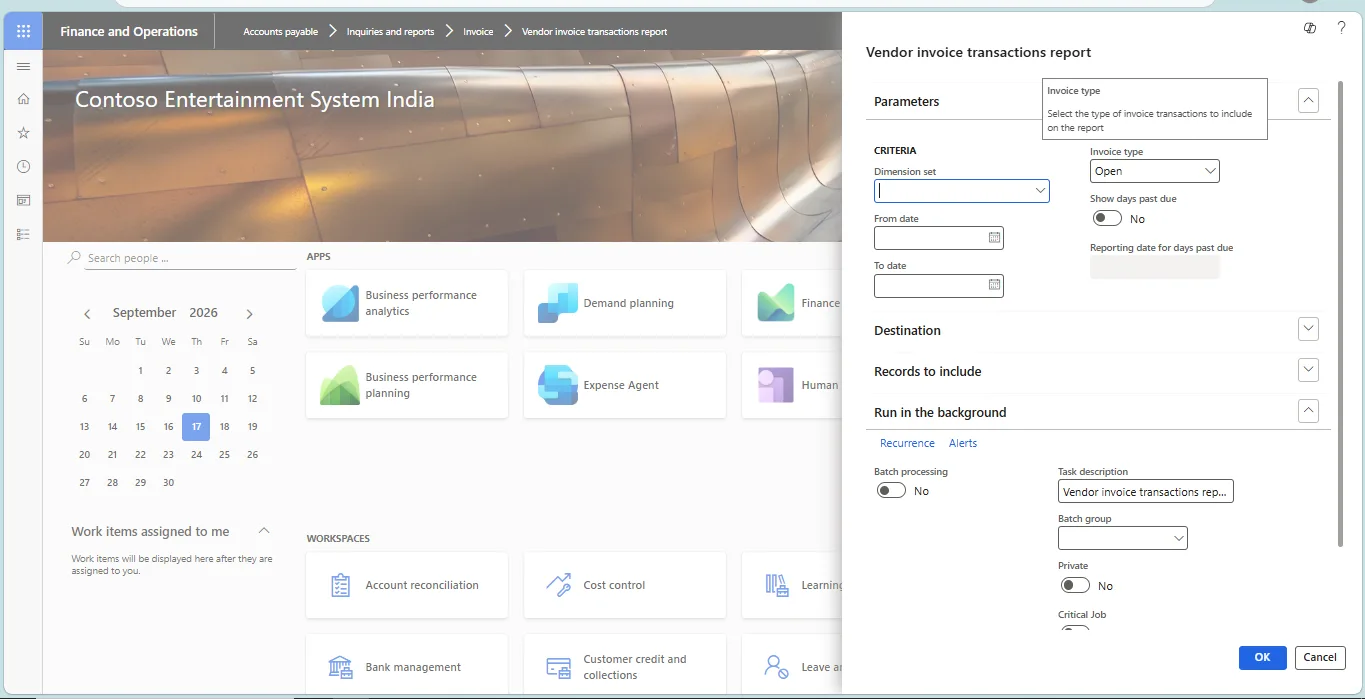
- Sample Report