Budgeting configurations - Reporting
The approved budget for a legal entity is maintained in a document that is known as a budget register entry. The lines in a budget register entry document are known as budget account entries, and contain financial dimension information, dates, and the amounts of the approved budget. The budget register entry document is integrated with basic financial reports and inquiry pages where ledger actual amounts are compared to budget amounts.
There are multiple methods for creating budget register entries:
- Manually enter the document information on the Budget register entries page.
- Use the Microsoft Excel template that you can open by clicking the Open in Excel button on the Budget register entries page.
- Use the Budget Account Entries data entity in Data management to import budget register entries. You should consider using this method and turning on the Set based processing parameter when you must import many budget account entries into the system.
- If the company uses Budget planning functionality to prepare budget data, you can use the Generate budget register entry periodic process.
The budget register entry is considered completed when the budget balances have been updated. On the Budget register entries page, click Update budget balances for a selected budget register entry or multiple entries. After you update the budget balances, the status of the budget register entry changes to Completed. Completed budget register entry can't be re-opened for edits. Therefore, if the budget data must be adjusted, you must create a new budget register entry instead of correcting data in the completed budget register entry.
Dimensions For Budgeting
GL Budgets are maintained by GL and by Dimensions in Dynamics 365 Finance and Operations. For activating the dimensions for budgeting, follow these steps:
- Budgeting > Setup > Basic Budgeting > Dimension for Budgeting
- Select the financial dimension and the arrow as shown below to define the dimensions by which budget will be defined.
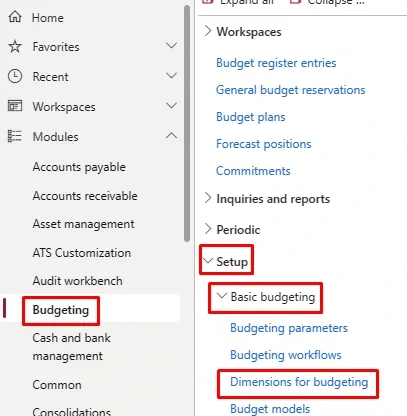
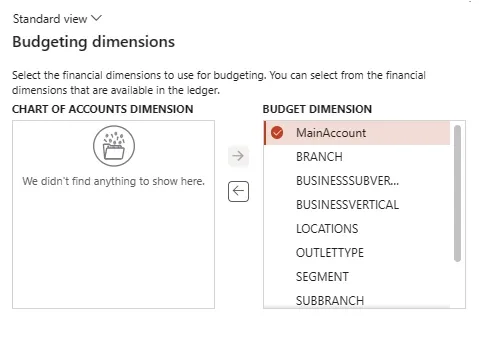
Here, if can select the budgeting dimensions if we want only the main accounts should be included for the budgeting, we have to select only main accounts or if we want some more dimension to be used, we can select this too.
Budget Model
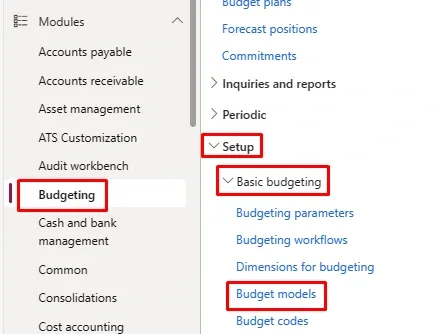
Budget Model helps to define the different methodology or versioning of the budget. For example, Zero Based Budget, Historical Budget, Rolling Forecast Budget, or Rolling Forest Q1/ Rolling Forest Q2/ Rolling Forest Q3/ Rolling Forest Q4. For creating the budget models, follow these steps:
- Budgeting > Setup > Base Budgeting> Budget Models
- Click New button, fill the Budget Model Code, Budget Model Name, and other details
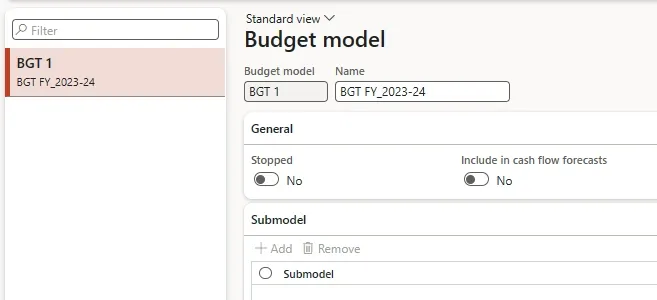
Field | Description |
Budget model | A unique identifier for the budget model. |
Name | The name of the budget model. |
Stopped | Select this check box to block the budget model and all associated ledger budgets for modification. When the budgets that are based on the budget model are approved, you can select this check box to prevent changes to the budgets. |
Cash flow forecasts | Select this check box to indicate that the ledger budgets that are created from the budget model are used in the cash flow forecast. |
Sub model | The identifier of a sub model that is attached to the selected budget model. |
Budget Codes
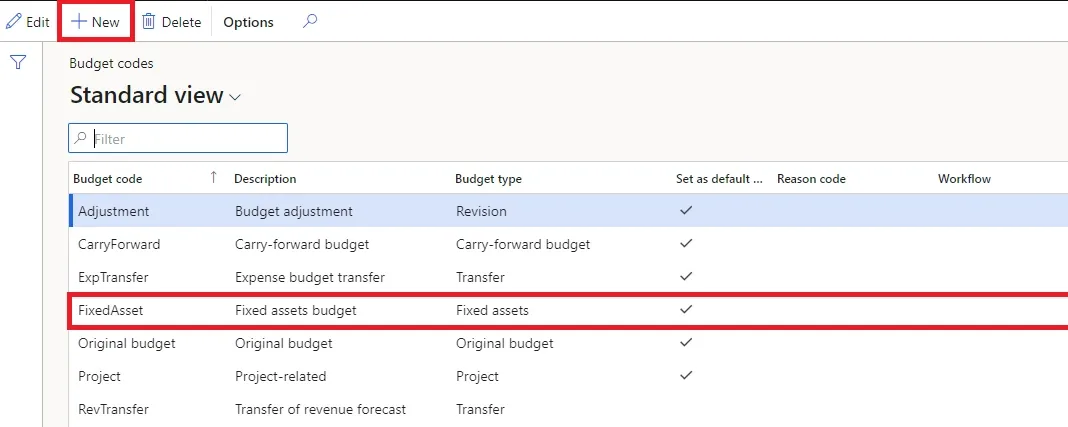
Budget code helps to define the nature and sub-versioning of budget like original budget, revised transfer, budget transfer, Fixed assets budget, Demand forecast budget etc. and helps to define the different workflow for different nature of budget. To create budget code, follow these steps:
- Click Budgeting > Setup > Basic budgeting > Budget codes.
Field | Description |
Budget code | Enter an identifier for the budget code. |
Description | Enter a description for the budget code. |
Budget | Select the budget type to use when this budget code is selected for a budget register entry. |
Original budget – Use when you are creating an initial budget amount for an account. Transfer – Use when you are moving a budget amount from one account to another. Revision – Use when you are changing the budget amount for an account. Use this budget type after you have posted an original budget register entry for the account. Encumbrance – Use when you are manually creating an encumbrance, which is an obligation to pay a vendor. Use this budget type to reserve budget funds so that actual expenses do not exceed the budgeted amount for an account. Note: This option is available only if the Budget control configuration key is selected. Pre-encumbrance – Use when you are manually creating a pre-encumbrance, which is an obligation to pay for a purchase that is likely to occur in the future. Use this budget type to reserve budget funds so that actual expenses do not exceed the budgeted amount for an account. Note: This option is available only if the Budget control configuration key is selected. Carry-forward budget – Use when you are moving budget amounts from one fiscal year to the next. Project – Use when you are transferring project budget forecasts to the general ledger. Fixed assets – Use when you are transferring fixed asset budget forecasts to the general ledger. Demand forecast – Use when you are transferring demand budget forecasts to the general ledger. Supply forecast – Use when you are transferring sales budget forecasts to the general ledger. Preliminary budget – Use when you are creating a preliminary budget for an account when the actual budget is being reviewed and approved. Note: This control is available only if the Public Sector configuration key is selected. Apportionments – Use to show the difference between budgeted amounts and amounts that are approved for spending. For example, a public sector organization might have an original budget of 10,000.00 for an account and use this budget type to approve 5000.00 for spending. Only the amount that is apportioned can be spent. Note: This control is available only if the Public Sector configuration key is selected. | |
Set as default code | Select this check box to indicate that this code will be the default budget code when budget register entries of the selected budget type are created automatically. The default budget code is not used if you manually enter a budget register entry in the Budget register entry form. |
Reason code | Select a ledger reason code for the budget code. |
Workflow | Select a workflow to associate with the budget code. |
Budget Cycle
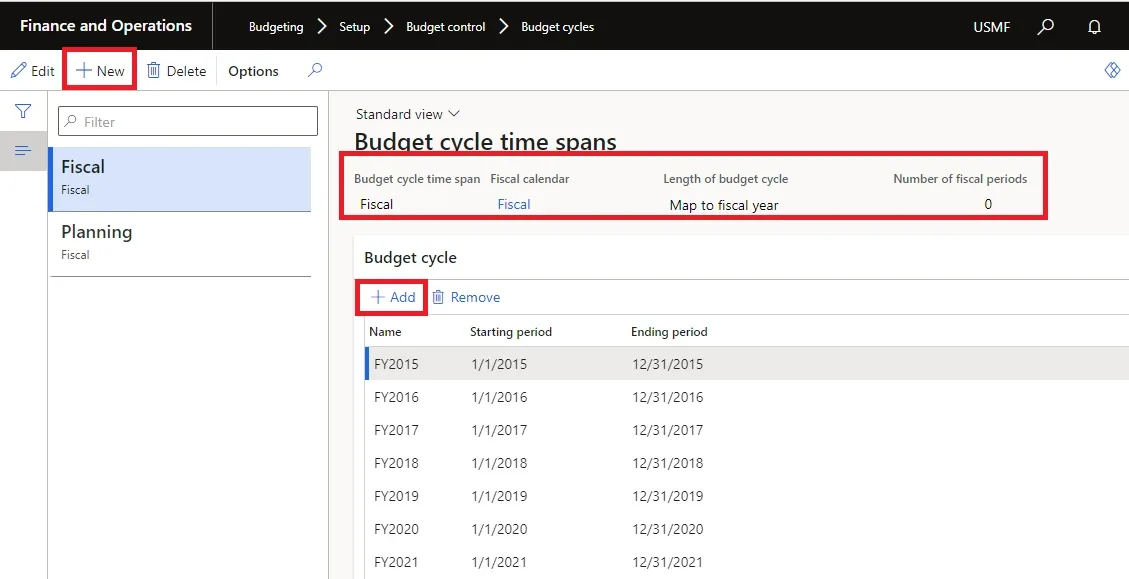
Use the Budget cycle time spans form to specify the fiscal year or the number of periods for the budget cycles that are associated with the budget cycle time span. Budget cycle time spans are associated with fiscal calendars to determine the length of each budget cycle. To create budget cycle, follow these steps:
- Click Budgeting > Setup > Budget control > Budget cycles.
- Click New and enter a name for the budget cycle time span.
- Select a fiscal calendar to associate with the budget cycle time span.
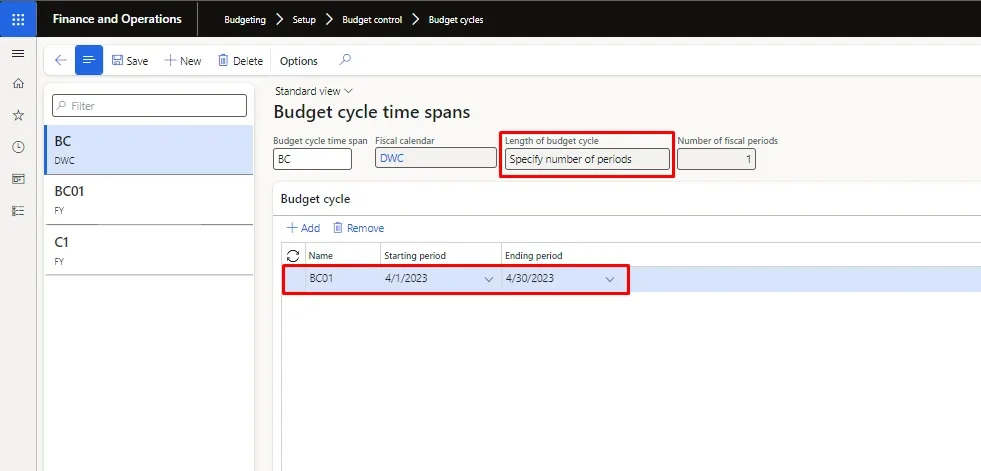
- In the Length of budget cycle field, select Specify number of periods or Map to fiscal year.
- If you select Specify number of periods, enter the number of accounting periods for the budget cycle. If you select Map to fiscal year, the budget cycle time span uses the fiscal year that is defined by the starting and ending periods for the budget cycle.
- Click Add. Enter the name of the first period in the budget cycle time span and enter the date when that period starts. The ending date for the budget cycle is determined automatically based on the number of fiscal periods in the budget cycle time span.
Fields | Description |
Budget cycle time span | Enter a name for the budget cycle time span. |
Fiscal calendar | Select the fiscal calendar for the budget cycle time span. |
Length of budget cycle
| Select how to define the budget cycle length: Specify number of periods – Select this option to specify a budget cycle for a specific number of periods, such as 6, 24, or 36 periods. After you select this option, enter the number of periods. Map to fiscal year – Select this option to use the fiscal year that is defined by the starting and ending periods for the budget cycle. |
Number of fiscal periods | If you selected Specify number of periods in the Length of budget cycle field, enter the number of periods. |
Name | Enter a name for each budget cycle that uses the budget cycle time span. For example, if you mapped the length of the budget cycle to the fiscal year, you would create a budget cycle for each fiscal year. |
Starting period | Select the starting period for the budget cycle. |
Ending period | Select the ending period for the budget cycle. |