Configuring Cost Accounting Module
In Dynamics 365 Finance, the Cost accounting module gathers data from several sources — the general ledger, sub-ledgers, budgets and statistical inputs — and brings it into a single ledger for internal analysis. Management can then review, group and evaluate that cost data to support decisions on pricing, budgeting and cost control.
This document covers the initial setup of Cost accounting, the Cost control workspace, and the preparation of cost accounting reports through the Get started wizard.
Cost accounting holds its own copy of the source data, so anything changed inside the module leaves the originating records untouched. As a result, importing main accounts from the General ledger as cost elements duplicates data across the two modules. That duplication is deliberate: the General ledger serves statutory and external reporting, while Cost accounting serves internal, management reporting.
Setup, periodic data imports, allocation rules and review of the resulting figures make up the end-to-end flow. The scope here is limited to data sourced from Finance.
Setup is best started from the Get started wizard, reached through the Cost accounting module under the Setup group. The wizard prepares the cost accounting environment for first use.
Data is imported into the cost accounting ledger each period so that actuals can be compared against budget. Every import is retained in the ledger as history. Imports are run by the cost accounting administrator from the Cost accounting ledger administration workspace.
Values are reported against cost elements, and in Finance the only supported cost element is the main account. Cost element dimensions govern how data is presented and how policies are applied. Several cost element dimensions can be created, each restricted to a defined range of main accounts. Hierarchies of cost element values are maintained under Dimension hierarchies, with no limit on the number of hierarchies.
Financial dimensions become cost objects in cost accounting and drive both policy application and data presentation. They are configured in the Cost accounting module under the Dimensions group: cost objects on the Cost object dimensions page, and their value hierarchies on the Dimension hierarchies page.
Rules can be defined to adjust data after it has been posted in the ledger; these are maintained in the Cost accounting module under the Policies group. Allocations can therefore be run inside Cost accounting rather than in the General ledger, since the module maintains its own ledger for reporting.
Visibility can be restricted so that each user sees only the data relevant to them, which they review in the Cost control workspace. Data can be exported to Microsoft Excel for detailed analysis, or analysed in Microsoft Power BI using the entity store.
Two data types feed the module — general ledger data and budget data — so the General ledger and Budgeting modules are both in scope.
Financial data carries dimensions sourced from elsewhere in Dynamics 365. Customers, vendors, projects, products, item groups, fixed assets and production orders can all serve as financial dimensions.
The module gives visibility into the cost efficiency and capacity that underpin managerial decision-making. Cost controllers and cost centre managers use it to classify, allocate, control and analyse the cost of current operations, and to plan for changes ahead.
A flexible data integration framework allows costs to be collected from a wide range of sources. Dedicated workspaces, Excel integration and the Cost accounting analysis content pack for Power BI deliver management reporting at every level of the organization.
General ledger and budget entries are brought into the module through data connectors, either the preconfigured connectors or connectors built for the purpose.
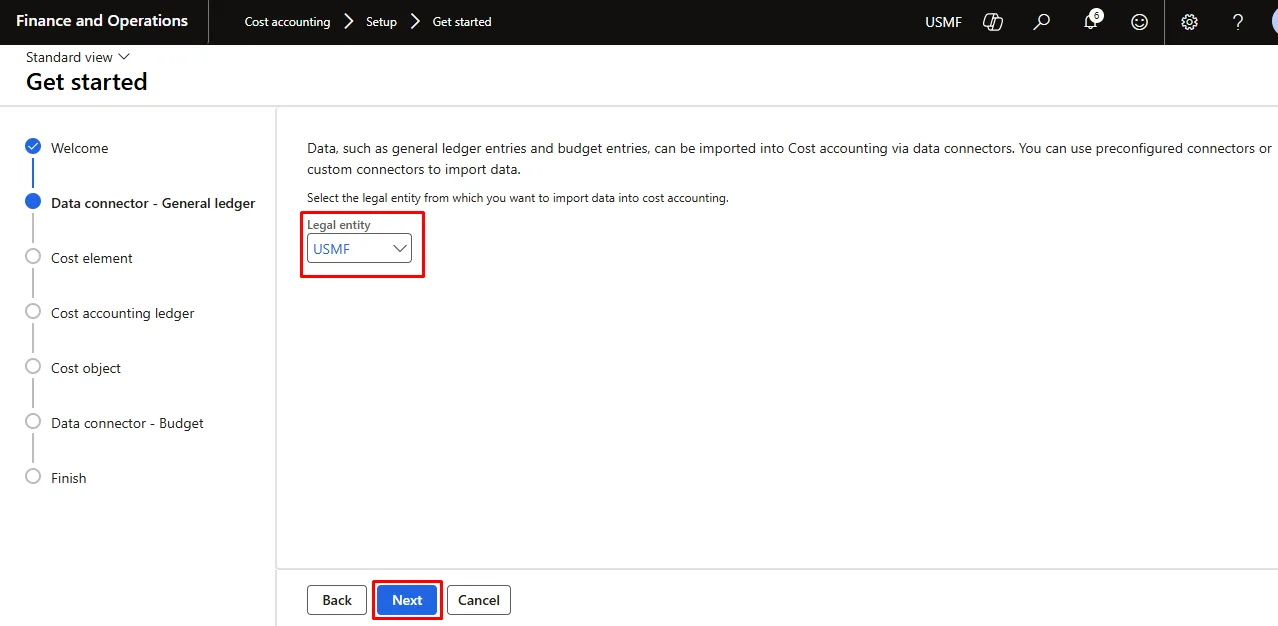
The wizard, at Cost accounting > Setup > Get started, asks for the legal entity whose data is to be imported. It handles one legal entity per run, so it is run again for each additional entity.
Opening the Cost accounting ledger administration workspace before setup is complete displays the page shown below, from which the wizard can be launched.
The first screen describes cost accounting processes within Finance.
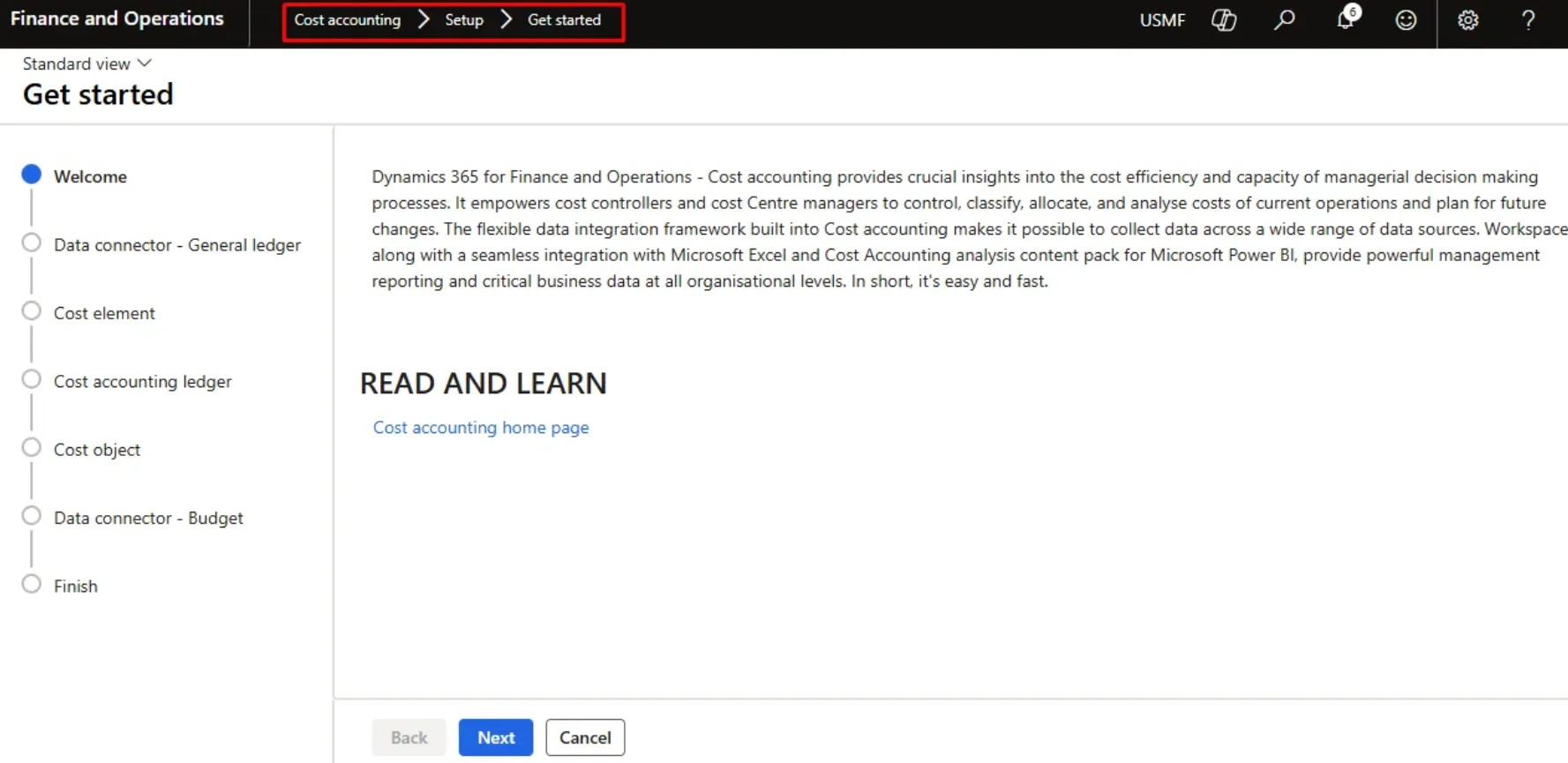
Select the Next button to begin the setup. Select a legal entity from the dropdown list and then select Next.
Cost accounting can be set up for a legal entity from any other company in the organization, provided the required security roles have been assigned.
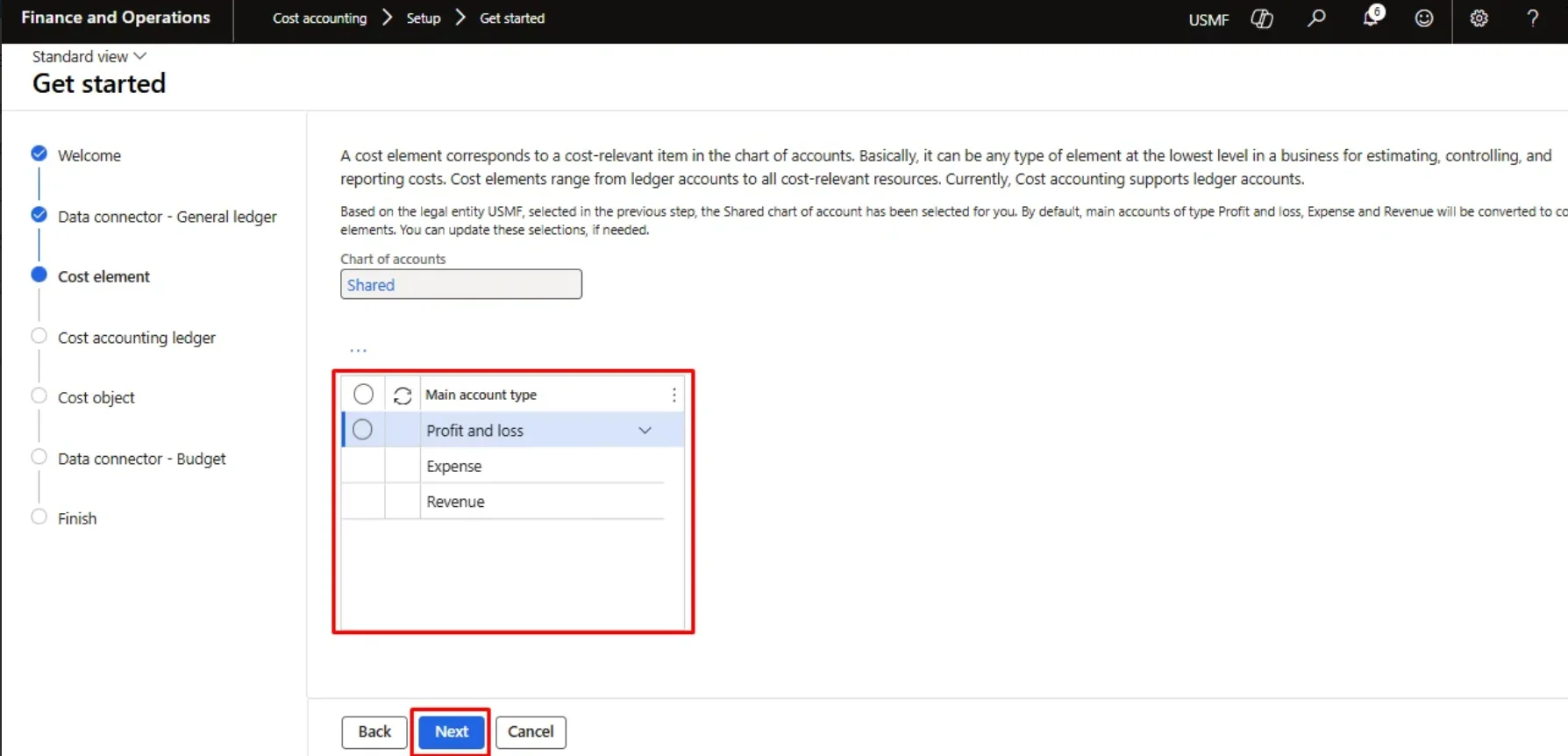
A cost element is a cost-relevant line in the chart of accounts. It sits at the lowest level at which costs are estimated, controlled and reported, and conceptually covers everything from ledger accounts to cost-relevant resources. Finance supports ledger accounts.
The chart of accounts defaults from the legal entity selected. Main accounts of type Profit and loss, Expense and Revenue are converted to cost elements by default. These selections can be amended, and further account types added with New.
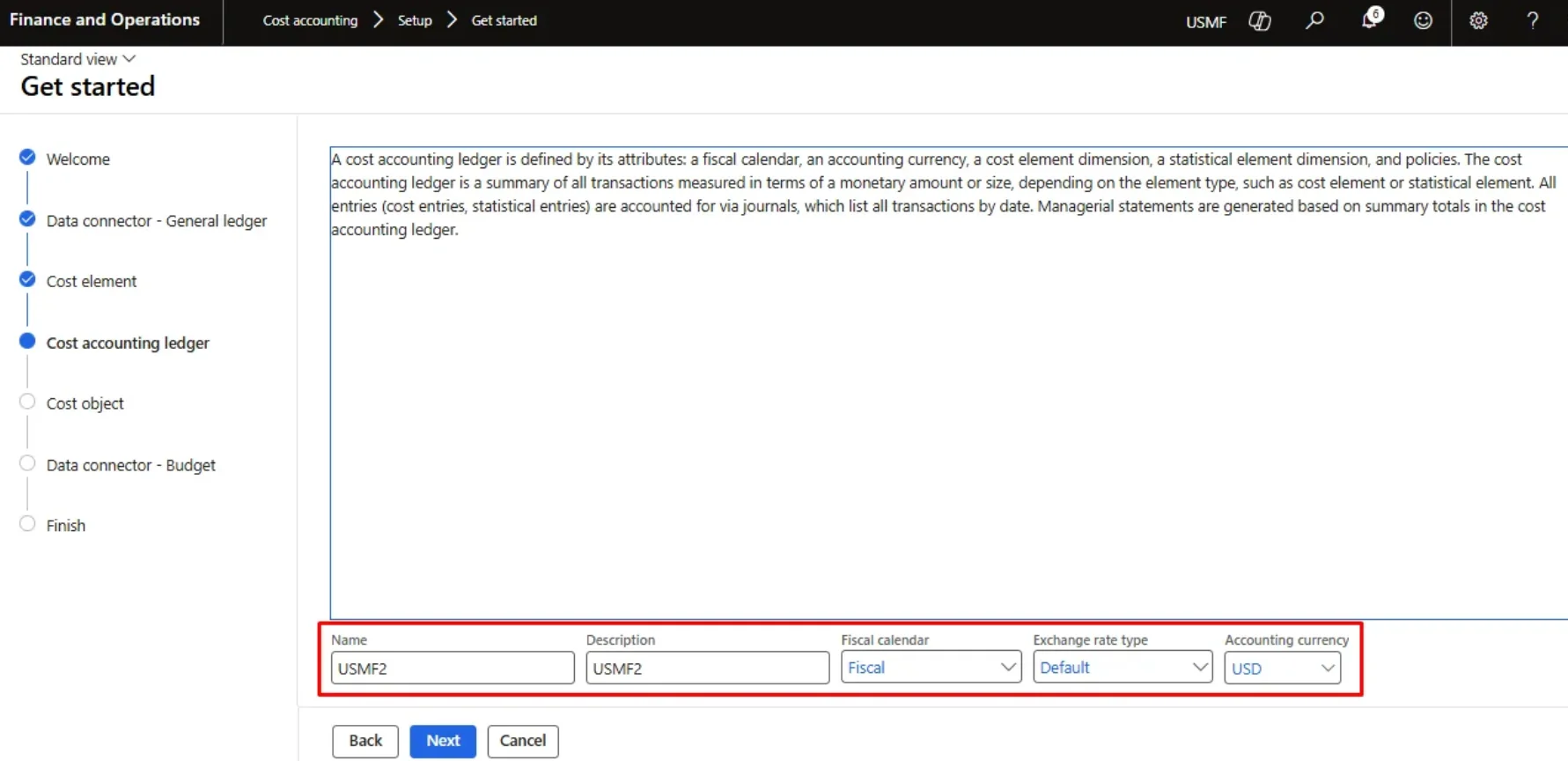
A cost accounting ledger is defined by its attributes:
- Fiscal calendar
- Accounting currency
- Cost element dimension
- Statistical element dimension
- Policies
The ledger summarises every transaction, expressed either as a monetary amount or as a magnitude, depending on whether the entry relates to a cost element or a statistical element.
Cost and statistical entries are recorded through journals that list transactions by date. Managerial statements are produced from the summary totals held in the ledger.
Fiscal calendar, exchange rate type and accounting currency default from the selected legal entity but can each be overridden. Data from individual legal entities is then converted from the entity currency using the currency and exchange rate type specified here.
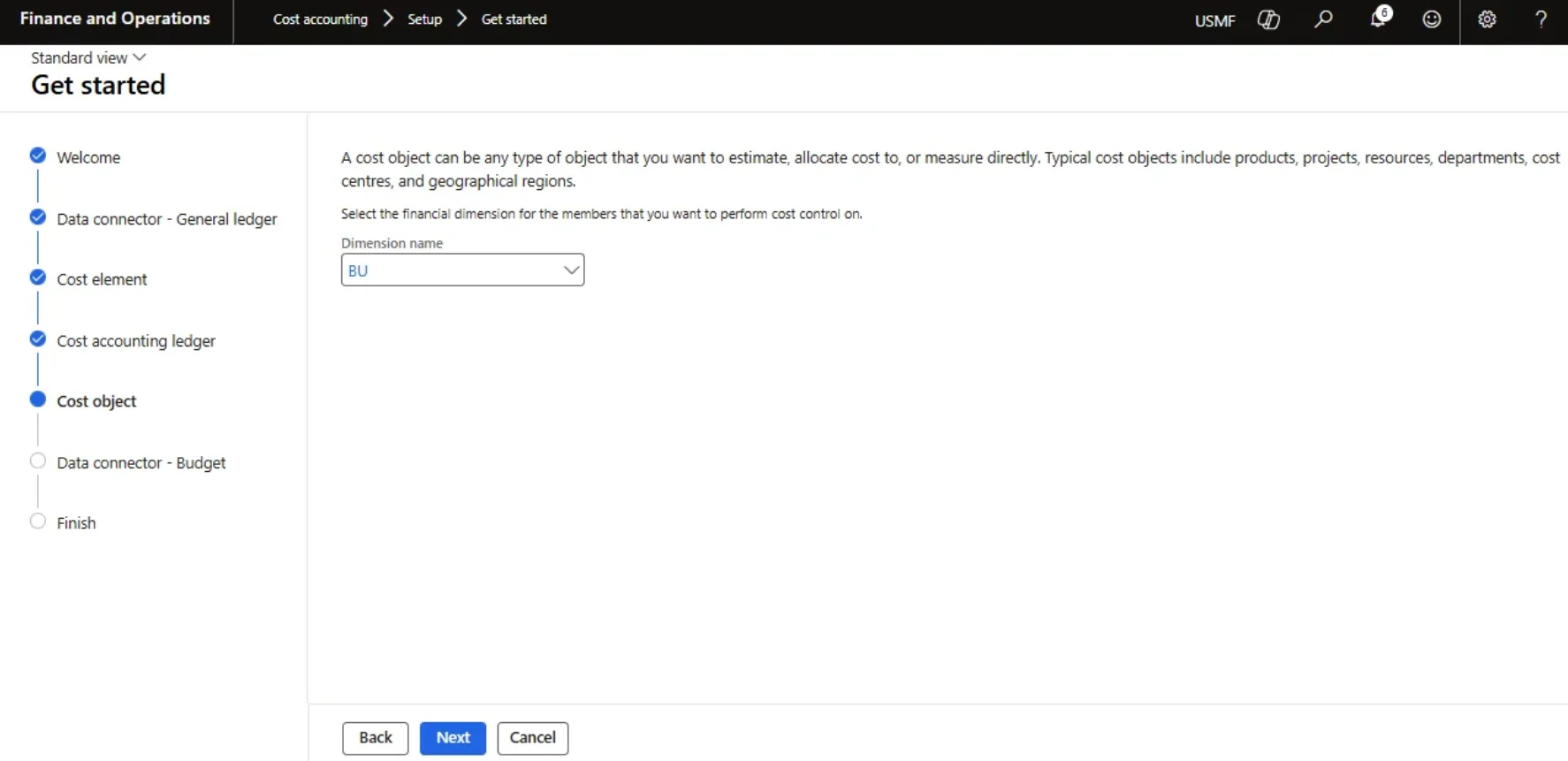
Select the financial dimensions to be analysed in the ledger. Restrict the selection to account structure elements actually used by the ledgers of the legal entities being imported.
A cost object is anything to be estimated, allocated to, or measured directly — products, projects, resources, departments, cost centres and geographic regions are typical examples. Select the financial dimension whose members are to be cost-controlled.
The wizard allows only one dimension to be selected; any further dimensions are created outside the wizard.
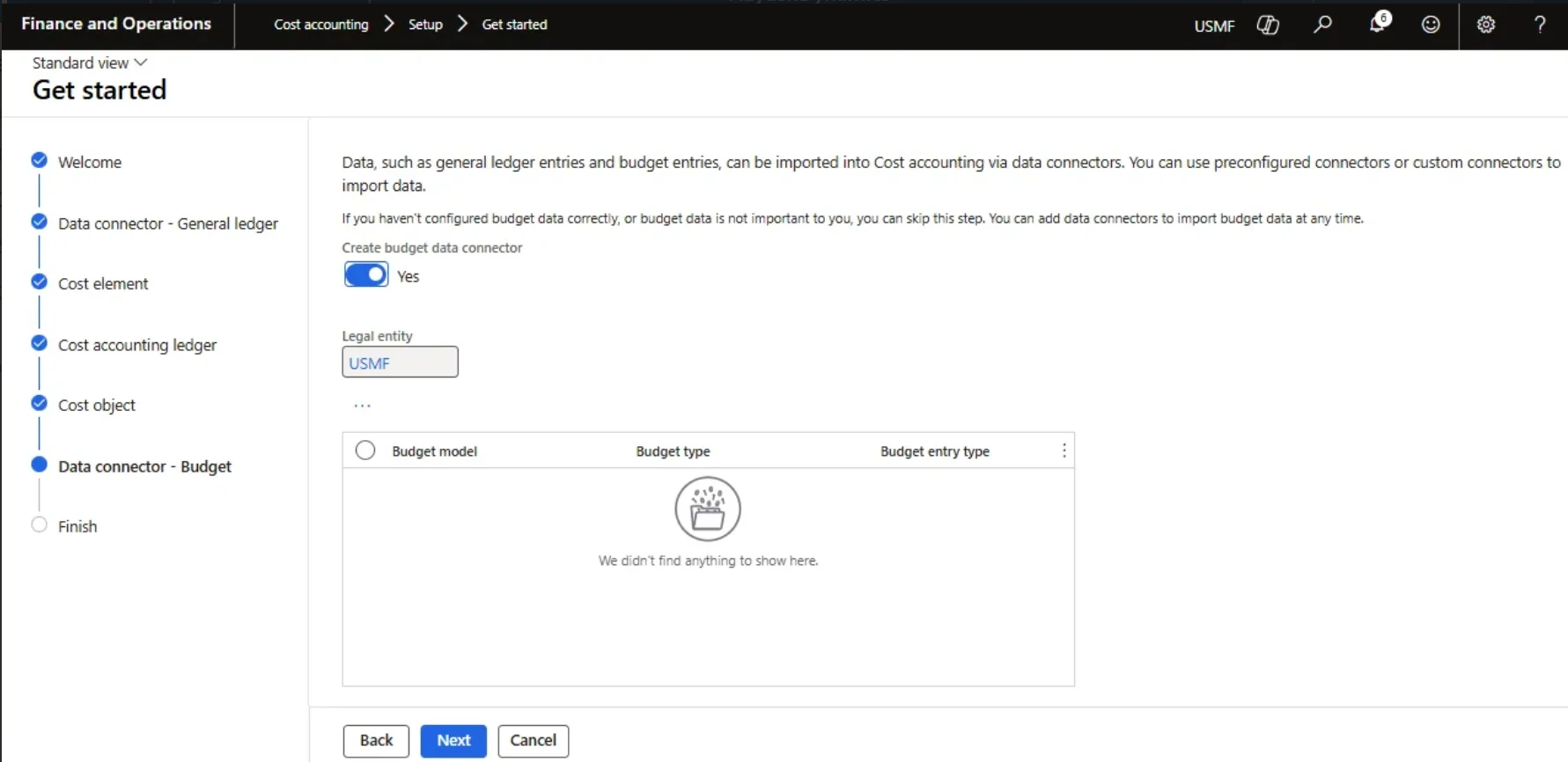
Where budget data has not been set up correctly, or is not required, set Create budget data connector to No. Budget connectors can be added later at any time.
To include budgets, leave Create budget data connector set to Yes and use New to add the budget models. Expense or Revenue data can be included against a chosen budget type, and original and revised budgets can both be made available for analysis. Only posted budget data is imported. Budget type and Budget entry type must be specified for each budget model.
The same budget model can be added more than once, as long as the combination of Budget type and Budget entry type differs.
Cost Element
Cost element dimensions are a core pillar of the module and determine how costs are categorised and traced.
A cost element is a cost-relevant line in the chart of accounts, held at the lowest level to which costs flow. The concept extends from ledger accounts through to all cost-relevant resources, though ledger accounts are what the module supports today.
Create A Cost Element
To create a cost element, follow these steps.
- Go to Cost accounting module > Dimensions > Cost Element dimensions.
- On the cost element dimension page, enter a Name and a Description, and select the source of the data.
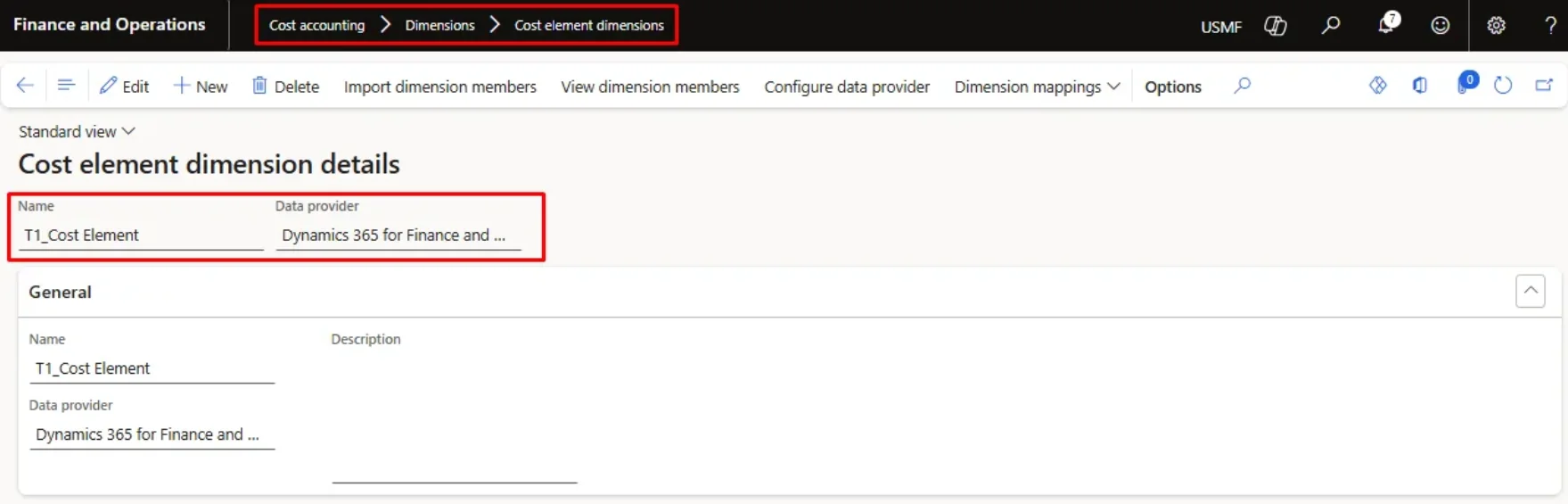
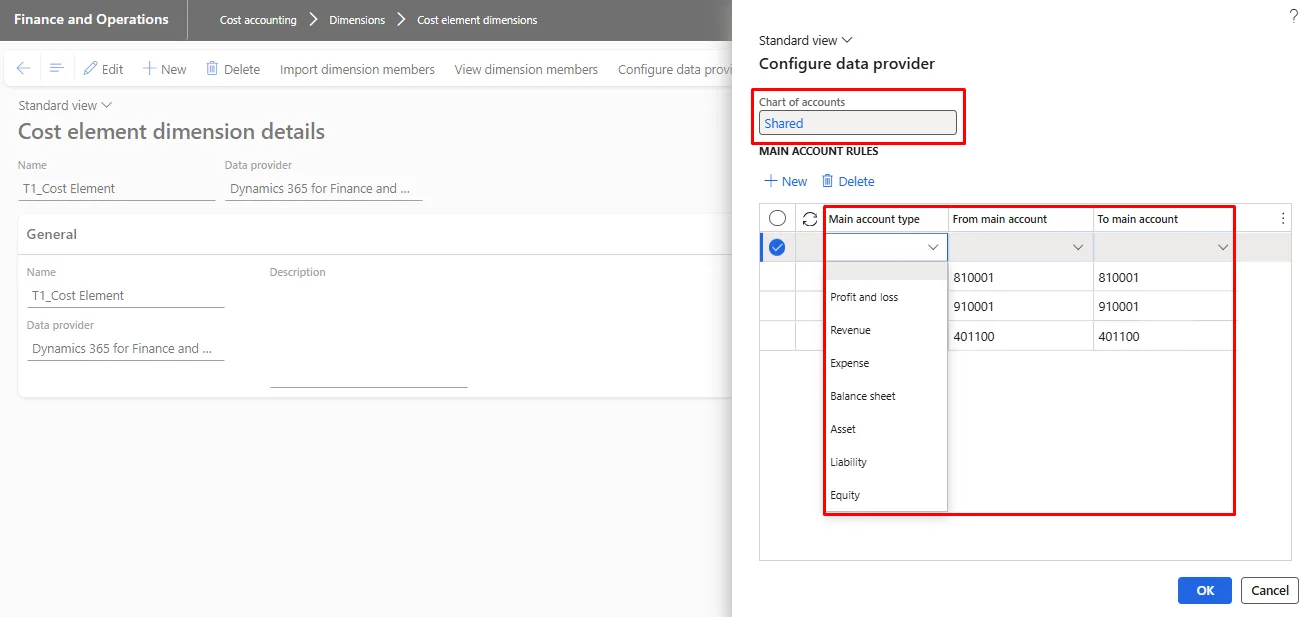
- Set up the data provided by selecting the Configure data provider menu item.
- Specify the COA and main accounts to which the cost element is to be mapped.
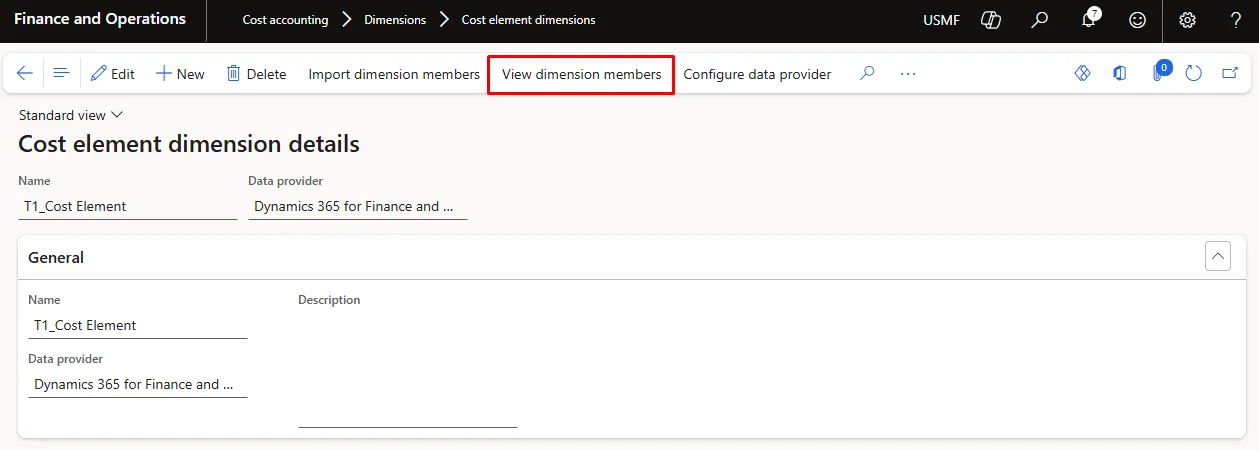
- Import the cost element members (main accounts) using the Import dimension members menu item. Unless the dimension carries a large number of values, this can be run without a batch job.
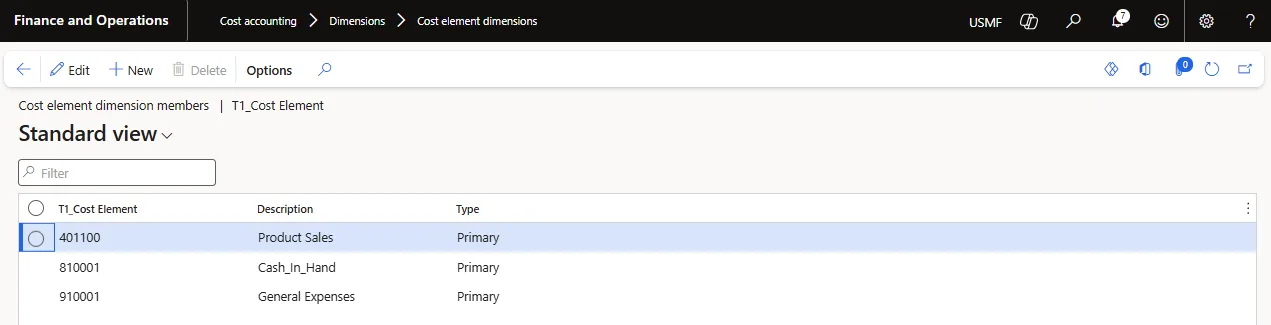
- Once imported, the members can be reviewed under View dimension members. The list is read-only.
Cost Objects
Cost objects are the financial dimensions analysed inside cost accounting. Where several legal entities are consolidated, dimension mappings allow values used in different entities to be brought together under a single value, giving one consistent view. Hierarchies can also be built over cost objects, both for reporting and to secure individual nodes.
A cost object collects costs and is, in effect, a financial dimension; its member list is imported from the values of that dimension. What sets cost objects apart is that values from one cost object can be linked or mapped to another — useful where values need to be combined for consolidation. Cost objects are referenced in policies and in dimension hierarchies.
Create a cost object
To create a cost object, follow these steps.
- Go to Cost accounting module > Dimensions > Cost object dimensions.
- On the Cost object page, enter a Name and a Description, and select the source of the data.
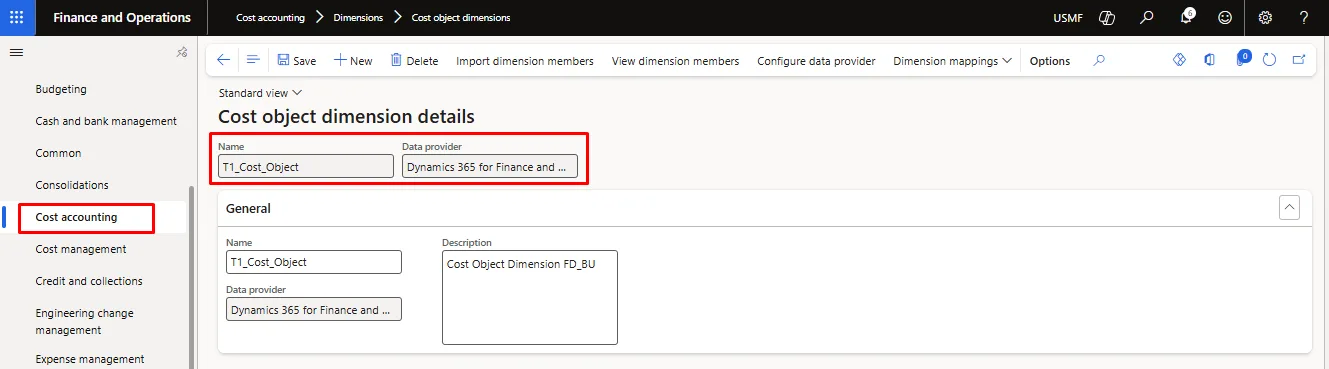
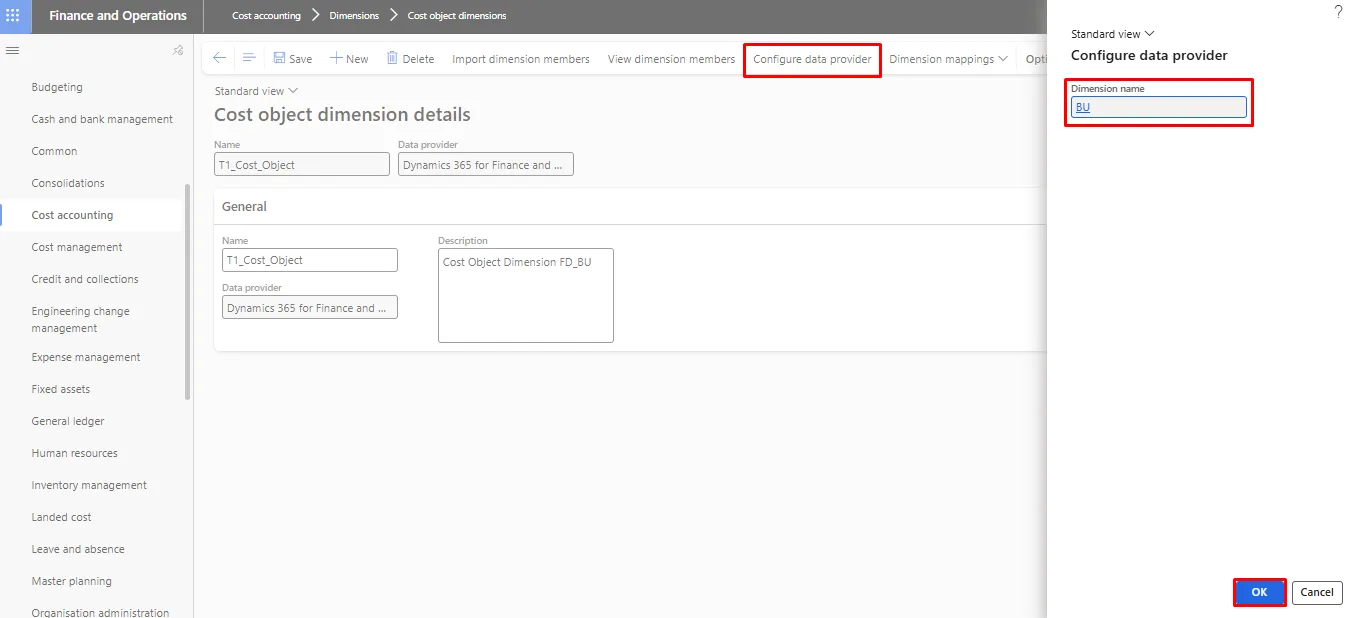
- Set up the data provided by selecting the Configure data provider menu item.
- Specify the financial dimension the cost object maps to. The same financial dimension can back more than one cost object.
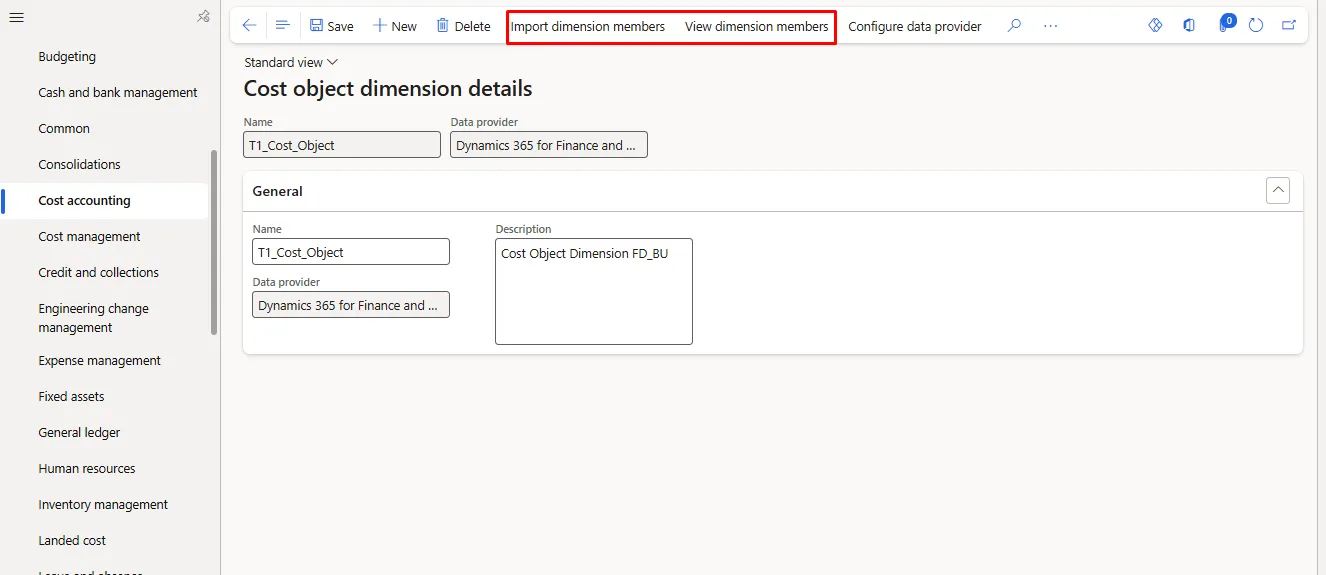
- Import the dimension values using the Import dimension members menu item. Unless the dimension carries a large number of values, this can be run without a batch job.
- Once imported, the members can be reviewed under View dimension members. The list is read-only.
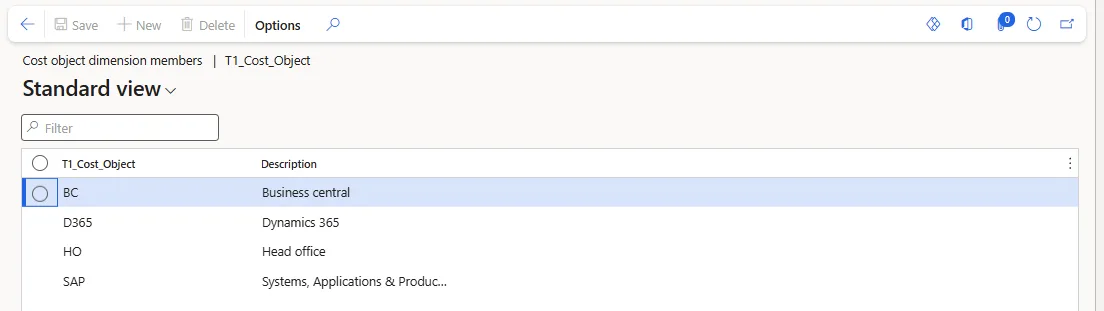
- Values for imported dimension members can be loaded through the Data Management Framework using the Imported cost object dimension members entity. The same entity is used to define statistical elements and to group cost objects so that reports carry less detail.
Statistical Dimension
Statistical dimensions and their members record and control non-monetary entries in Cost accounting. They serve two purposes:
- As an allocation base in policies such as cost distribution or cost allocation
- For reporting of non-monetary consumption
Each statistical dimension has a unique name and its own set of members, and is assigned to a Cost accounting ledger ID. That assignment ties its members to the ledger, so every statistical entry is created in the context of that ledger.
Note: The same statistical dimension can be assigned to more than one cost accounting ledger.
Create A Statistical Dimension
To create a statistical dimension, follow these steps.
- Go to Cost accounting module > Dimensions > Statistical dimensions.
- On the statistical dimension page, enter a Name and a Description, and select the source of the data.
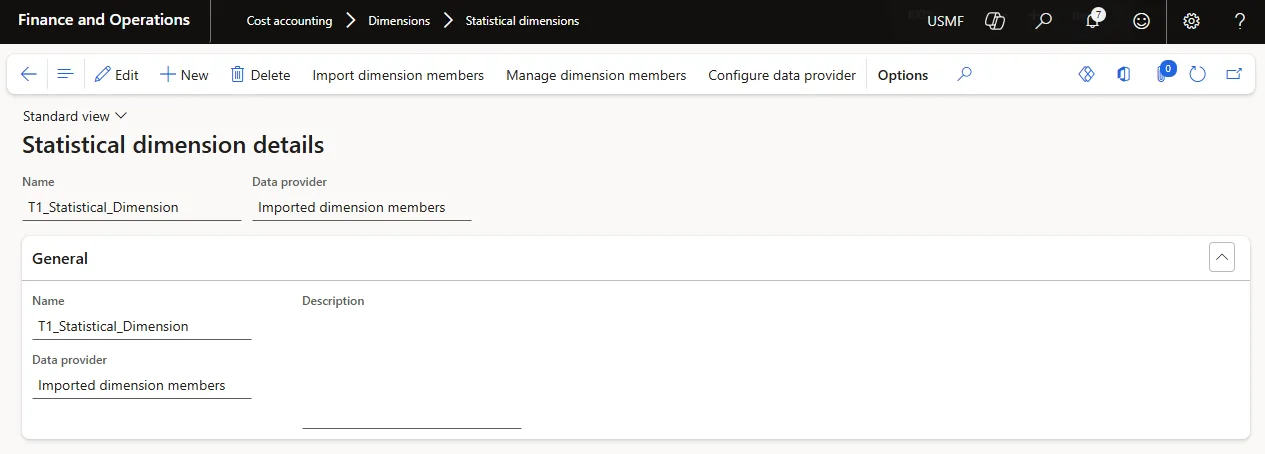
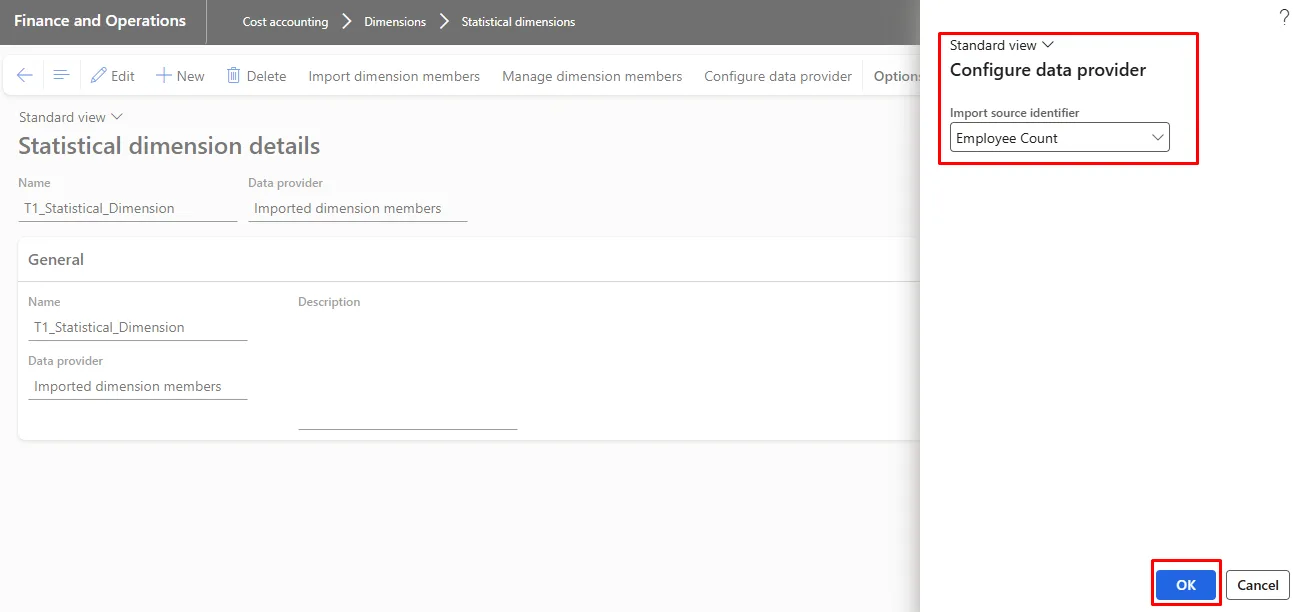
- Set up the data provided by selecting the Configure data provider menu item.
- Specify the import source identifier statistical element is to be mapped.
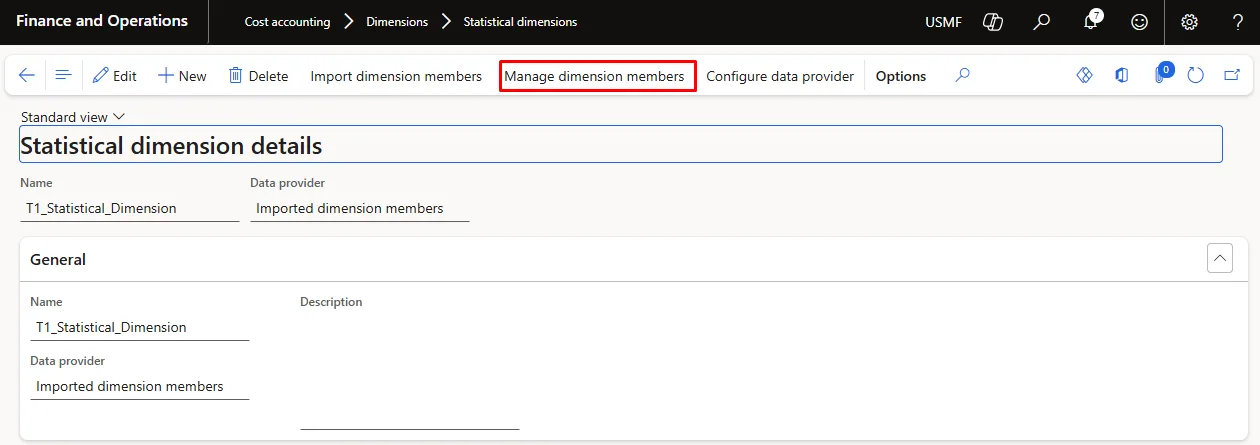
- Import the statistical element members using the Import dimension members menu item. Unless the dimension carries a large number of values, this can be run without a batch job.
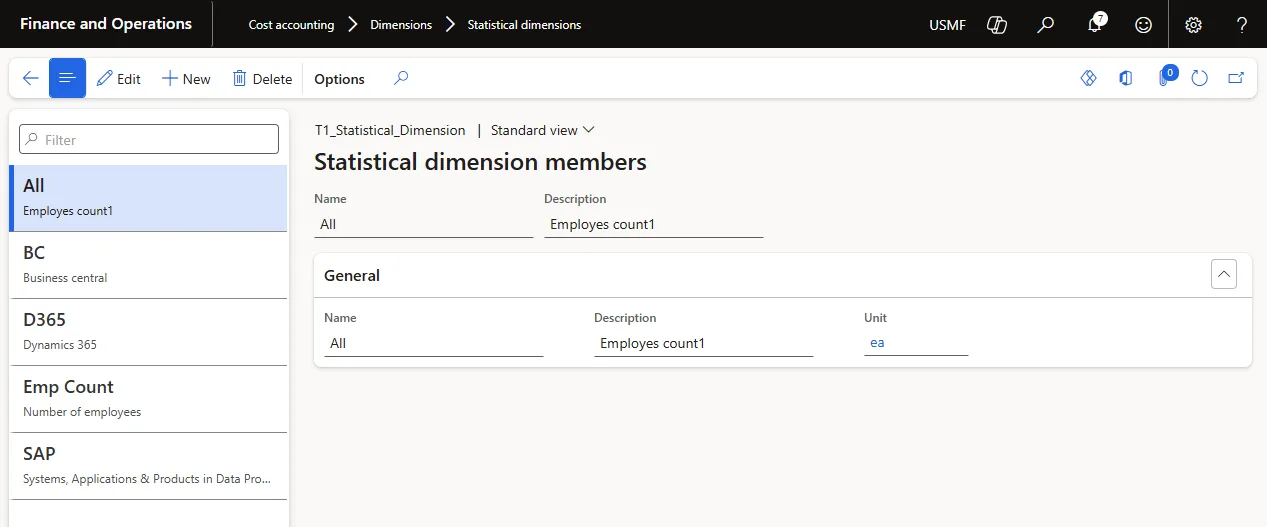
- Once imported, the members can be reviewed under View dimension members. The list is read-only.
Dimension hierarchies
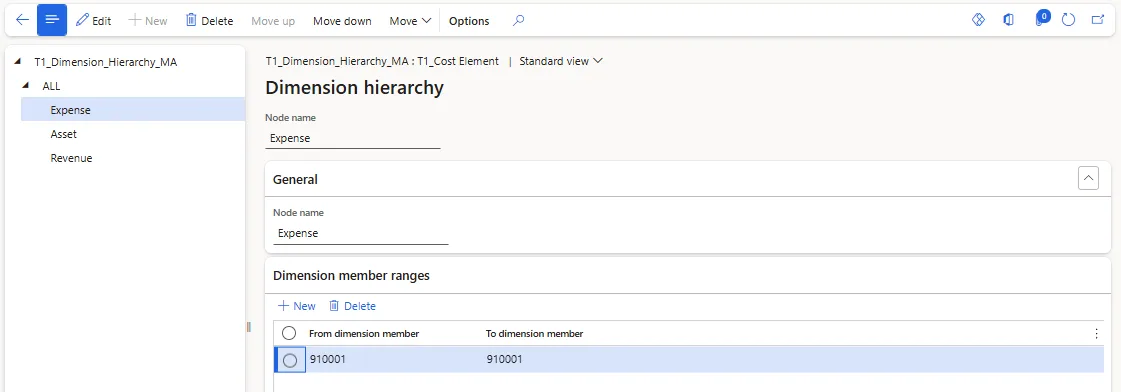
A hierarchy is a tree in which each leaf node holds a specific dimension value or range of values. The screenshot below shows a simple P&L hierarchy built over main accounts (cost elements); the same structure can be built for any cost object.
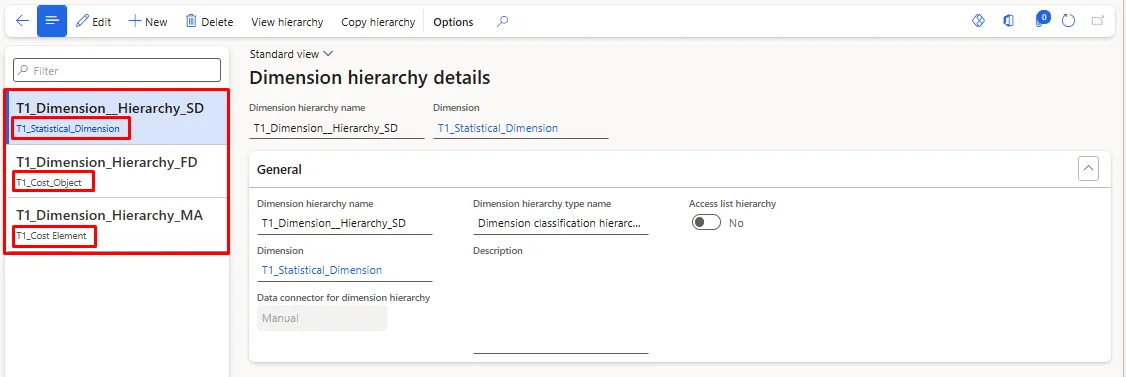
Hierarchies can be built over cost elements, statistical elements and cost objects, and each is treated as a dimension for analysis purposes.
Secure A Hierarchy
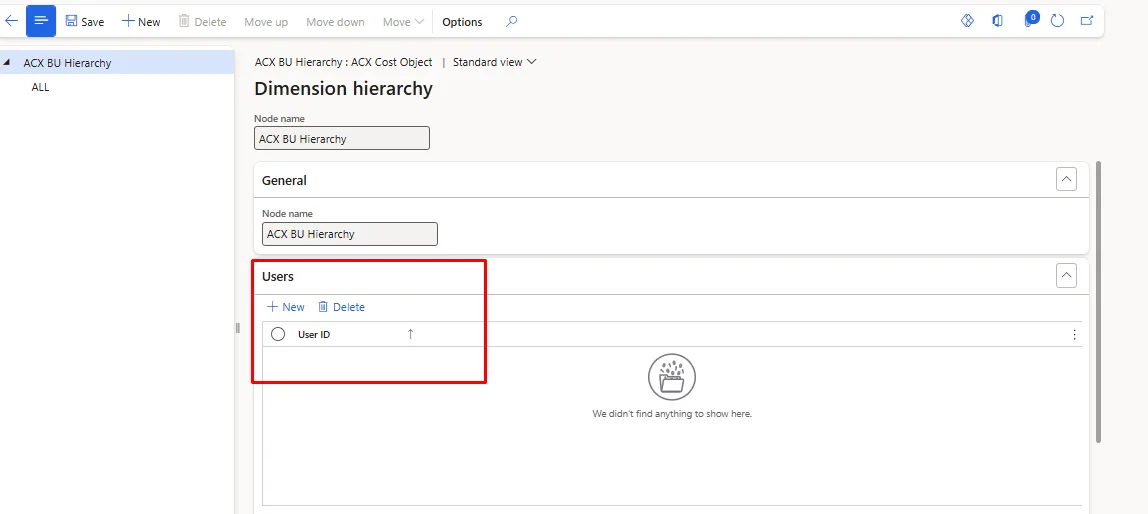
Access to particular nodes can be restricted by adding users to the User FastTab of the hierarchy. The tab appears only when Access list hierarchy is set to Yes.
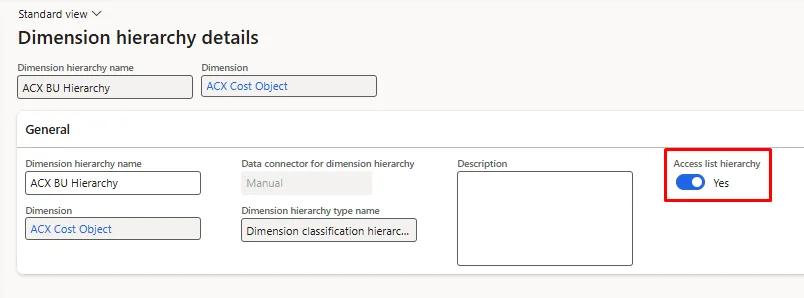
Only individual users can be added here — user groups are not supported. Access is then limited to the specified node and everything below it.
Cost Element Hierarchy
Cost Object Hierarchy
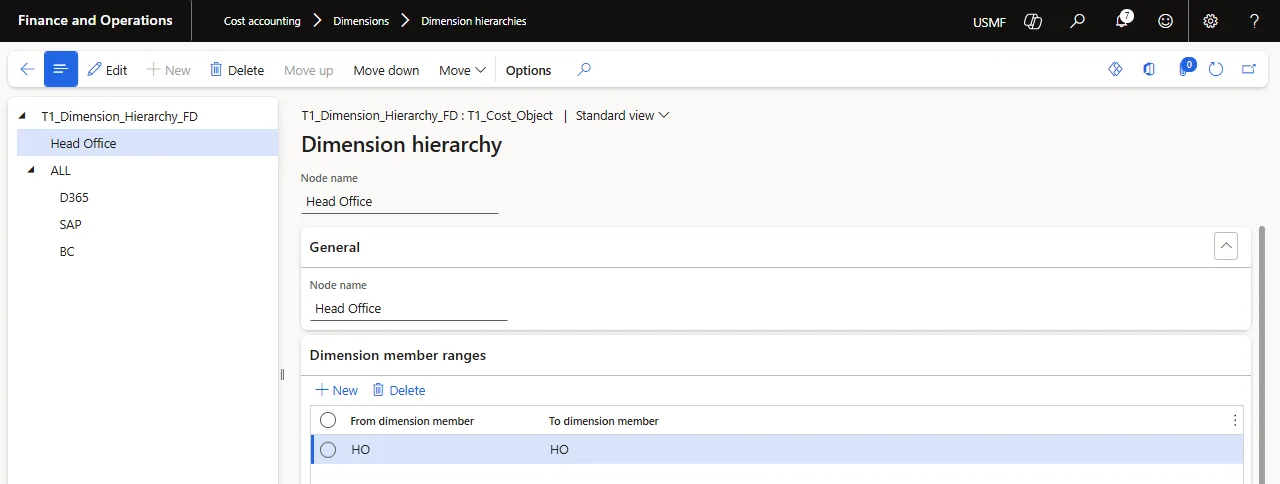
Two types of dimension hierarchies are:
- Classification hierarchies - used for policies and for reporting. Every dimension value must be placed within the hierarchy.
- Categorization hierarchies - a dimension value may appear more than once, or not at all. These are used for reporting only.
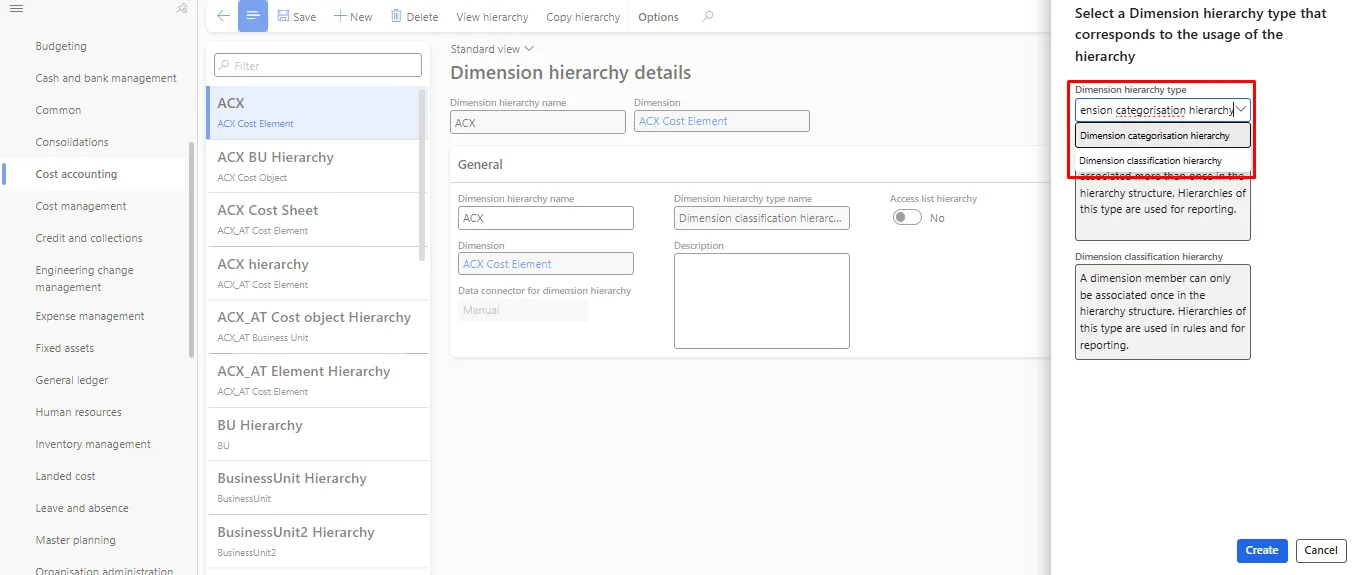
Hierarchies are created in the Cost accounting module under the Dimensions group, on the Dimension hierarchies page. Select New and choose the hierarchy type.
Note: Only the Classification type is available for cost objects.
Statistical Dimension Hierarchy
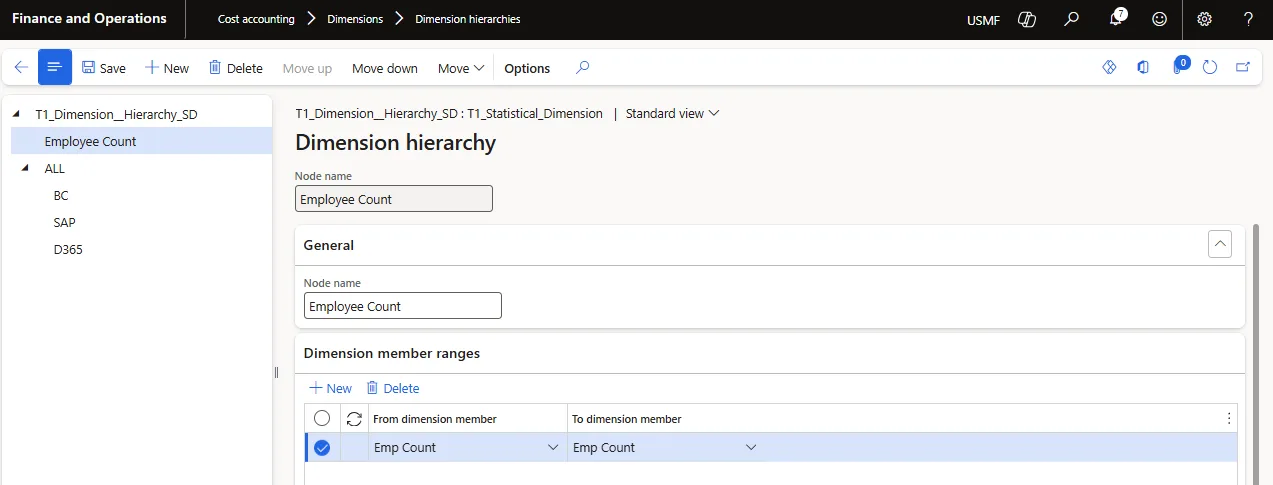
Fiscal Calendar
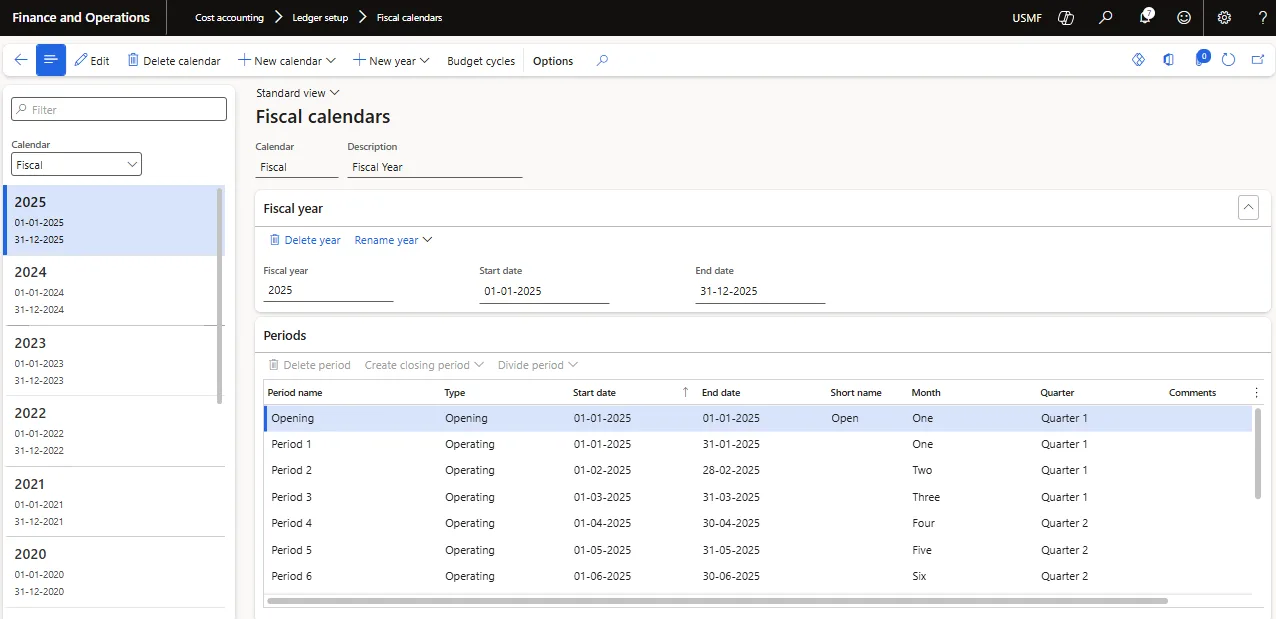
A fiscal calendar sets the framework for an organization's financial activity. Each calendar holds one or more fiscal years, and each year is divided into periods. A calendar can follow the January to December calendar year or any other dates — a July-to-June year, for example.
There is no limit on the number of fiscal calendars, or on the number of fiscal years within a calendar. Calendars sit outside any single legal entity and can be shared across entities. An organization with eight legal entities might therefore run one shared calendar for five of them and separate calendars for the remaining three.
Currency
Currency is the unit in which monetary value is measured and, in a business context, the basis on which financial performance is judged. Cash movement needs continuous monitoring if the organization is to remain financially sound.
Identifying and configuring the currencies permitted for the legal entity is the first step in setting up financial management in Finance.
Finance works with two currency concepts: accounting currency and reporting currency.
- Accounting currency - the unit of measure in which the converted value of economic transactions is recorded in ledger accounts. Also referred to as the company or ledger currency.
- Reporting currency - a secondary accounting currency holding the converted value of transactions, normally used for consolidation or for reporting to a parent organization.
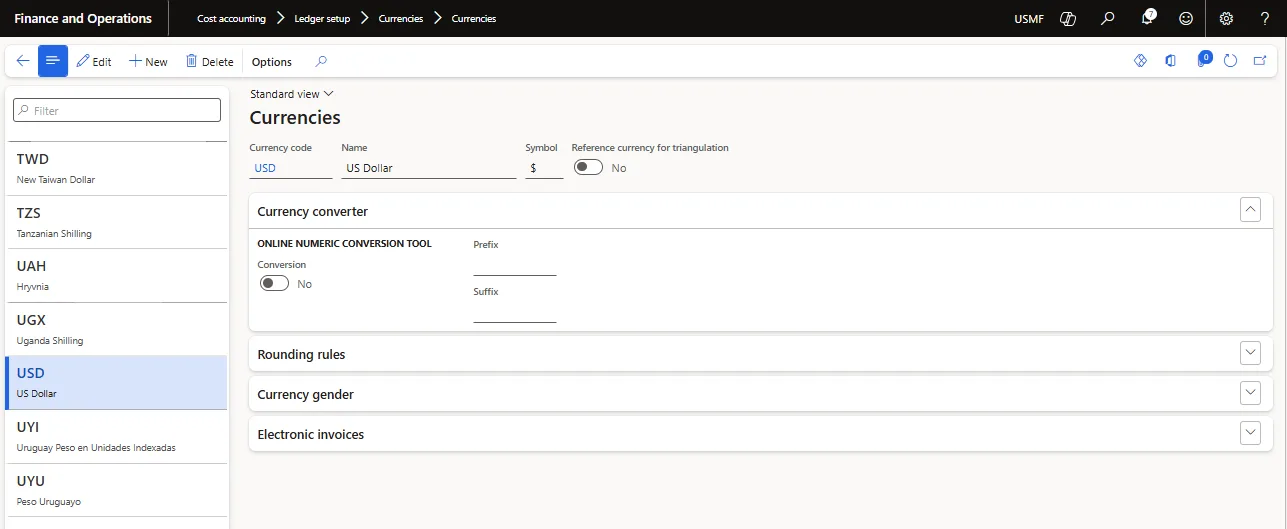
The cost accounting ledger is the overall reporting unit, defined by a cost element dimension, a statistical dimension, a fiscal calendar and a currency. It is independent of legal entities, and the data of a single legal entity can feed more than one cost accounting ledger.
- Go to Cost Accounting> Ledger setup > Cost accounting ledgers.
- Click New.
- In the Name field, type a value.
- In the Cost element dimension field, enter or select a value.
- In the Fiscal calendar field, enter or select a value.
- In the Accounting currency field, enter or select a value.
- In the Exchange rate type field, enter or select a value.
- In the Statistical dimension field, enter or select a value.
- Click Save.
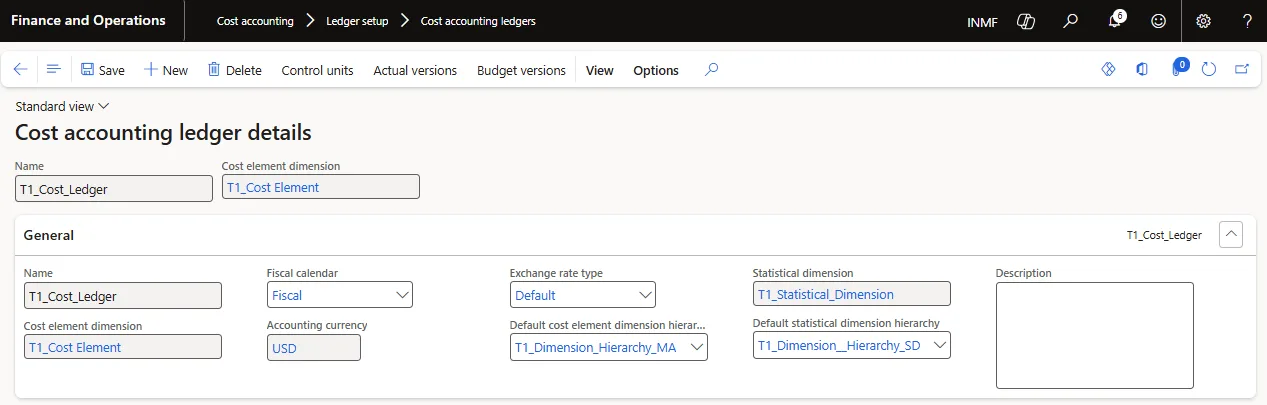
Control Units
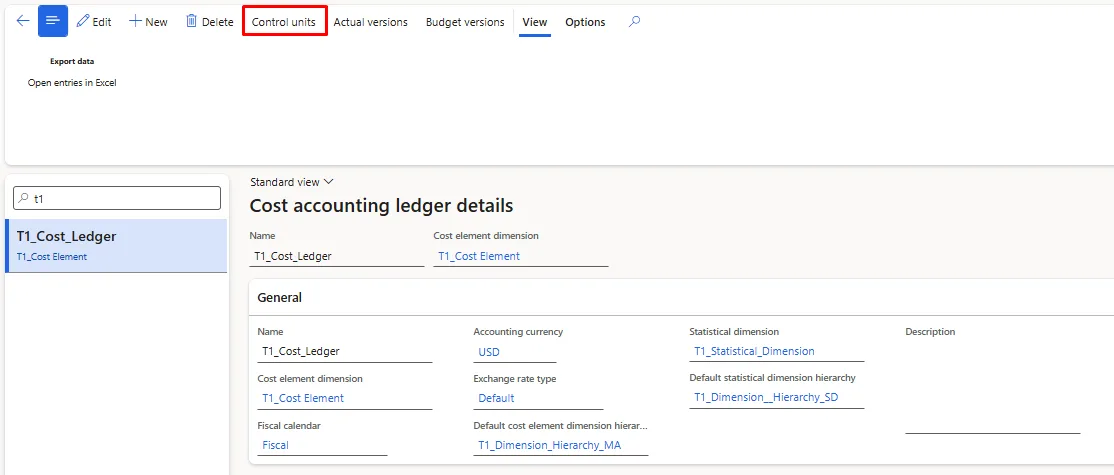
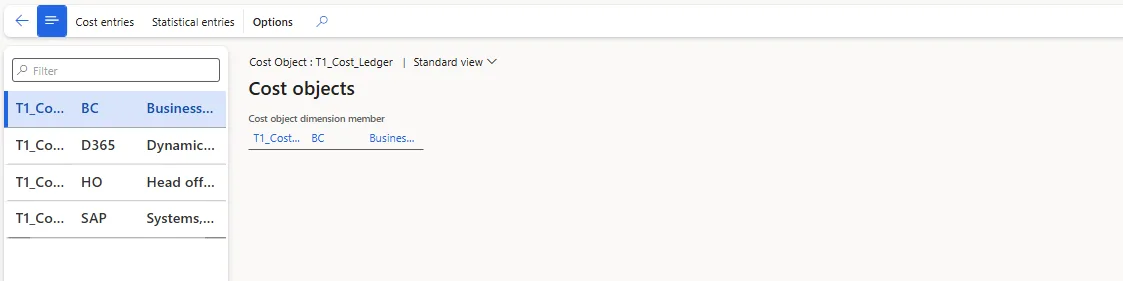
Cost control units define the cost object dimension against which costs are controlled in the ledger. The members of that dimension become the cost objects of the control unit. The screenshots below are taken from the USP2 demo company.
- Go to Cost accounting > Ledger setup > Cost accounting ledgers.
- In the list, find and select the desired record.
- Click Control units.
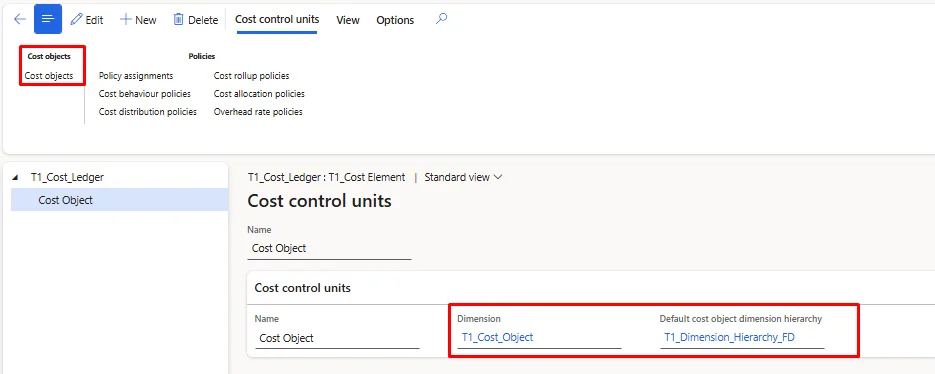
- Click New.
- In the Name field, type a value.
- In the Dimension field, enter or select a value.
- Click Save.
- Repeat the process for adding more objects.
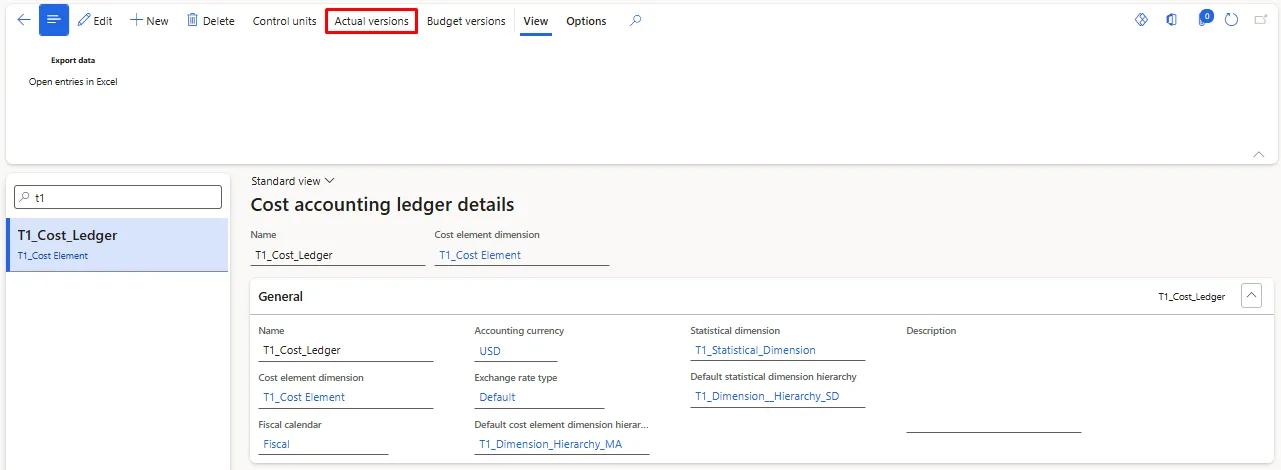
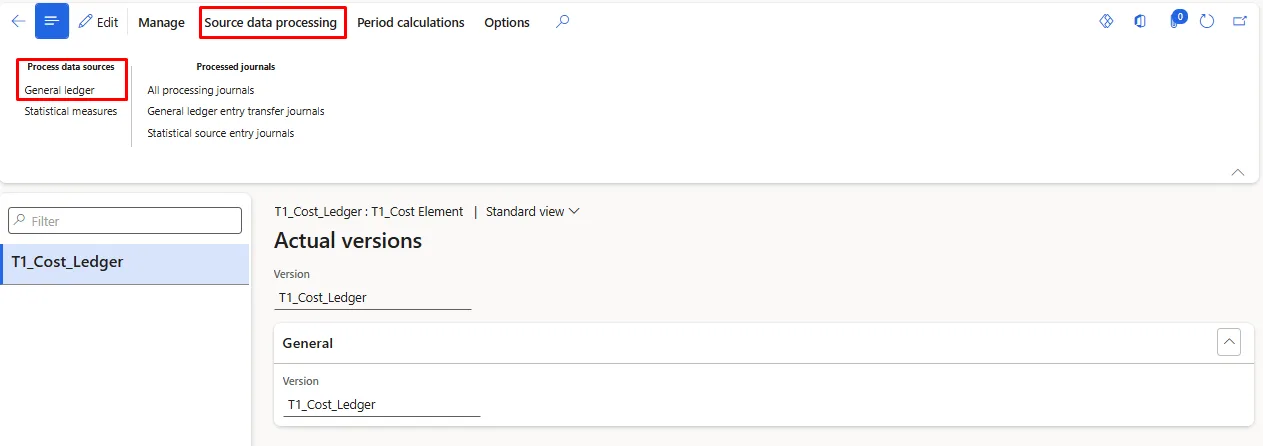
Actual Version
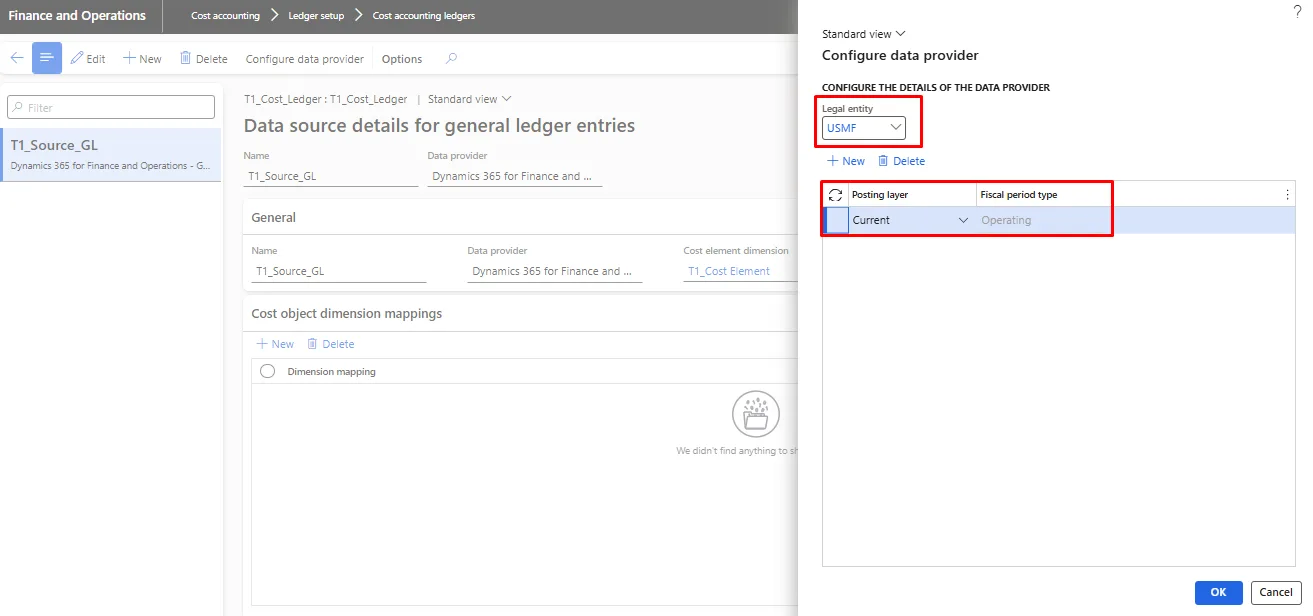
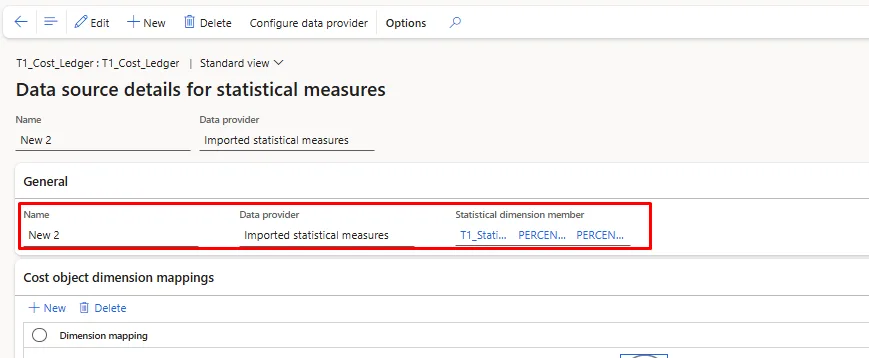
- Click on Actual Version for providing the source provider of the data.
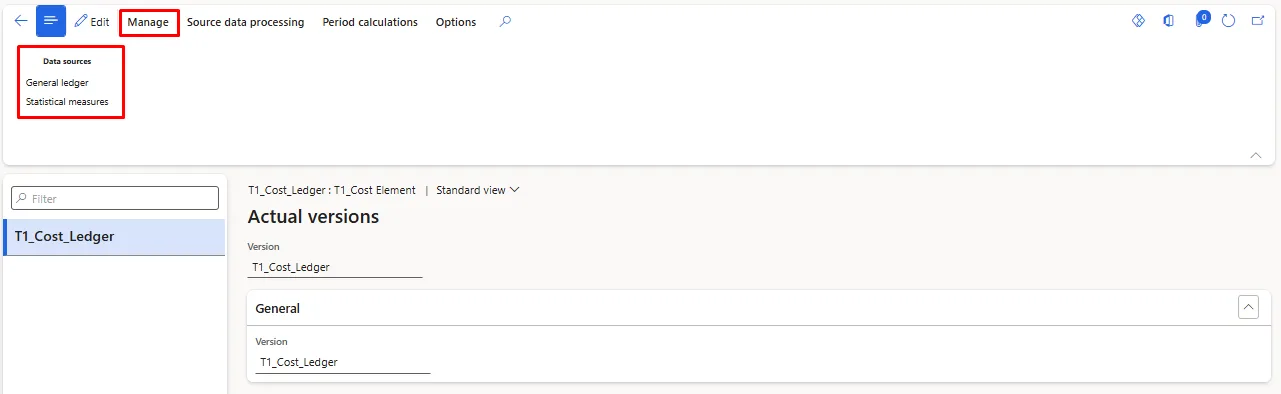
- User can provide two types of sources provide
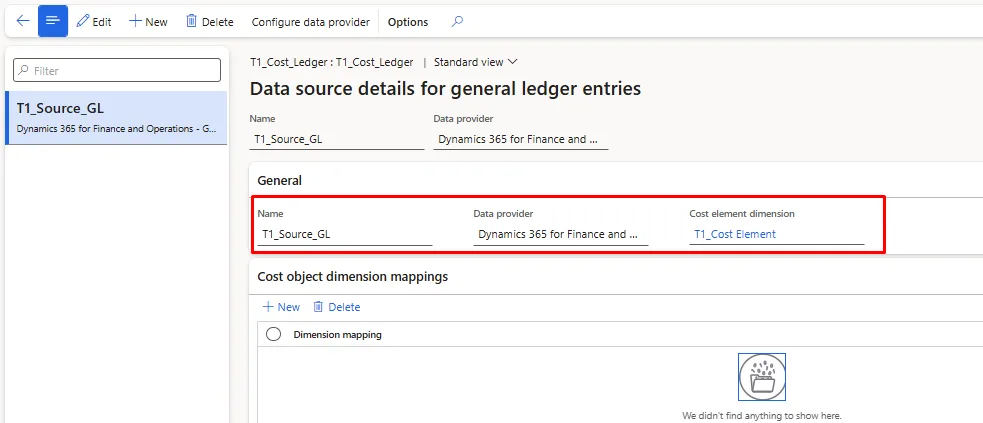
- General Ledger: This will be the Primary source of allocation of the data. (Main Accounts\
- Statistical Measures: This will help to get the allocation method to be processed from outside of the system data. (Custom: Employee Count/Percentage/Area Etc.)
General Ledger
Statistical Measures
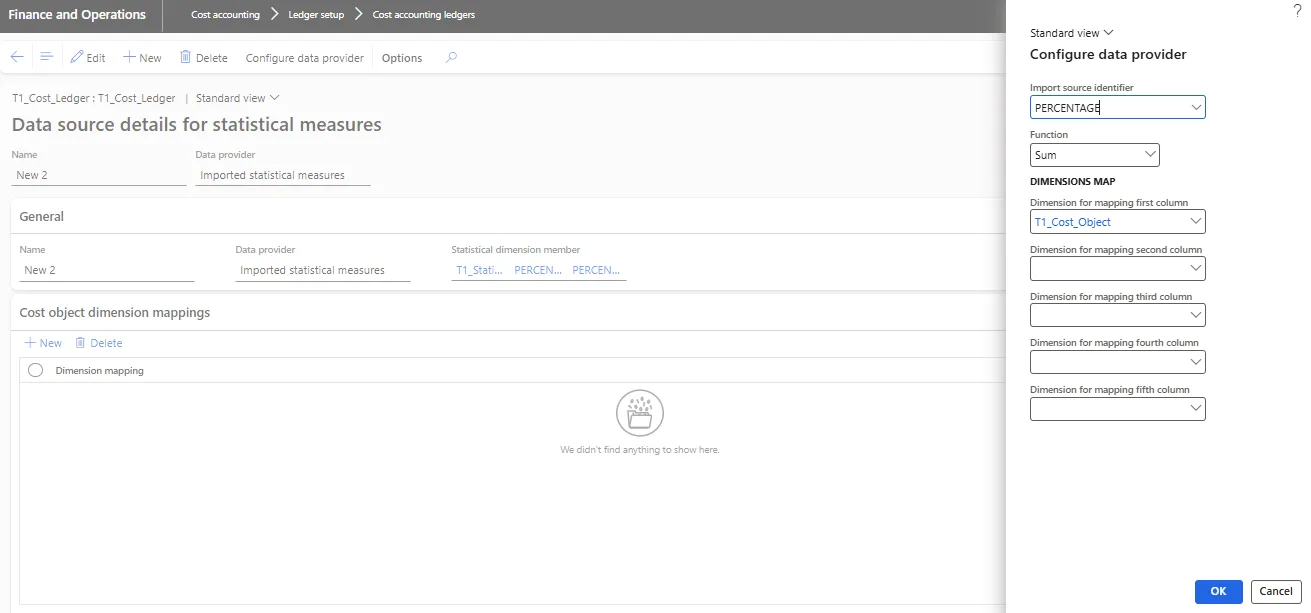
Note: All data will be only uploaded through two data entities, the user cannot create a master from the front end.
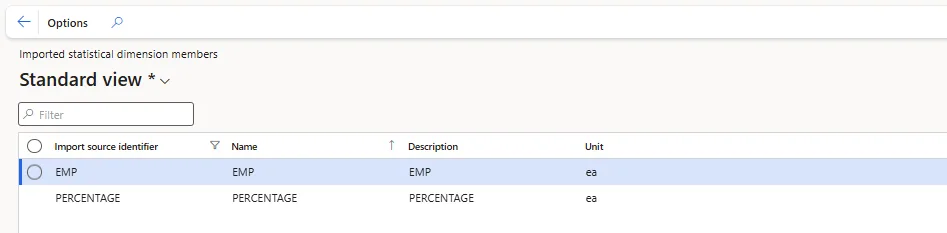
Entity Name:

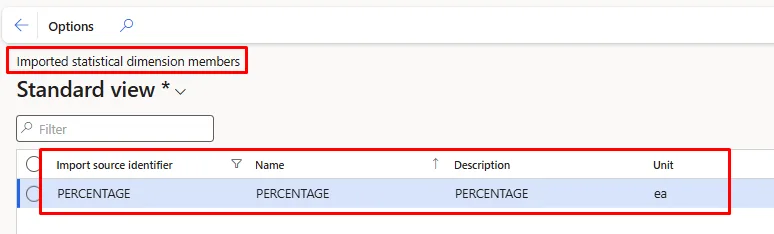
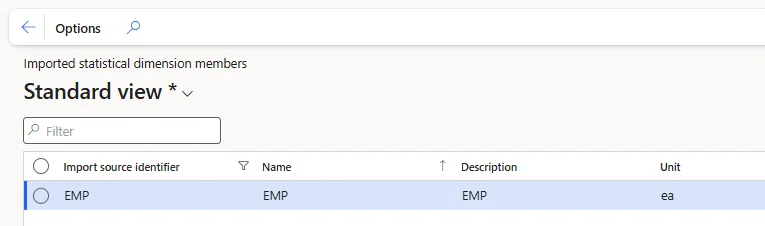
Imported statistical dimension members
Imported statistical dimension members refer to the entities or categories within a statistical dimension that are brought into the system from external sources or other data systems during the process of data import. These members are used in financial or operational reporting, allowing the business to track and analyse various statistical data points in a structured and categorized way.
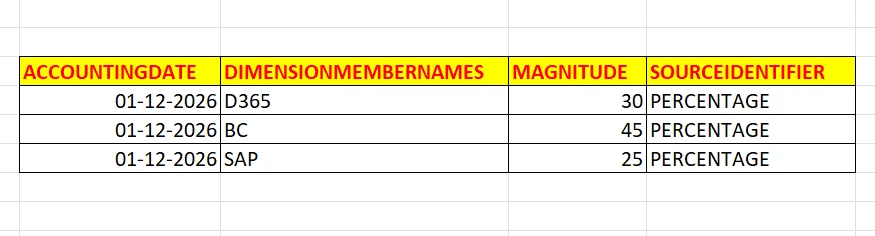
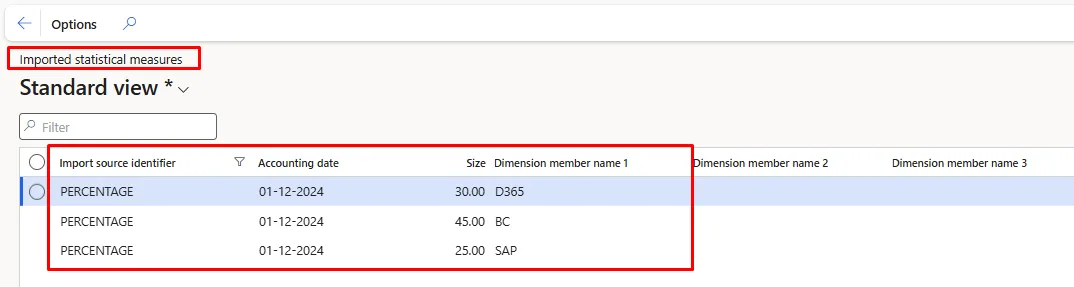
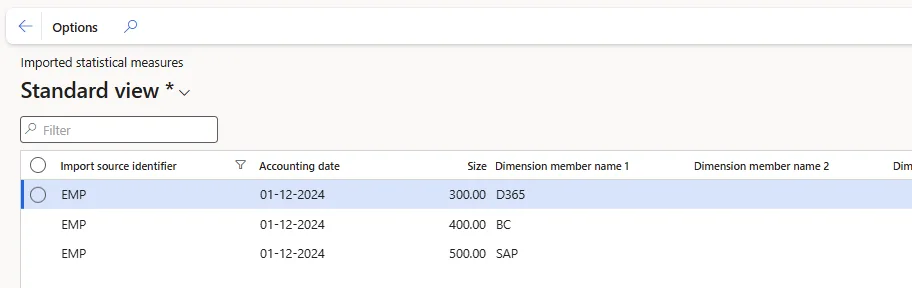
Imported Statistical Measures
Imported statistical measures refer to the specific non-financial metrics or data points that are imported into the system to provide detailed insights into business operations. These measures are typically used for performance tracking, reporting, and analysis, similar to statistical dimensions, but they focus on actual numerical data rather than categorical values.
Examples include:
- Quantity of items produced
- Total sales volume
- Total units of stock
- Operational hours worked
- Employee headcount in a department
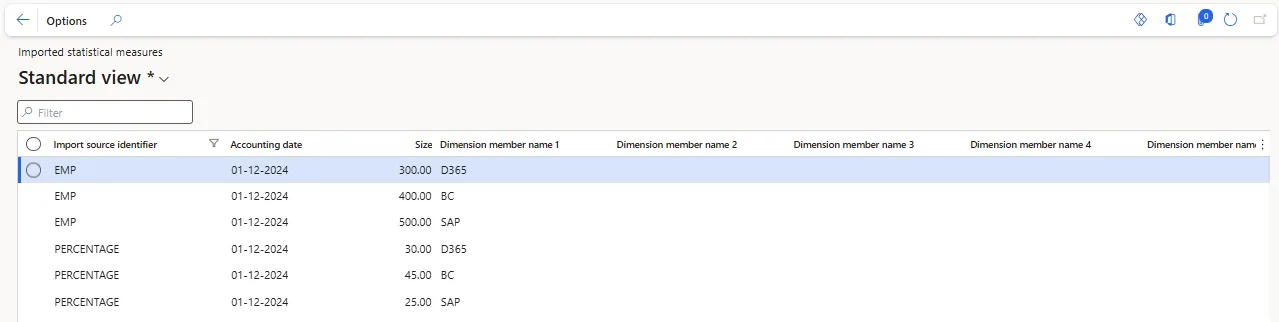
Uploading Utility Example

Basis Distribution
Scenario 1 |
Basis Distribution |
Allocation of the Expense based on Sales GL Dimension |
Main Account | Main Account Name | Main Account Type | ||
910011 | Expense 1 | Expense | ||
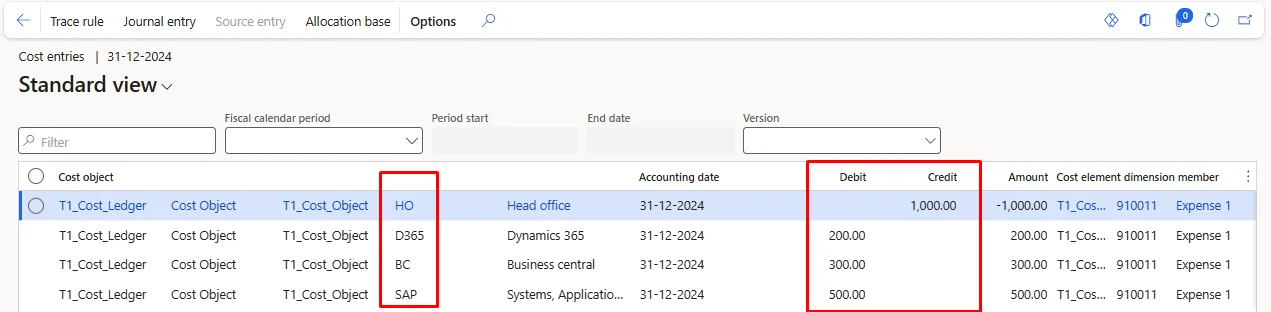
Description | MA | FD | Ledger | Amount |
Expense | 910011 | HO | 910011-HO | 1,000.00 |
Revenue | 401100 | SAP | 401100-SAP | -5,000.00 |
Revenue | 401100 | BC | 401100-BC | -3,000.00 |
Revenue | 401100 | D365 | 401100-D365 | -2,000.00 |
Description | MA | FD | Ledger | Amount |
Expense | 910011 | D365 | 910011-D365 | 200.00 |
Expense | 910011 | SAP | 910011-SAP | 500.00 |
Expense | 910011 | BC | 910011-BC | 300.00 |
Allocation Setup
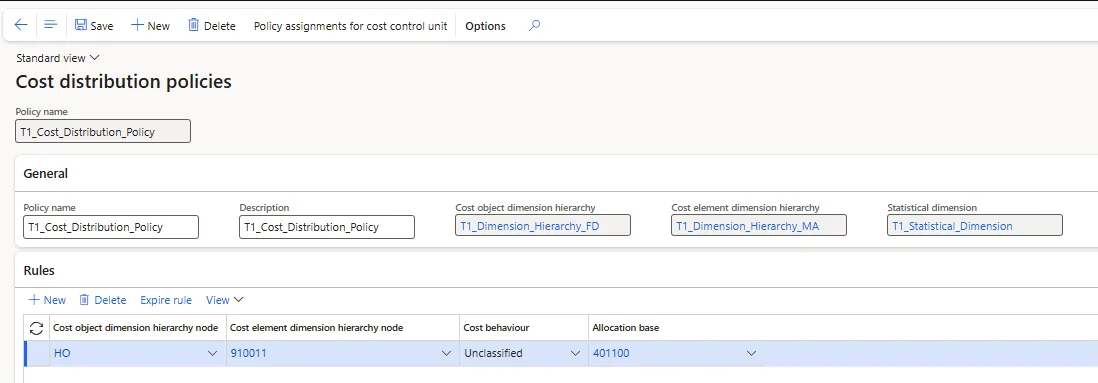
Calculation
- Source Transfer
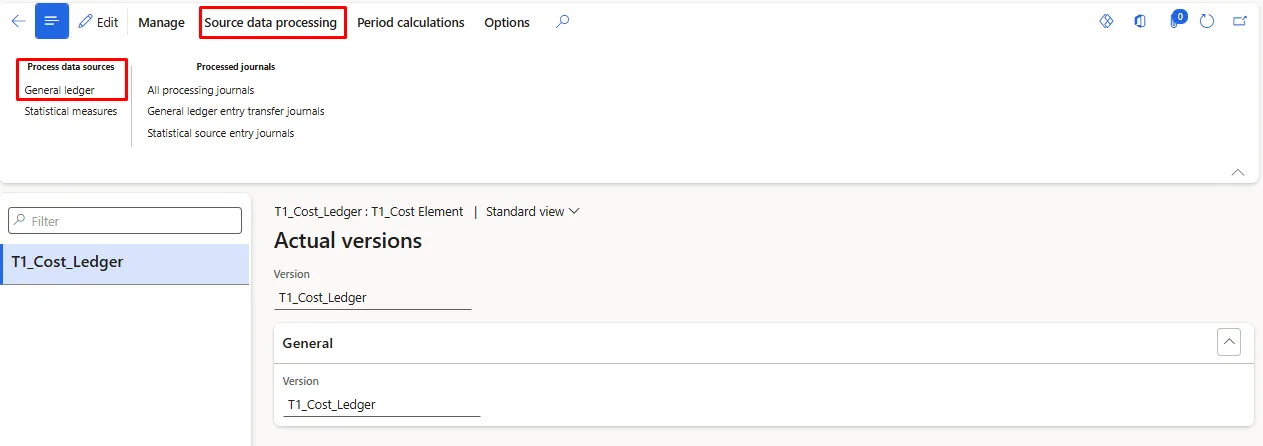
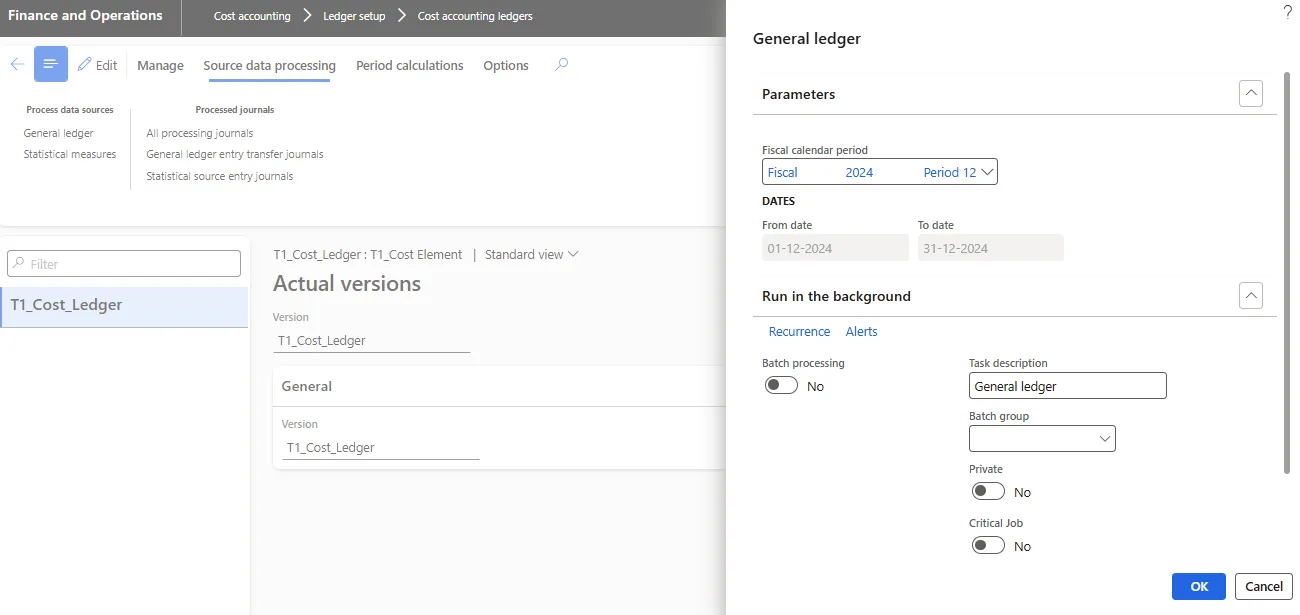
- Allocation
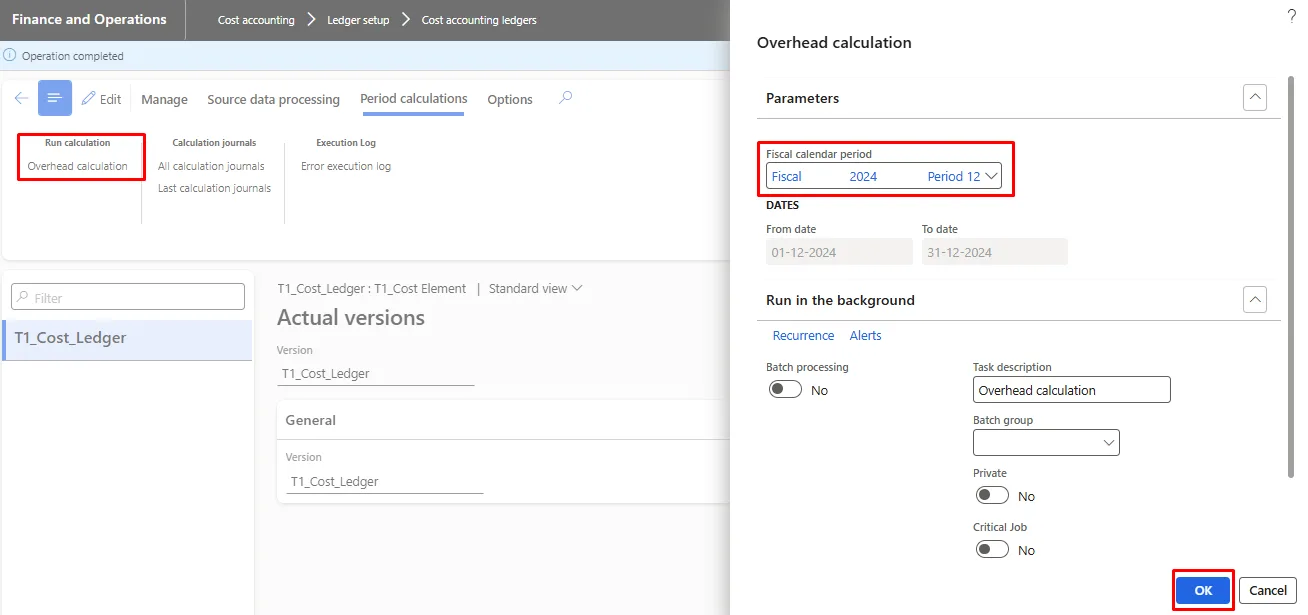
Result
Equal Distribution
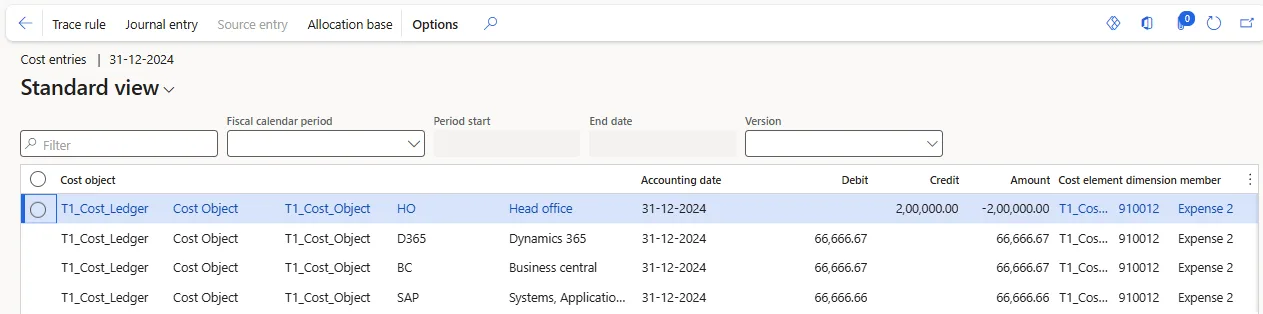
Scenario 2 |
Equal Distribution |
Allocation of the Expense Equally |
Main Account | Main Account Name | Main Account Type | ||
910012 | Expense 2 | Expense | ||
Description | MA | FD | Ledger | Amount |
Expense | 910011 | HO | 910011-HO | 2,00,000.00 |
Description | MA | FD | Ledger | Amount |
Expense | 910012 | HO | 910011-HO | -2,00,000.00 |
Expense | 910011 | D365 | 910011-D365 | 66,666.67 |
Expense | 910011 | SAP | 910011-SAP | 66,666.67 |
Expense | 910011 | BC | 910011-BC | 66,666.67 |
Expense | 910011 | HO | 910011-HO | 66,666.67 |
Allocation Setup
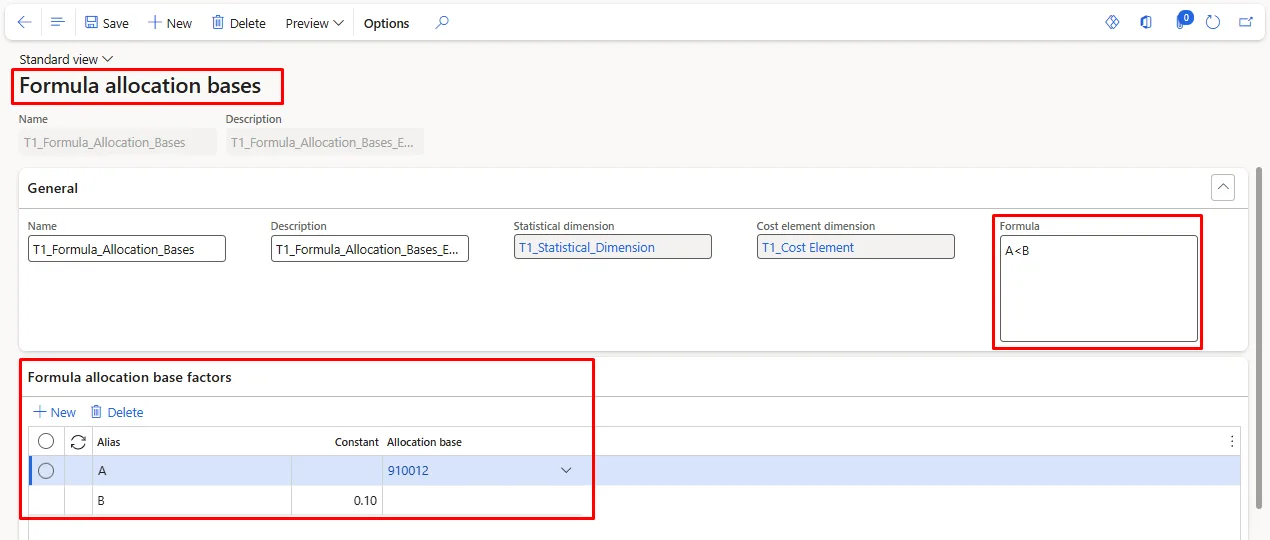
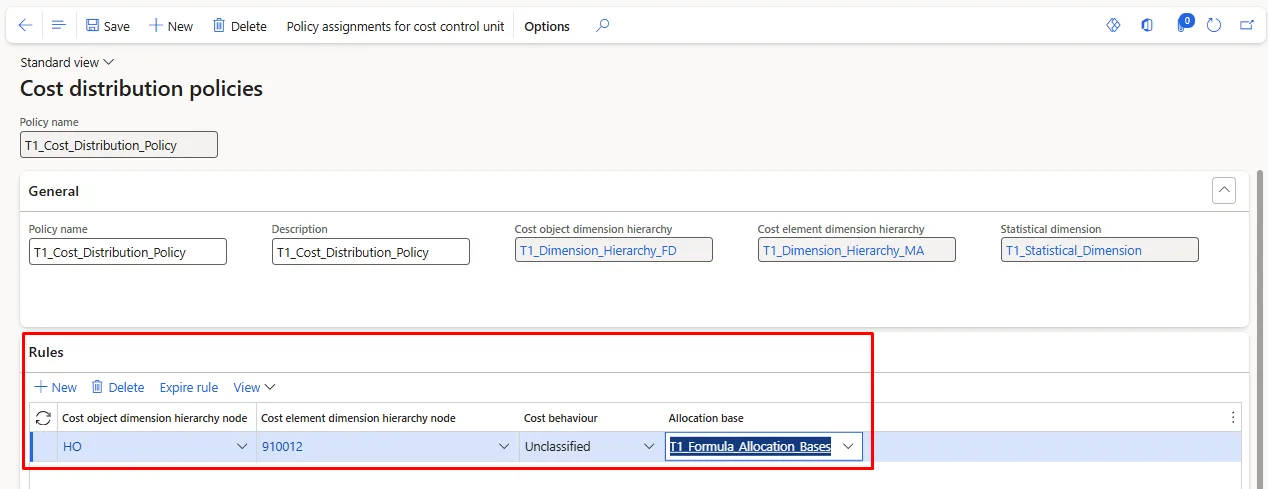
Calculation
- Source Transfer
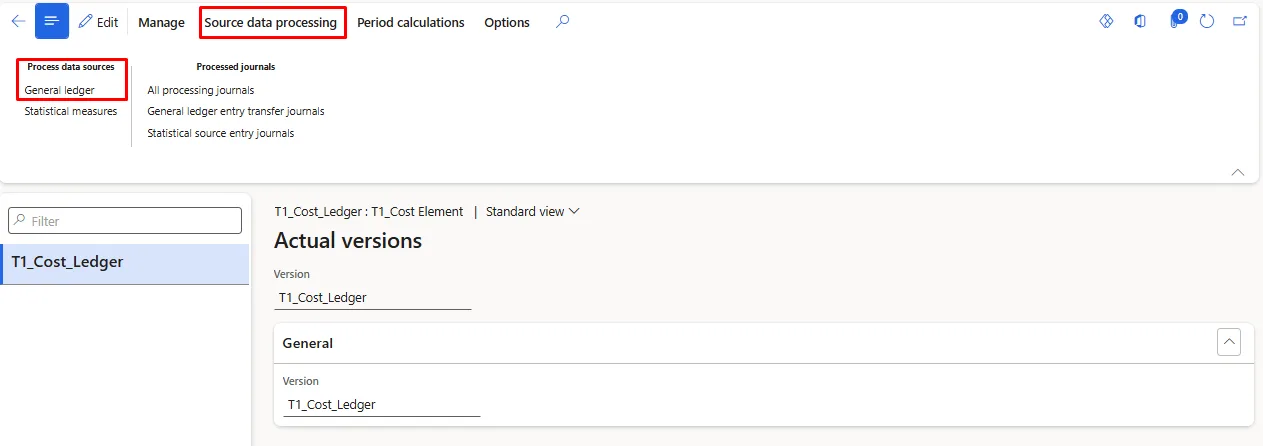
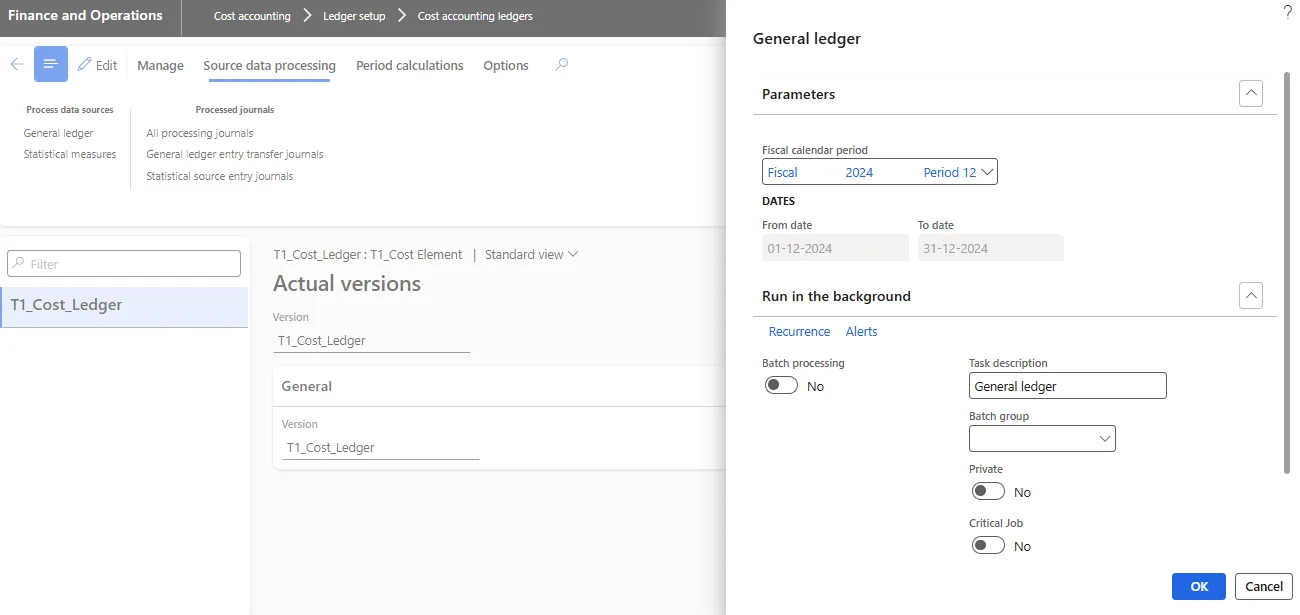
- Allocation
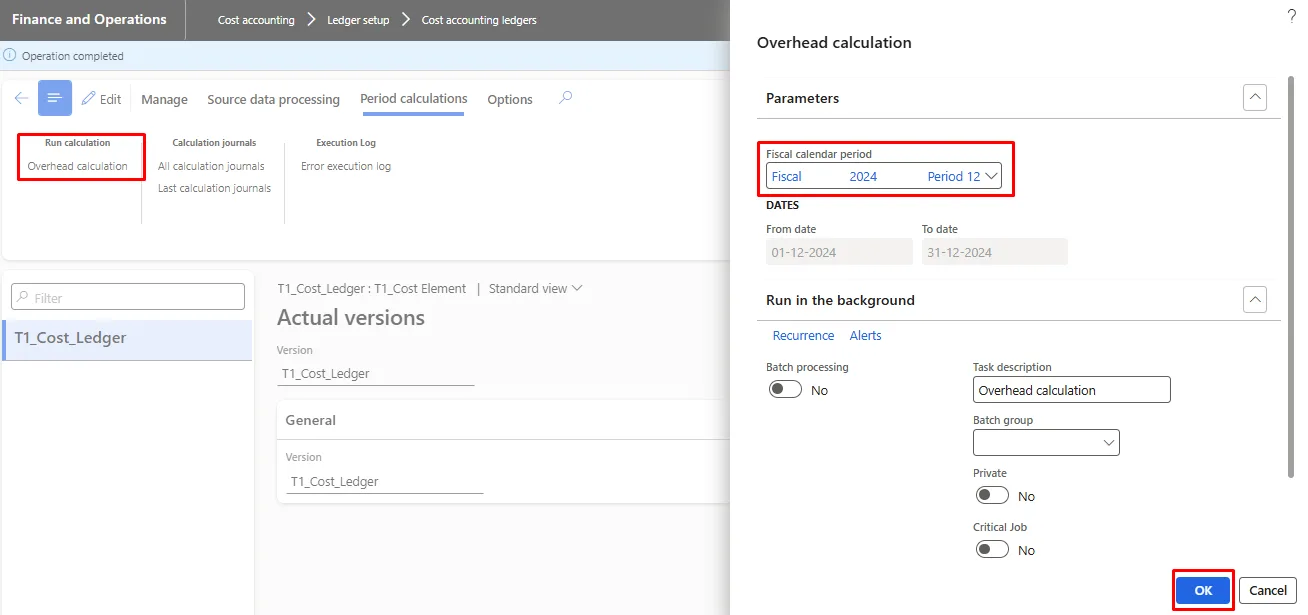
Result
Percentage
Scenario 3 | ||||
Percentage Distribution | ||||
Allocation of the Expense based on Percentage | ||||
Main Account | Main Account Name | Main Account Type | ||
910013 | Expense 3 | Expense | ||
Description | MA | FD | Ledger | Amount |
Expense | 910013 | HO | 910011-HO | 1,00,000.00 |
Percentage |
| SAP |
| 25.00 |
Percentage |
| BC |
| 45.00 |
Percentage |
| D365 |
| 30.00 |
Description | MA | FD | Ledger | Amount |
Expense | 910011 | D365 | 910011-D365 | 30,000.00 |
Expense | 910011 | SAP | 910011-SAP | 25,000.00 |
Expense | 910011 | BC | 910011-BC | 45,000.00 |
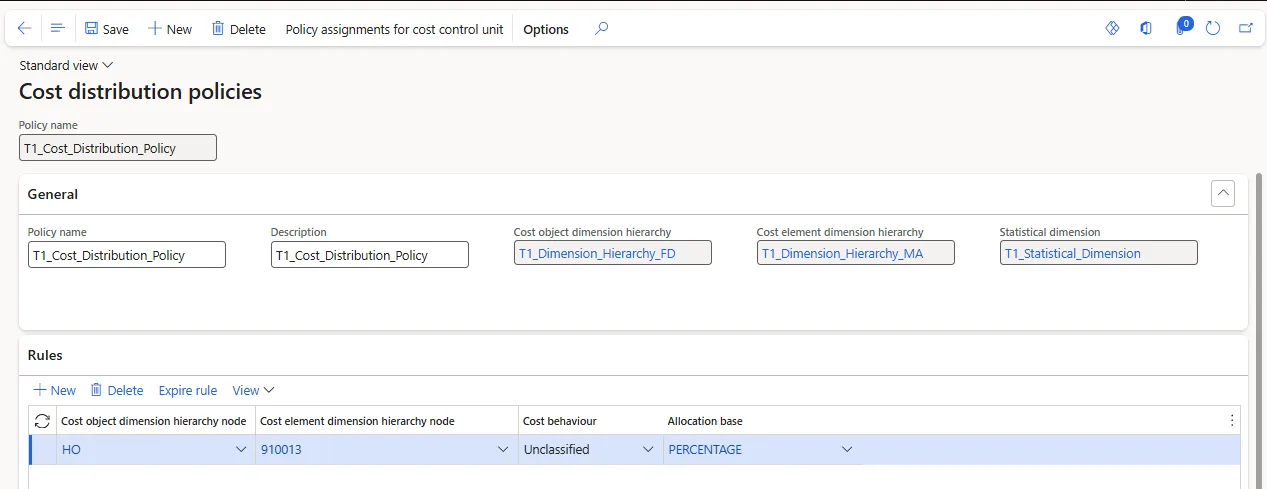
Allocation Setup
Calculation
- Source Transfer
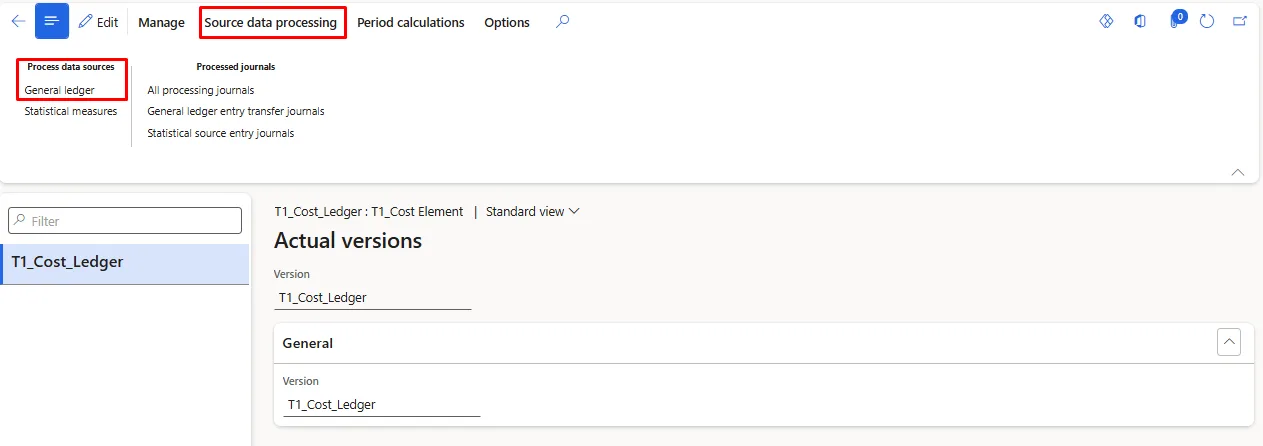
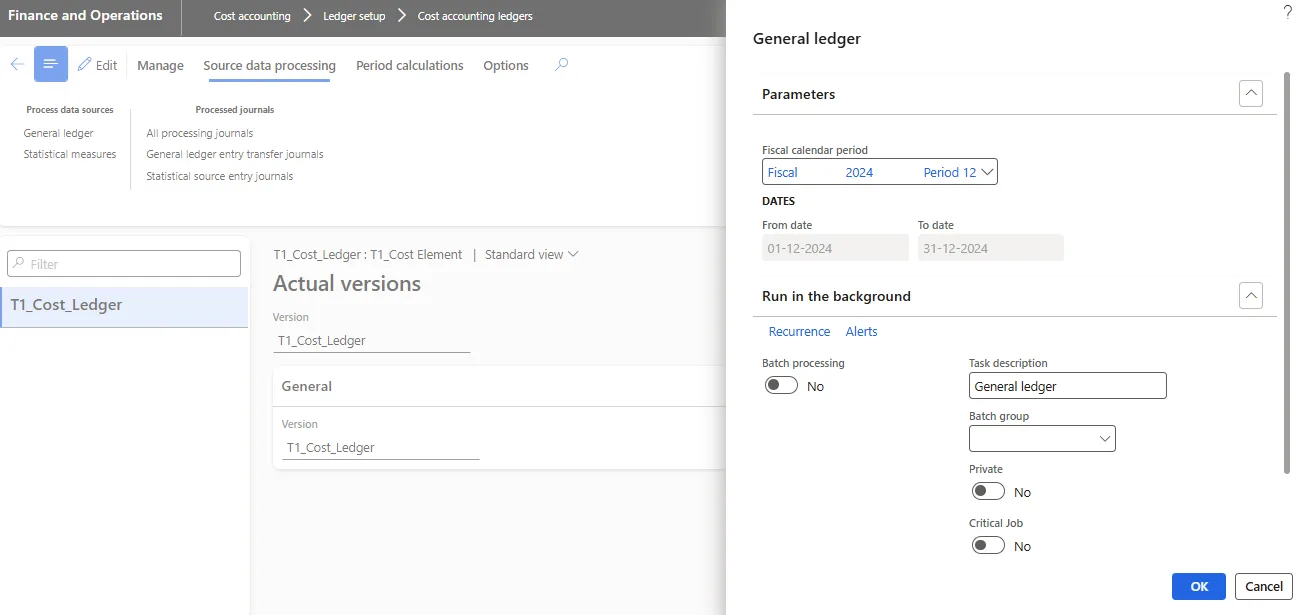
- Allocation
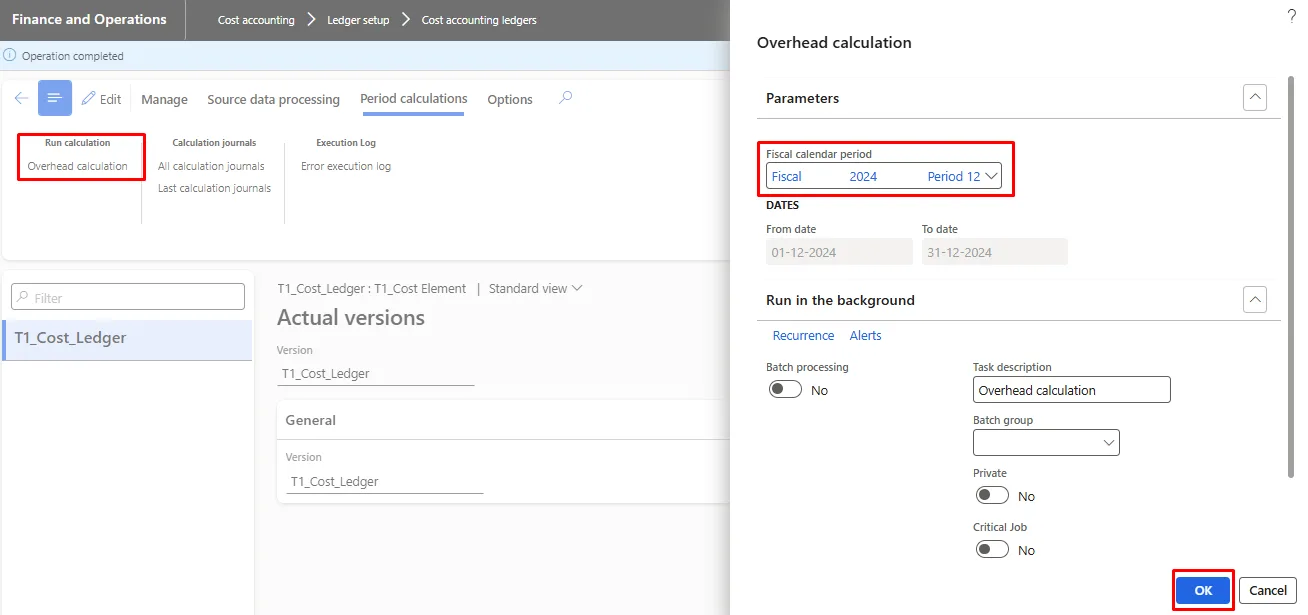
Result
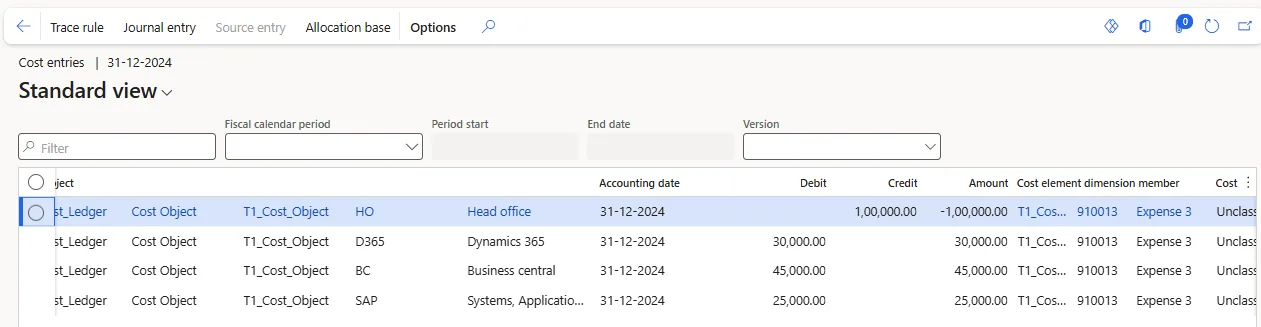
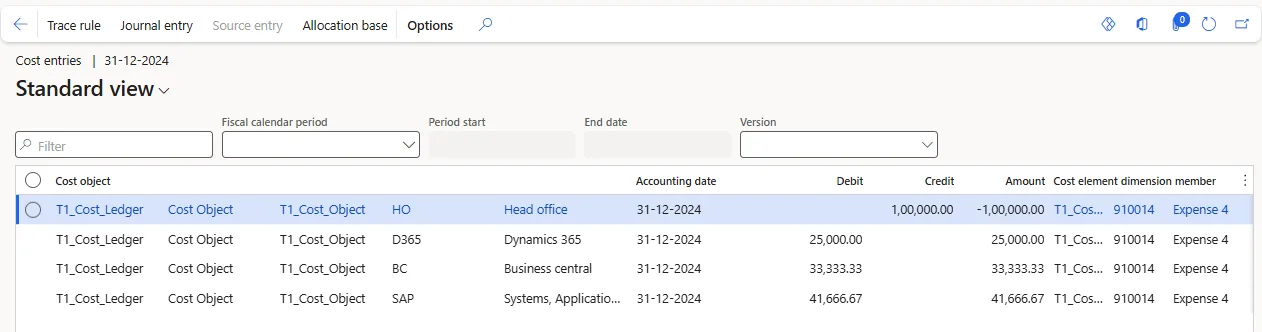
Employee Count Distribution
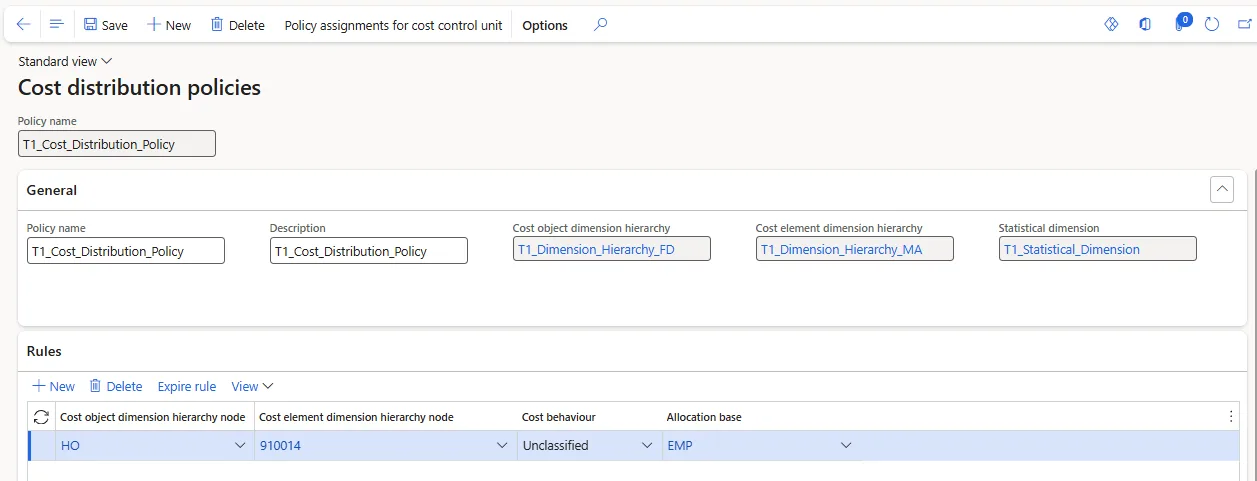
Scenario 4 |
Emp Distribution |
Allocation of the Expense based on Emp Count |
Main Account | Main Account Name | Main Account Type | ||
910014 | Expense 4 | Expense | ||
Description | MA | FD | Ledger | Amount |
Expense | 910014 | HO | 910011-HO | 1,00,000.00 |
EMP |
| SAP |
| 500.00 |
EMP |
| BC |
| 400.00 |
EMP |
| D365 |
| 300.00 |
Description | MA | FD | Ledger | Amount |
Expense | 910011 | D365 | 910011-D365 | 30,000.00 |
Expense | 910011 | SAP | 910011-SAP | 25,000.00 |
Expense | 910011 | BC | 910011-BC | 45,000.00 |
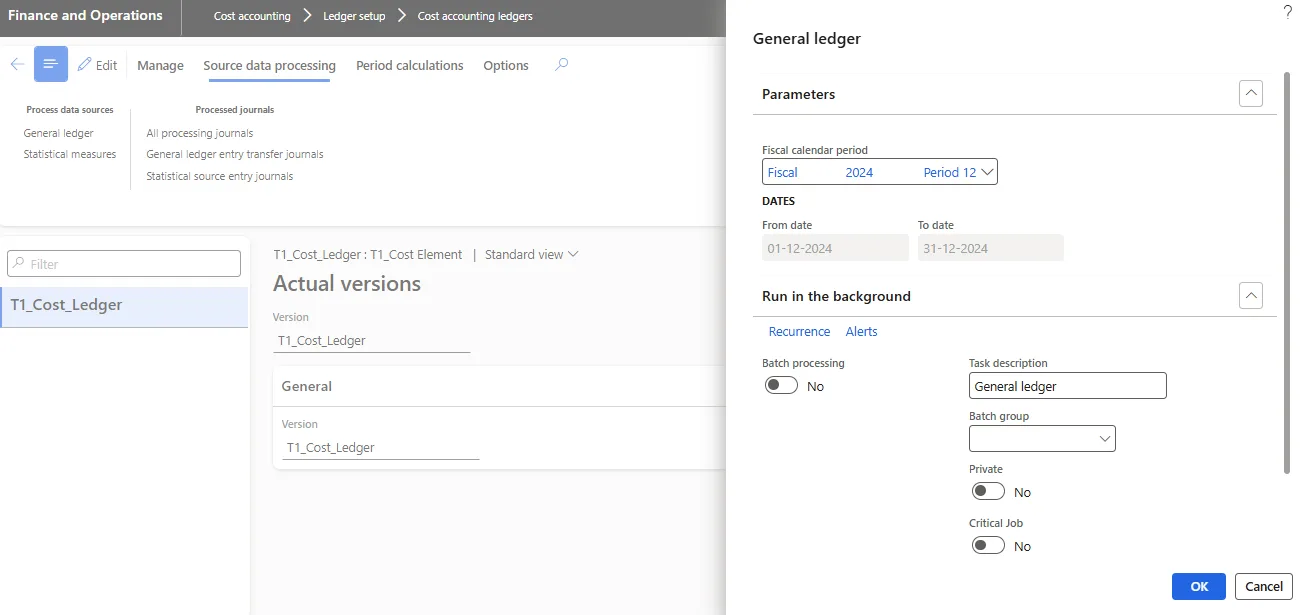
Allocation Setup
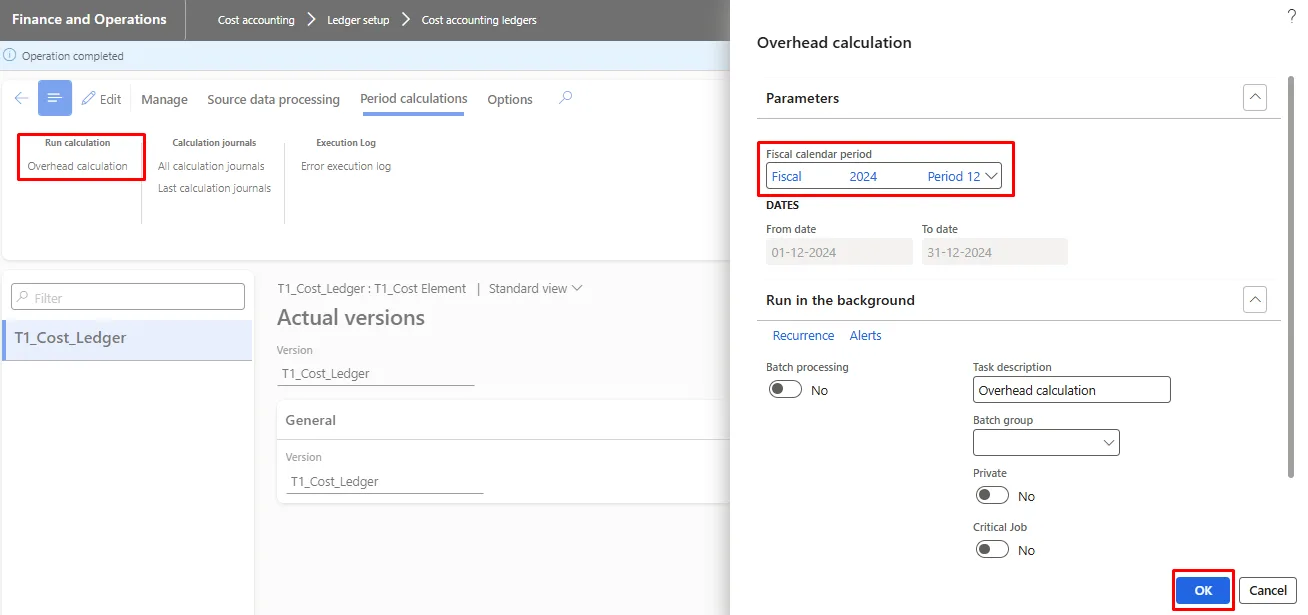
Calculation
- Source Transfer
- Allocation
Result
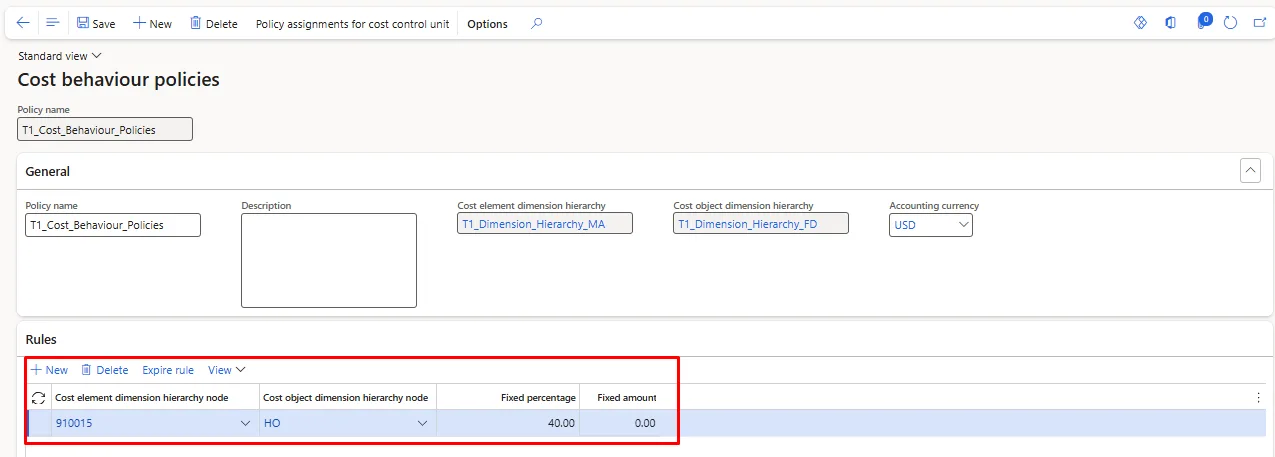
Fixed and Variable Amounts
Scenario 5 | |||||
Fixed and Variable Distribution | |||||
Allocation of the Expense based on Emp Count | |||||
Main Account | Main Account Name | Main Account Type | |||
910014 | Expense 5 | Expense | |||
Description | MA | FD | Ledger | Amount | Distribution Base |
Expense | 910011 | HO | 910011-HO | 1,00,000.00 |
|
Fixed |
|
|
| 40 Percent | Equal |
Unclassified |
|
|
| 60 Percent | Revenue |
Revenue | 401100 | SAP | 401100-SAP | -5,000.00 |
|
Revenue | 401100 | BC | 401100-BC | -3,000.00 |
|
Revenue | 401100 | D365 | 401100-D365 | -2,000.00 |
|
Allocation |
|
|
|
| |
Description | MA | FD | Ledger | Amount | |
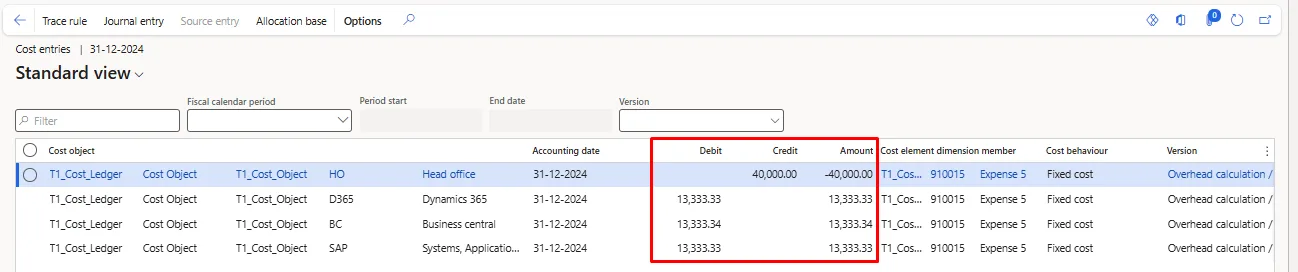
Fixed | 910011 | HO | 910011-HO | -40,000.00 | |
Fixed | 910011 | HO | 910011-D365 | 13,333.33 | |
Fixed | 910011 | HO | 910011-SAP | 13,333.33 | |
Fixed | 910011 | HO | 910011-BC | 13,333.33 | |
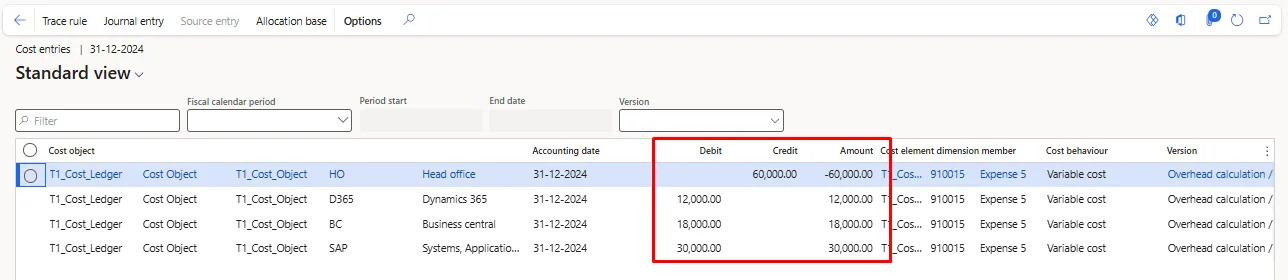
Variable | 910011 | HO | 910011-HO | -60,000.00 | |
Variable | 910011 | HO | 910011-D365 | 12,000.00 | |
Variable | 910011 | HO | 910011-BC | 18,000.00 | |
Variable | 910011 | HO | 910011-SAP | 30,000.00 | |
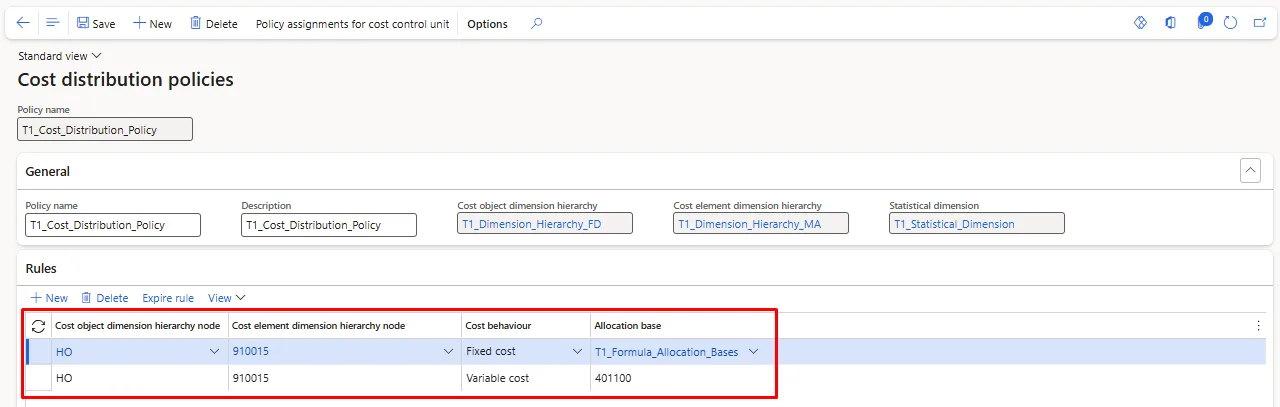
Allocation Setup
Calculation
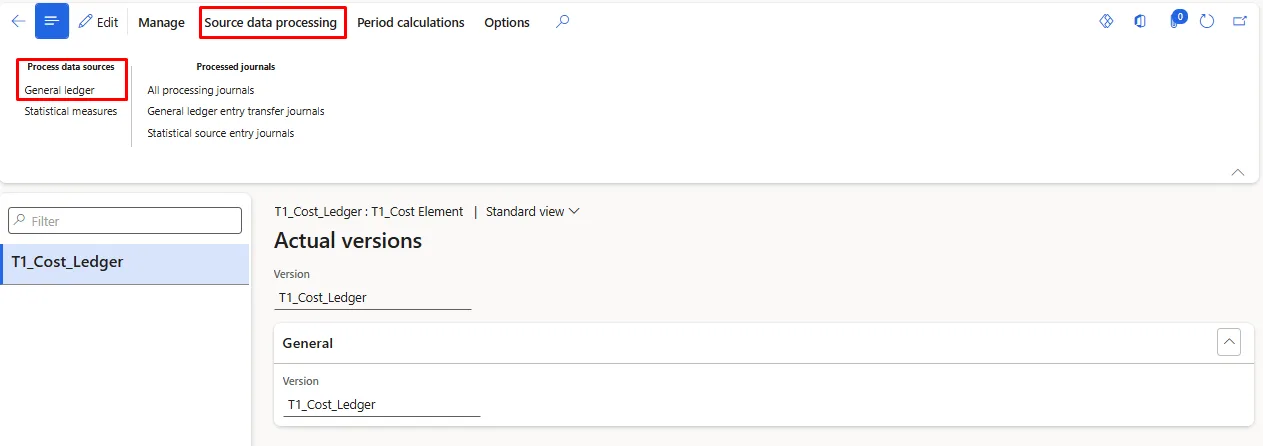
- Source Transfer
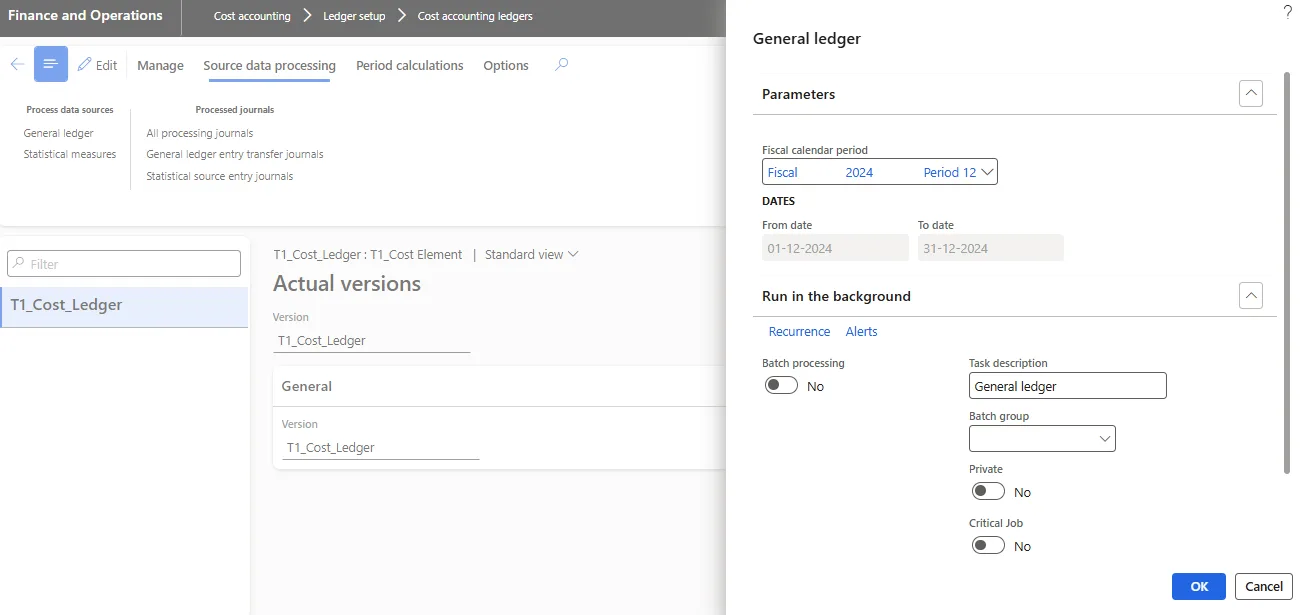
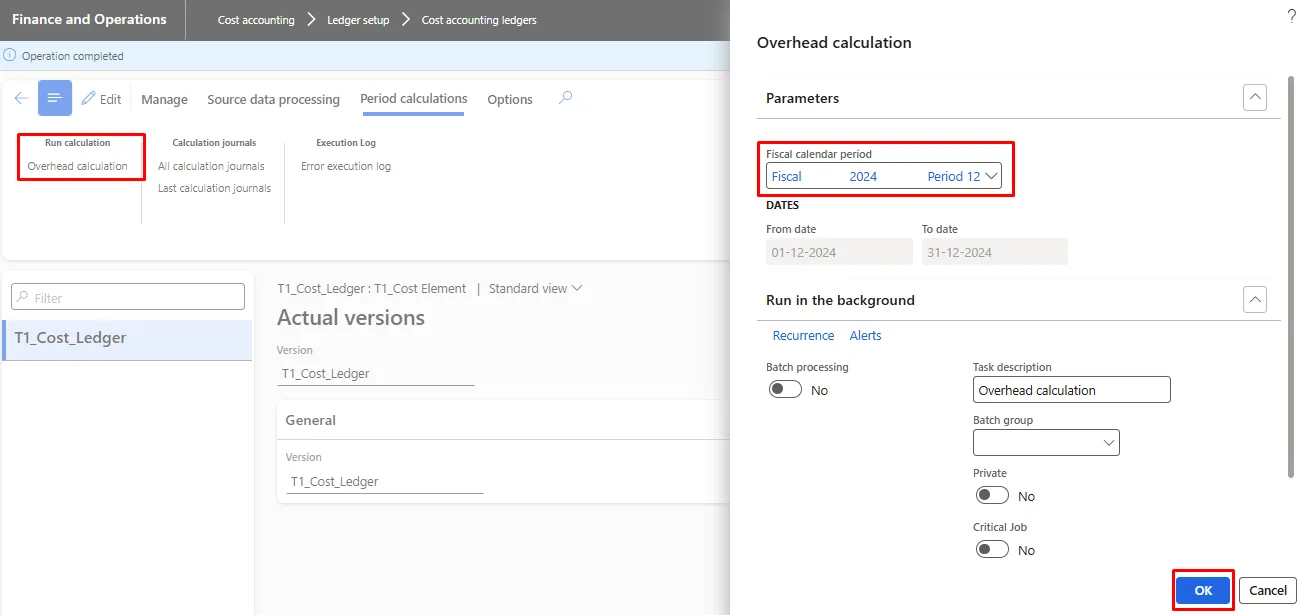
- Allocation
Result