Procurement and sourcing parameters in D365 F&O
You can use the Procurement, and sourcing parameters form to set up purchasing parameters, and to perform the following tasks.
- Define settings that apply to all purchasing transactions.
- Enter default information that will be used if the information is not specified at a lower level.
- Select number sequences for purchasing.
Navigation and Scope
The page is opened from Procurement and sourcing > Setup > Procurement and sourcing parameters. The settings are held per legal entity, so each company carries its own values and the configuration must be repeated, or copied through a configuration data package, for every company that transacts purchases.
Almost every value on this page is a default, not a rule. Purchasing behaviour is resolved through a hierarchy, and the parameter value is used only where nothing more specific exists:
- Procurement and sourcing parameters – the company-wide fallback.
- Vendor master – delivery terms, matching policy and over/under delivery defaults held on the Invoice and delivery FastTab of the vendor.
- Released product – item-level purchase settings, including over-delivery and under-delivery percentages on the Purchase tab.
- Purchase order header, then the purchase order line – the value actually used on the transaction.
Where a genuine control is required rather than a default, it is enforced through purchasing policies, workflows and security, not through this page.
Reference: Set up purchasing parameters – Microsoft Learn (training)
General Parameters
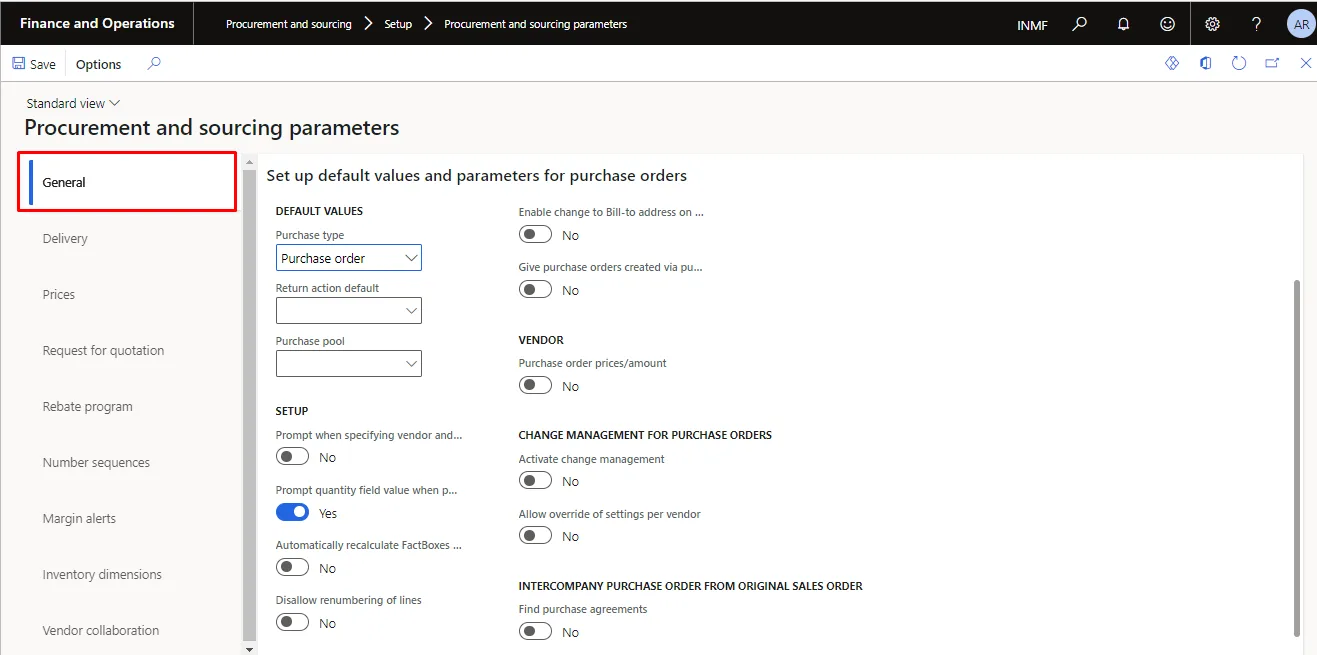
You can use the General tab on the Procurement and sourcing parameters form to define the general purchase order settings. The options are described in the following table.
Parameter | Description |
Purchase type | Select the purchase order type that is created by default when you create an order in the Purchase order form. A purchase order can have one of the following types: Journal, Purchase order, or Returned order. |
Return action default | Select the return action that is defaulted to return purchase order lines. |
Purchase pool | Select the purchase pool that you want to appear by default on a purchase order when it is created in the Purchase order form. Purchase pools are used to group purchase orders, and for filter and selection purposes. |
Prompt when specifying vendor and invoice account | Select this check box to display a message when you select or change the vendor account for a purchase order. The message indicates that vendor's information, such as terms of payment, from the Vendors form will be copied to the purchase order. If you do not select this check box, the information will be copied, and no message will be displayed. Basic information that is specified for the vendor's account number, such as name and address, are copied to a purchase order whether this check box is selected or not. |
Parameter | Description |
Activate change management | Indicate whether the current company is using change management for purchase orders. |
Allow override of settings for each vendor | Indicate whether it should be possible to override the change management parameters for each vendor and purchase order. When this check box is selected, you can also override the setting that defaulted from the vendor, when the purchase order is created. |
How Change Management Affects the Purchase Order Life Cycle
The two change management parameters above have a wider effect than any other setting on this page, because they change the life cycle of every purchase order.
- With change management off, a purchase order has an approval status of Approved as soon as it is created.
- With change management on, a new order is created as Draft and must be submitted to the purchase order workflow. The statuses progress Draft > In review > Approved, and the order is Confirmed once the agreement with the vendor is recorded.
- A purchase order creates inventory transactions only when it reaches Approved status, so until approval the quantity is not visible to reservation, marking or planning as ordered supply.
- An order created by firming a planned order is always set to Approved, regardless of these settings.
- Where override per vendor is allowed, change management can be switched on for selected vendors only, which is how approval is commonly applied to indirect spend while routine material purchases are left untouched.
- Changing a confirmed order returns it to Approved and requires reconfirmation. The fields that trigger reapproval are defined in the purchase order workflow together with purchasing policies.
The workflow itself is built at Procurement and sourcing > Setup > Procurement and sourcing workflows, using the Purchase order workflow type. Activating the parameter without an active workflow version leaves orders stranded in Draft, so the workflow must be designed, versioned and activated before the parameter is switched on in production.
References:
- Approve and confirm purchase orders – https://learn.microsoft.com/en-us/dynamics365/supply-chain/procurement/purchase-order-approval-confirmation
- Procurement and sourcing workflows – https://learn.microsoft.com/en-us/dynamics365/supply-chain/procurement/procurement-sourcing-workflows
Update order lines
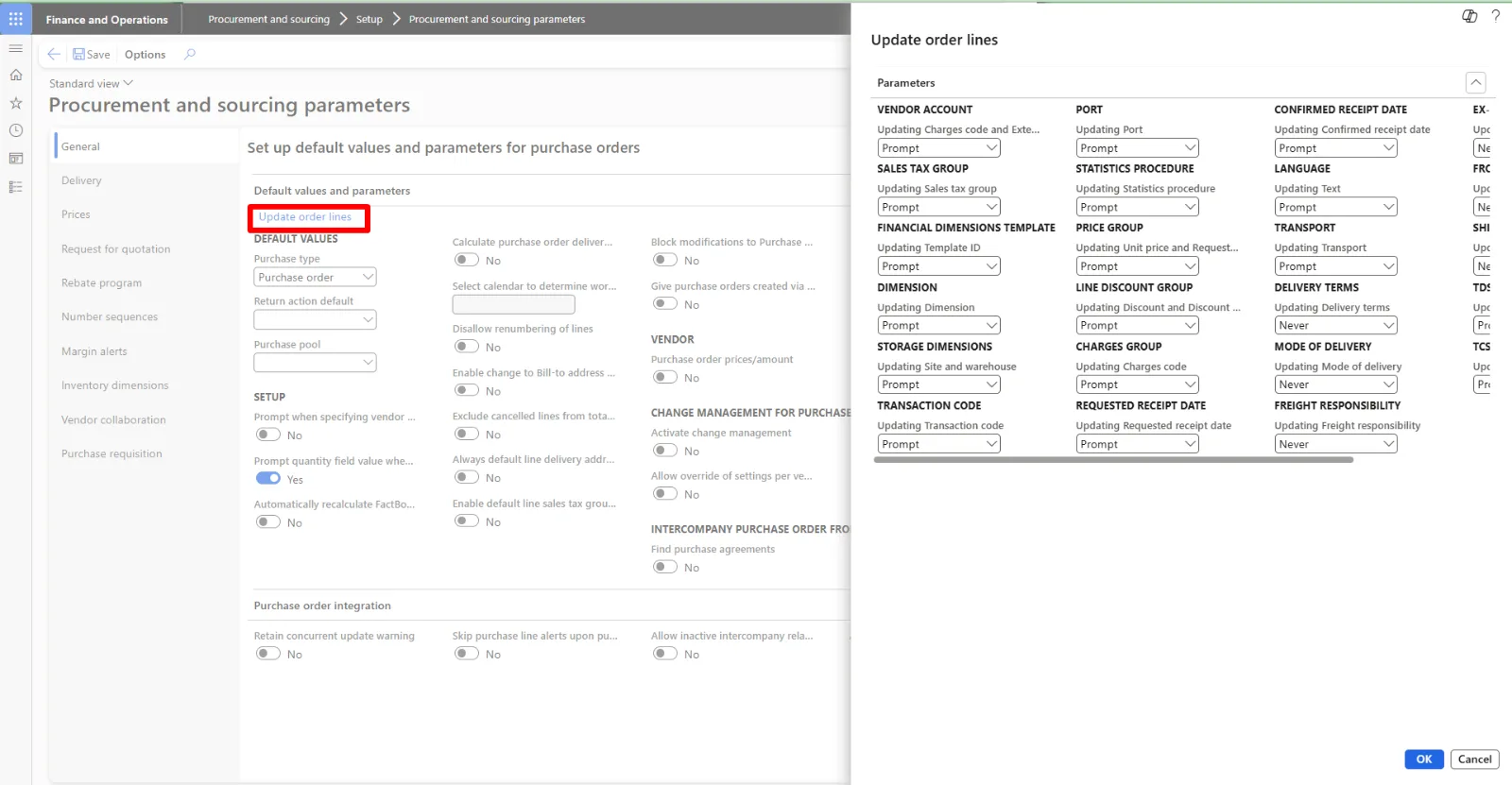
The General tab also carries the Update order lines setting, which controls whether a change to the Delivery terms or Mode of delivery on the order header is applied to the existing order lines. The options are Never, Always and Prompt; Prompt is the usual choice, because the change can affect charges and landed cost.
The button opens a dialog listing every header field that can also exist on the line — vendor account, sales tax group, financial dimensions template and dimension, storage dimensions, transaction code, port, statistics procedure, price group, line discount group, charges group, requested and confirmed receipt dates, language, transport, delivery terms, mode of delivery, freight responsibility, and others. Each field is set independently to one of three values:
- Always – the change on the header is applied to all existing lines without asking.
- Prompt – the user is asked whether to apply the change to the lines. This is the usual default, because it keeps the decision with the person making the change.
- Never – existing lines keep their own values and only the header changes.
The setting affects existing lines only; lines created after the change always pick up the current header value. Set delivery terms, mode of delivery and freight responsibility to Never where lines are routinely shipped differently from the header, and treat sales tax group and financial dimensions with care, since applying them to lines directly changes tax calculation and posting. Where change management is active, updating lines on a confirmed order returns it to Approved status and requires reconfirmation.
Delivery Parameters
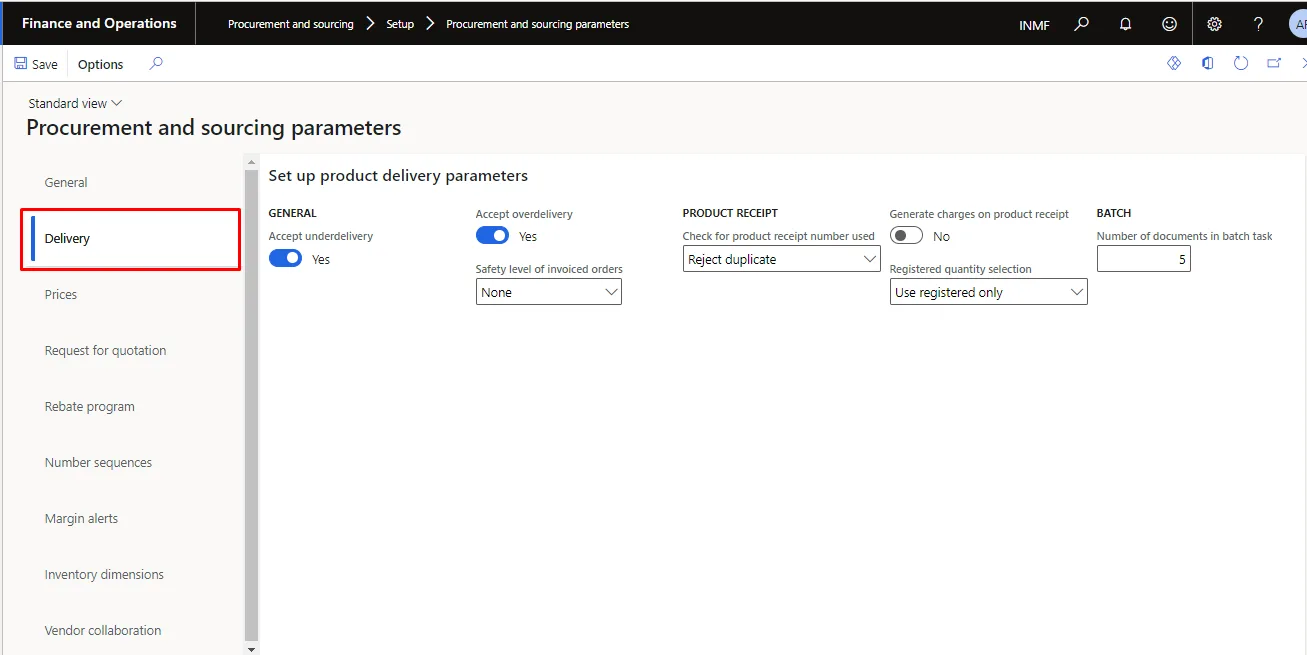
You can use the Delivery tab on the Procurement and sourcing parameters form to enter or view parameters in the General and Product receipt sections. This includes rules for delivery acceptances and product receipts.
The delivery parameters are described in the following table.
Parameter | Description |
Accept over delivery | Select this check box to be able to receive more items through product receipt update than the quantity that you ordered on the purchase line. |
Accept under delivery | Select this check box to allow under deliveries to be accepted as a final delivery. |
Safety level of invoiced orders | Specify whether changes can be made to a fully invoiced purchase order. |
Check for product receipt number used | Select how duplicate product receipt numbers for each vendor should be handled. |
Delivery Tolerances and Product Receipt Control
Accepting over or under delivery is only half of the setting; the tolerance percentage decides how much variance is actually permitted. The percentages are resolved in the following order, and the value on this page is the fallback used where nothing more specific exists:
- Procurement and sourcing parameters, Delivery tab – the company default over-delivery and under-delivery percentages.
- Released product (Product information management > Released products > Manage inventory > Purchase tab) – item-specific percentages, used for products such as bulk materials that are always delivered to weight.
- Purchase order line – the percentage applied to the individual line, which overrides both.
An under-delivery accepted as final closes the remaining quantity on the line rather than leaving it open as a backorder, so the setting has a direct effect on open purchase order reporting and on commitment accounting.
The check on the product receipt number is a control worth setting deliberately. In Indian operations the vendor delivery challan number is normally entered as the product receipt number, and duplicate receipt of the same challan is a common cause of inventory and GR/IR reconciliation differences, so at least a warning should be configured.
When the receipt is posted, the Posting product receipt page determines what quantity is accounted for: the ordered quantity, the receive-now quantity, or the registered quantity where a warehouse arrival process is used. Quantities can be adjusted line by line within the tolerances above.
From version 10.0.41, with the related feature enabled, the Delivery tab also carries the synchronisation settings that decide whether the mode of delivery and delivery terms are copied from a sales order to a purchase order created from it, which matters in direct delivery and intercompany scenarios.
References:
- Product receipt against purchase orders – https://learn.microsoft.com/en-us/dynamics365/supply-chain/procurement/product-receipt-against-purchase-orders
- Create purchase orders from sales orders (delivery synchronisation) – https://learn.microsoft.com/en-us/dynamics365/supply-chain/sales-marketing/tasks/create-purchase-order-sales-order
Prices Parameters
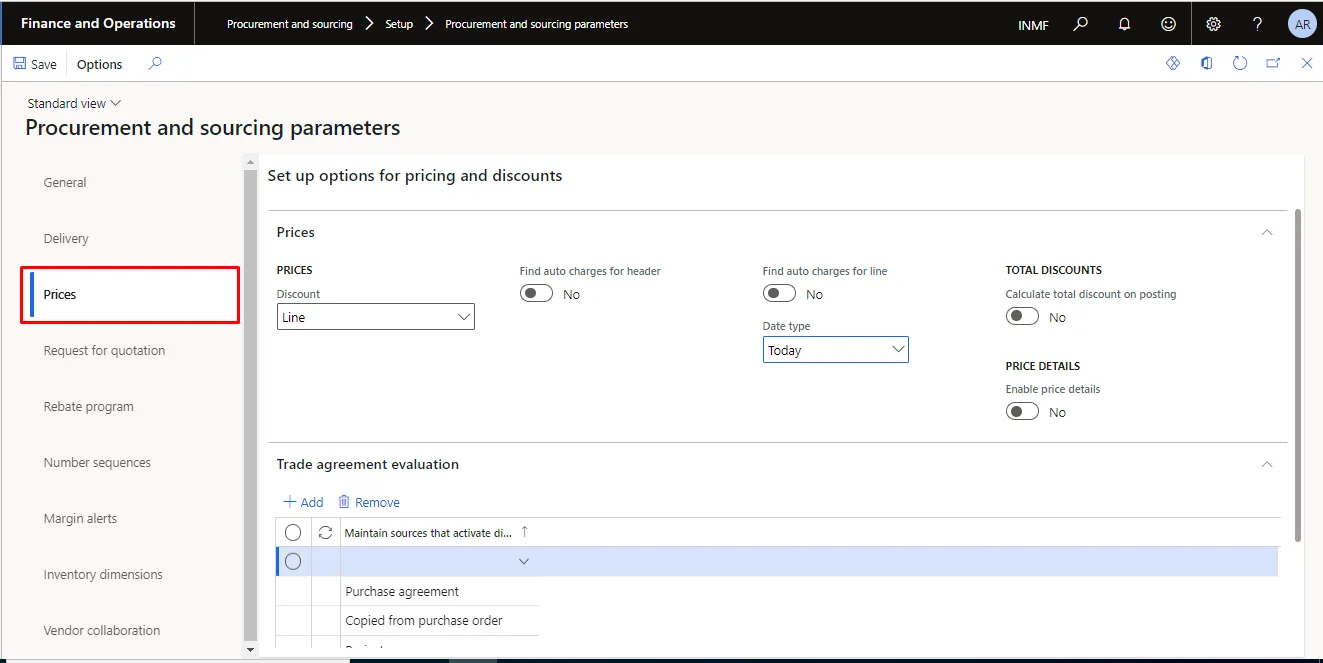
You can use the Prices tab to specify whether charges are added automatically to purchase orders lines. The parameters are described in the following table.
Parameter | Description |
Find charges for line | Select this check box to automatically allocate line charges set up for the ordered item when you create a purchase order line. If you have not defined automatic charges, clear this check box to increase performance. |
Date type | Specify the date used when searching for trade agreements. |
Enable Price Details | Select this option to let users view price details for purchase order lines. To access the Price details page, in the Purchase order page, on the Purchase order lines FastTab, click Purchase order line, and then click Price details. The Price details page displays detailed information about the prices, agreements, and trade agreements that are associated with the selected product, and calculates discounts, rebates, margins, and royalties for the order line. |
Notes on Charges and Price Details
- A companion setting, Find auto charges for header, applies the automatic charges configured at order level, for example freight applied by vendor or by mode of delivery. The line-level setting covers charges attached to the ordered item.
- The parameter only decides whether the system looks for automatic charges. The charges themselves are configured at Procurement and sourcing > Setup > Charges > Auto charges, by charges group, vendor or item. Switching the parameter on without defining auto charges is a frequent cause of the conclusion that automatic charges do not work.
- The date type determines which date is used when the system searches for trade agreements, and therefore which agreement is found when prices change between the order date and the requested delivery date.
- Enable price details must be set to Yes for vendor rebate amounts to be visible on the order line. It gives buyers useful transparency over agreements and rebates, but it also exposes margin information, so it should be aligned with the security roles that can open purchase orders.
References:
- Automatic application of charges – https://learn.microsoft.com/en-us/dynamics365/supply-chain/procurement/automatic-charges-allocation
- Vendor rebates – https://learn.microsoft.com/en-us/dynamics365/supply-chain/procurement/vendor-rebates
Inventory Dimension Parameters
You can use the settings on the Inventory dimension tab to select the inventory dimensions that are displayed on purchase order lines.
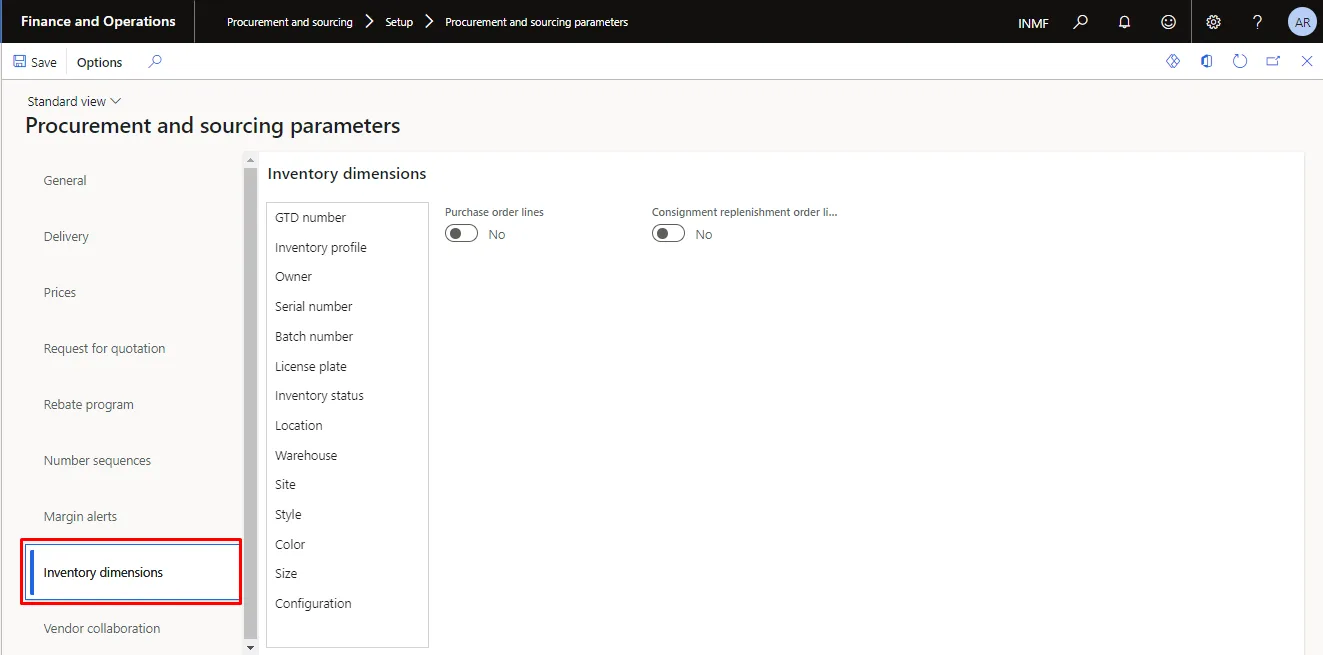
The selection made here determines which dimension columns are visible by default on the purchase order line grid. It is a display setting only: it does not change the storage and tracking dimension groups assigned to the product, and it does not make a dimension mandatory.
- Site and warehouse should normally be displayed, because they drive inventory posting, the delivery address and, in the Indian localisation, the registration number and place of supply used for GST determination.
- Batch and serial numbers are displayed where the products purchased are tracked, so that they can be recorded at order entry rather than only at registration.
- Product dimensions such as configuration, size, colour and style should be displayed where the item master uses product variants.
- Users can override the display for their own session using the Dimensions display button on the purchase order, so this parameter sets the starting point rather than a restriction.
Request for quotation
Supplies the defaults used when an RFQ is created: the default purchase type that an accepted bid becomes (purchase order, purchase agreement or purchase requisition), the default solicitation type, and the expiry of the RFQ, calculated as the current date and time plus the day offset and time set here.
Reference: Requests for quotation (RFQs) overview – Microsoft Learn
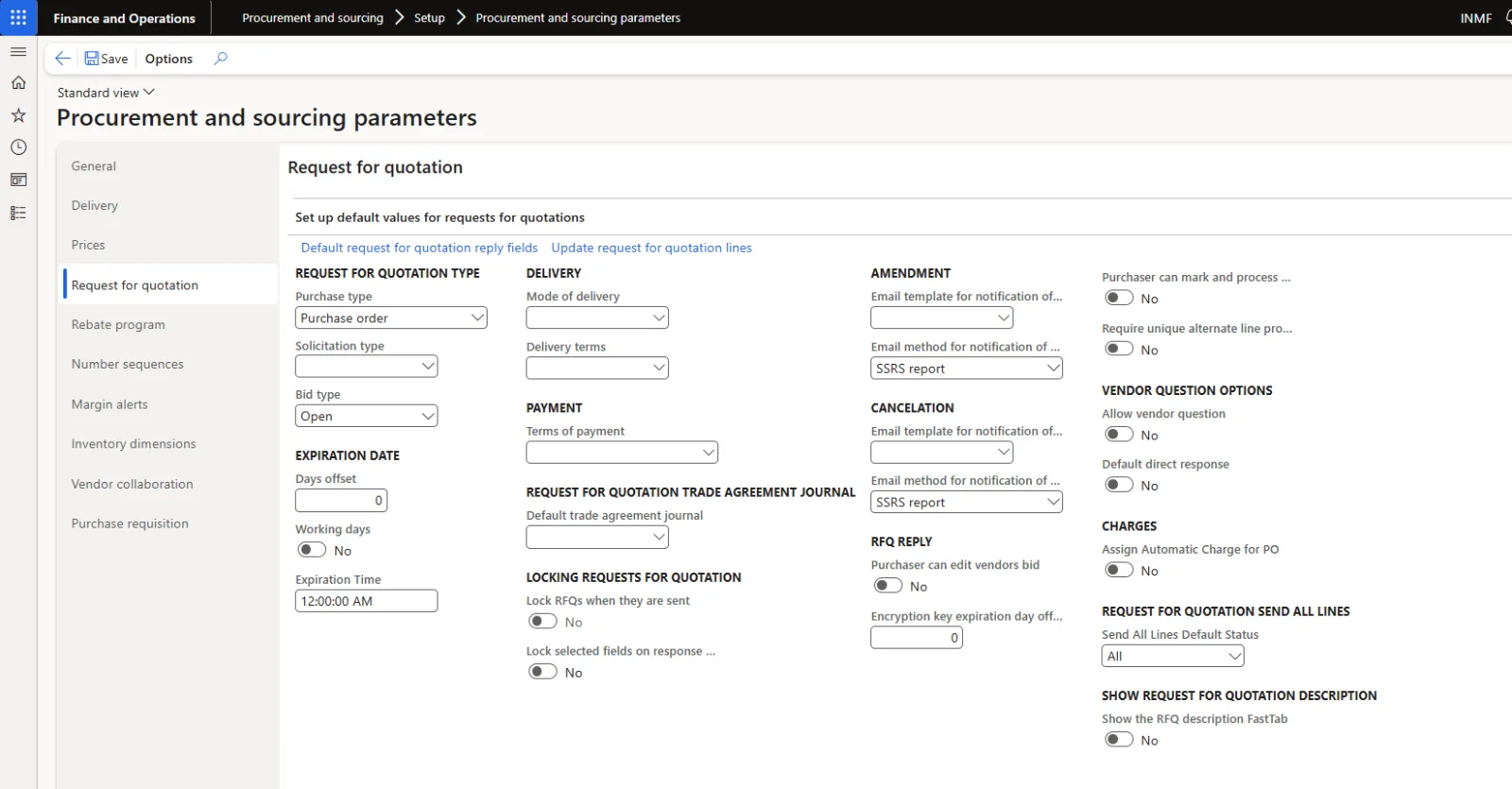
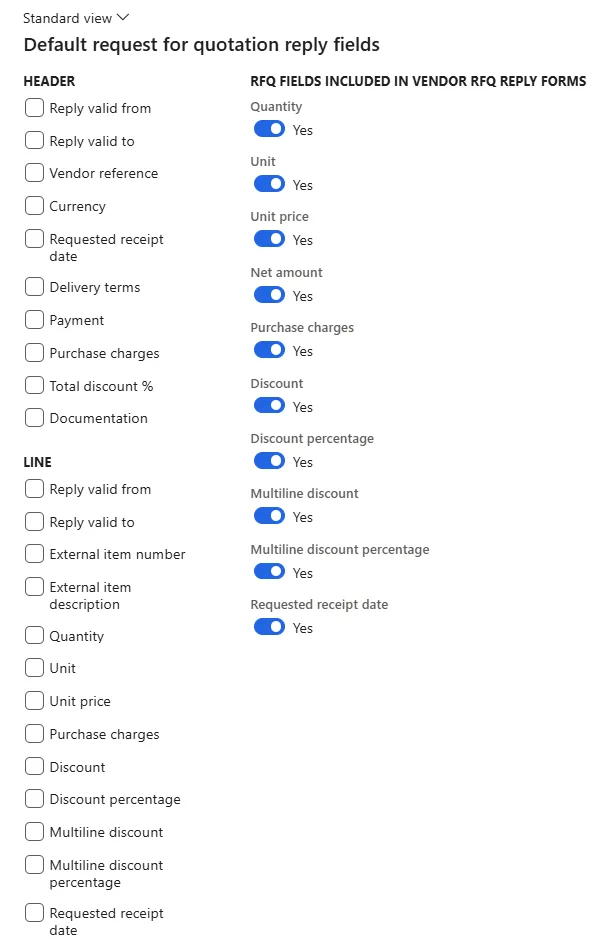
Default request for quotation reply fields
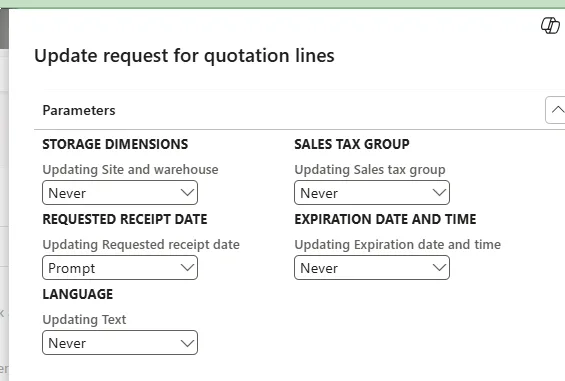
Update request for quotation lines
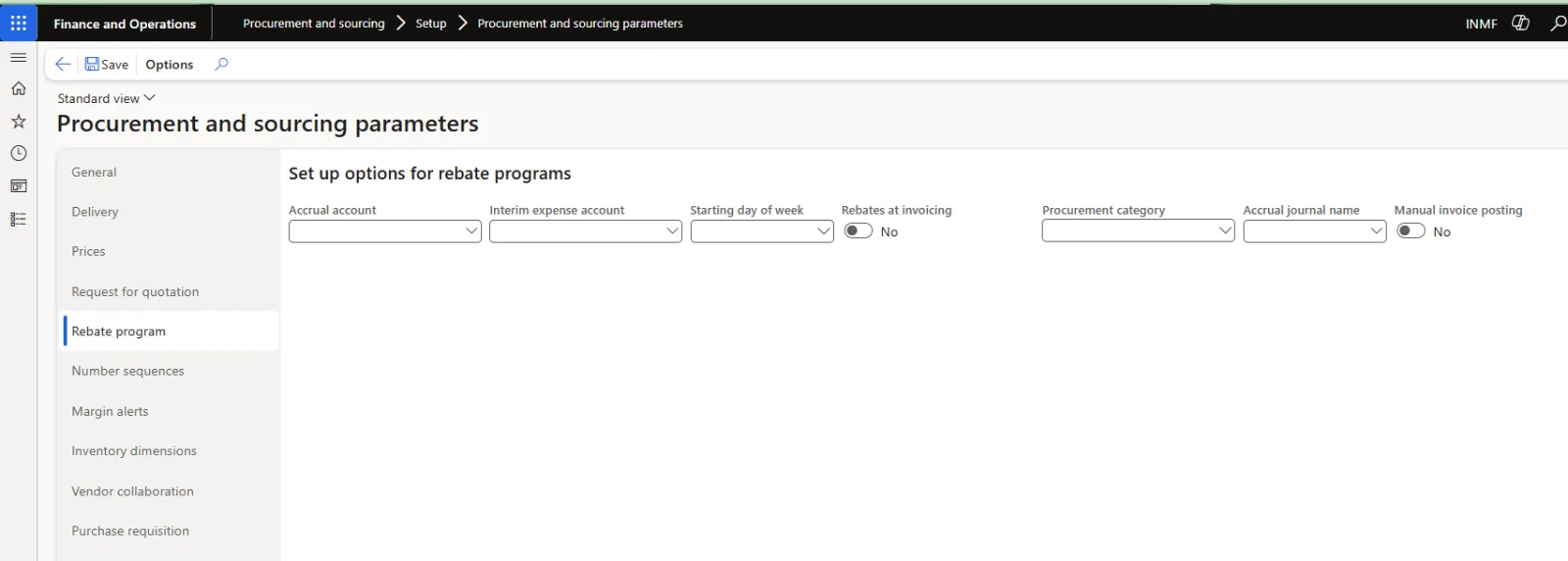
Rebate program
Number Sequences
On the Number sequences tab, you can select a number sequence associated with each reference. You can use the number sequences to assign logical or sequential numbers to a document or record. For example, the number sequence code that is assigned to the Purchase order reference is used to generate a new unique number for each purchase order that is created.
The number sequence can be set up to have a specific format such as PO. This means that the purchase order number will be generated by using the next available number in that format. For example, if the next number in the sequence is 11156 when a new purchase order is created the system will generate the purchase order as PO11156.
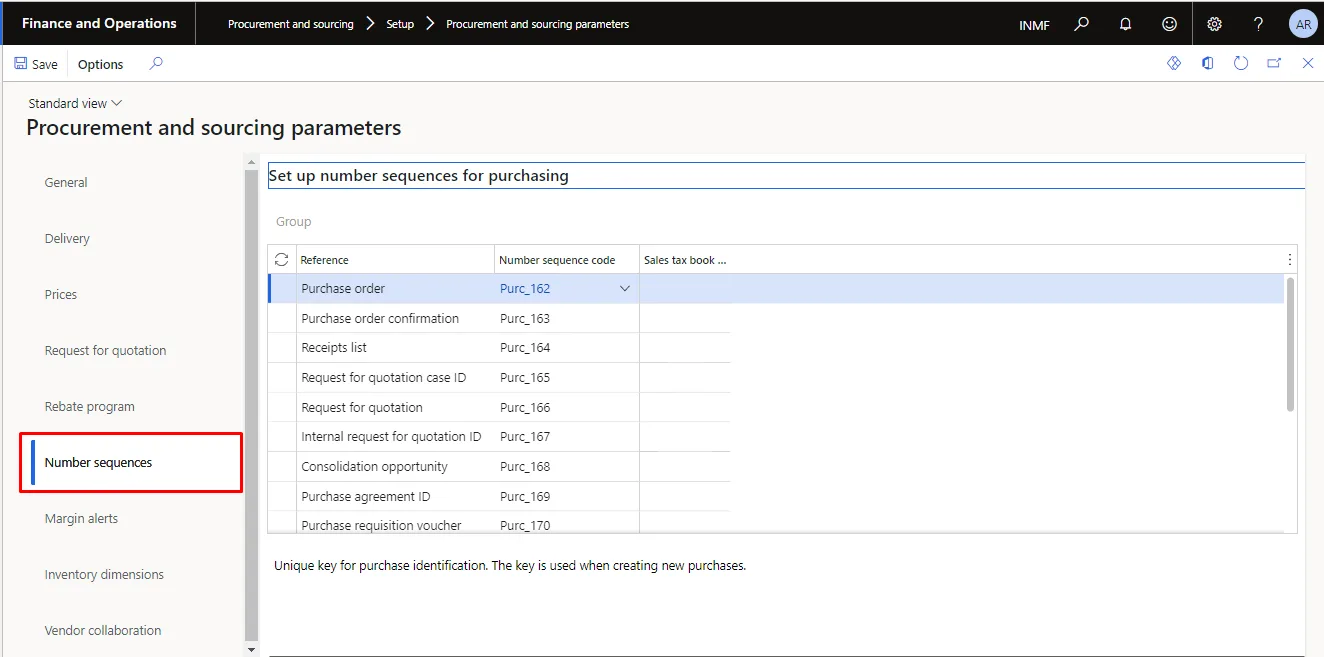
Each number sequence must have a number sequence code specified before a document of that type can be created. Mentioned below are the number sequence that are configured in Procurement & sourcing parameters:-
Reference | Number sequence code | Description |
Purchase order | Purc_162 | Unique key for purchase identification. The key is used when creating new purchases. |
Purchase order confirmation | Purc_163 | Unique key for purchase order. The key is used as unique identification of purchase orders and allocated automatically when updating purchase orders. |
Receipts list | Purc_164 | Unique key for receipts list. The key is used as unique identification of receipts lists and allocated automatically when updating receipts lists. |
Request for quotation case ID | Purc_165 | Unique key for request for quotation identification. The key is used when creating a new request for quotation. |
Request for quotation | Purc_166 | Key for vendor's request for quotation identification. The key is used when creating a new vendor specific request for quotation. |
Internal request for quotation ID | Purc_167 | Unique key for request for quotation. The key is used as unique identification of request for quotation. |
Consolidation opportunity | Purc_168 | Unique key for consolidation opportunities. The key is used when creating new consolidation opportunities |
Purchase agreement ID | Purc_169 | Unique key for purchase agreement identification. The key is used when new purchase agreements are created. |
Purchase requisition voucher | Purc_170 | Unique key for voucher, used when posting purchase requisitions to the general ledger. |
Confirmation of product receipt source document | Purc_171 | Unique key for the confirmation of product receipt when the receipt is performed from the Enterprise Portal. |
Attribute-based pricing ID | Purc_213 | Unique value that identifies an attribute-based pricing formula |
Direct delivery number | Purc_236 | The unique key for direct delivery orders. |
Rebate ID | Vend_74 | Rebate identification number. |
Vendor invoice number | Vend_92 | The unique ID that is assigned automatically when invoices are created |
Consignment replenishment order | Purc_291 | Unique key for consignment replenishment orders. |
Inventory ownership change product receipt | Purc_314 | Unique key for product receipt. The key is used as unique identification of product receipts posted using inventory ownership change journals. |
Number Sequence Properties
Number sequences are created at Organization administration > Number sequences > Number sequences and are then assigned to their reference on this tab. The references maintained for procurement typically include the purchase order, purchase requisition, request for quotation and RFQ case, purchase agreement and the related vouchers, with further references appearing where features such as consignment or vendor collaboration are enabled.
Property | Description |
Scope | Determines whether the sequence is shared across the organisation, specific to a company, or specific to a company and fiscal year. Purchase orders are normally company specific; purchase requisitions are often shared, because requisitions can be raised across legal entities. |
Format | Built from segments. A constant segment gives the prefix, a number sign (#) represents an incrementing digit and an ampersand (&) an incrementing letter. For example, the segments PO- and ##### produce PO-00001. |
Continuous or non-continuous | A continuous sequence leaves no gaps and is used where audit or statute requires an unbroken series, but it locks the sequence during a transaction and can slow high-volume processing. A non-continuous sequence performs better and supports preallocation, at the cost of occasional gaps where a document is abandoned. |
Manual or automatic | An automatic sequence numbers the document on creation. A manual sequence requires the user to enter the number, which is occasionally used where legacy numbering must be preserved during cutover. |
Once a sequence is in use, change the next number only with care, and do not edit the format of a live sequence to introduce a new prefix. Create a new number sequence and reassign the reference instead, so that existing documents remain traceable and the new numbers do not collide with numbers already issued.
Reference: Number sequences overview – Microsoft Learn
Other Tabs on the Parameters Page
Depending on the application version and the features enabled, the page also carries the following tabs, which are not covered by the screenshots above. The tab list should be validated against the target environment.
Purchase Requisition Tab
Holds the settings that govern how requisitions behave before they become purchase orders: the default requisition purpose, the treatment of requisition lines when a request for quotation bid is accepted, and the behaviour of accounting and budget reservations on the requisition. For example, RFQ bid-driven fixed asset field updates decides whether accepting a bid re-evaluates the asset classification and accounting values on the requisition line, or only transfers the price and preserves the existing values and budget reservations.
Reference: Purchase requisition overview – Microsoft Learn
Parameters, Policies and Workflows
Parameters are frequently expected to do work that belongs elsewhere. The three mechanisms are distinct and should be designed together:
- Parameters – company-wide defaults and switches. They apply to the whole legal entity and cannot be varied by department, category or value.
- Purchasing policies – rule-based control that can be scoped to organisation hierarchies, so that different business units follow different rules. Rule types include the purchase requisition control rule, the purchase order creation and demand consolidation rule, category access, catalogue policy, and the fields that trigger purchase order reapproval.
- Workflows – the approval routing itself, for requisitions and purchase orders, including automatic approval rules, assignment and escalation.
One caution carried in the product documentation: when configuring the fields that require purchase order reapproval, avoid including the accounting distribution changed field, because the accounting distribution is always reset when an approved order under change management is edited, so every edit would trigger reapproval.
Reference: Purchasing policies overview – Microsoft Learn
Related Setup Outside This Page
Several settings that users expect to find here are maintained elsewhere:
- Invoice matching – the line matching policy (not required, two-way or three-way), price tolerances, invoice totals tolerances and the treatment of invoices posted with discrepancies are configured in Accounts payable parameters and the invoice matching setup, then overridden per vendor and per item.
- Terms of payment, methods of payment and withholding tax – on the vendor master and in Accounts payable.
- Automatic charges – Procurement and sourcing > Setup > Charges.
- Procurement categories and category access – in the procurement category hierarchy and in purchasing policies.
- Item-level over-delivery and under-delivery percentages – on the released product.
Reference: Set up Accounts payable invoice matching validation – Microsoft Learn
Implementation Considerations and Common Pitfalls
- Parameters are company specific. Confirm the values in every legal entity after go-live and after any environment refresh or golden configuration copy.
- Decide on change management before go-live. Enabling it later changes the order life cycle, the point at which inventory transactions are created, and the daily experience of every buyer.
- Never activate change management without an active purchase order workflow version.
- Accepting over or under delivery without sensible tolerance percentages effectively removes quantity control at receipt. Set the company default conservatively and use item-level tolerances where they are genuinely needed.
- Set the product receipt number check to at least a warning, to catch duplicate receipt of the same vendor challan.
- Leave the auto charges search cleared unless automatic charges are actually configured, and review the setting if purchase order line entry feels slow.
- Do not edit the format of a number sequence that is already in use; create a new sequence and reassign the reference.
- Record the agreed value of every parameter, with the reason, in the configuration workbook or functional design document. Parameters are invisible in daily use and are the last thing checked when behaviour changes unexpectedly.
- Restrict access to this page in production. A single change affects every user and every purchase order in the company.
Reference Links – Microsoft Learn
Purchasing parameters and purchase orders
- Set up purchasing parameters (training module) – https://learn.microsoft.com/en-us/training/modules/process-purchase-orders-dyn365-supply-chain-mgmt/1-parameters
- Procurement and sourcing overview – https://learn.microsoft.com/en-us/dynamics365/supply-chain/procurement/procurement-sourcing-overview
- Purchase order overview – https://learn.microsoft.com/en-us/dynamics365/supply-chain/procurement/purchase-order-overview
- Approve and confirm purchase orders – https://learn.microsoft.com/en-us/dynamics365/supply-chain/procurement/purchase-order-approval-confirmation
- Review and accept changes to confirmed purchase orders – https://learn.microsoft.com/en-us/dynamics365/supply-chain/procurement/purchase-order-changes-after-confirmation
- Product receipt against purchase orders – https://learn.microsoft.com/en-us/dynamics365/supply-chain/procurement/product-receipt-against-purchase-orders
Policies, workflows and requisitions
- Purchasing policies overview – https://learn.microsoft.com/en-us/dynamics365/supply-chain/procurement/purchase-policies
- Procurement and sourcing workflows – https://learn.microsoft.com/en-us/dynamics365/supply-chain/procurement/procurement-sourcing-workflows
- Purchase requisition overview – https://learn.microsoft.com/en-us/dynamics365/supply-chain/procurement/purchase-requisitions-overview
- Requests for quotation (RFQs) overview – https://learn.microsoft.com/en-us/dynamics365/supply-chain/procurement/request-quotations
- Raise purchase requisitions – business process guidance – https://learn.microsoft.com/en-us/dynamics365/guidance/business-processes/source-to-pay-raise-purchase-requisitions-overview
Prices, charges and matching
- Automatic application of charges – https://learn.microsoft.com/en-us/dynamics365/supply-chain/procurement/automatic-charges-allocation
- Vendor rebates – https://learn.microsoft.com/en-us/dynamics365/supply-chain/procurement/vendor-rebates
- Set up Accounts payable invoice matching validation – https://learn.microsoft.com/en-us/dynamics365/finance/accounts-payable/tasks/set-up-accounts-payable-invoice-matching-validation
Number sequences and training
- Number sequences overview – https://learn.microsoft.com/en-us/dynamics365/fin-ops-core/fin-ops/organization-administration/number-sequence-overview
- Configure the procure-to-purchase process in Dynamics 365 Supply Chain Management – https://learn.microsoft.com/en-us/training/modules/configure-procure-purchase/
- Configure and manage procurement and vendors (learning path) – https://learn.microsoft.com/en-us/training/paths/configure-manage-procurement-vendors-dyn365-supply-chain-mgmt
Reference Links – Community Blogs
The following third-party sources are widely used in the Dynamics community. They are not maintained by Microsoft and should be validated against the product documentation and the version in use.
- Dynamics Community blog – Change management for purchase orders in D365 – https://community.dynamics.com/blogs/post/?postid=809f176f-c143-405b-a509-0da56188b13f
- Dynamics Community blog – Requests for quotations (RFQ): process overview – https://community.dynamics.com/blogs/post/?postid=71e487dd-4e03-4eac-ba8a-dccc9a4c3d95