Vendor Master in D365
Purpose and Scope
This document explains the vendor master (vendor card) in Microsoft Dynamics 365 Finance and Operations: how the record is created, what is maintained on each FastTab, the India localization data required for GST and TDS, and the dependent configuration that must exist before a vendor can be transacted with. It is intended for Accounts Payable and Procurement users as an operating guide, and for functional consultants as a configuration and training reference.
Screens shown are indicative. Field availability varies with the application version, the license in use, the localization enabled for the legal entity, and features switched on in Feature management, so the field list should be validated against the target environment.
Understanding the Vendor Master
A vendor is not a standalone record. When a vendor is saved, Dynamics 365 creates a party record in the Global Address Book (GAB) and assigns it the vendor party role. The GAB is the centralized repository of master data for every internal and external person or Organisation the business deals with, holding the name, addresses and contact information, while each party can carry one or more roles in one or more legal entities.
- Party – the underlying identity record (Organisation or person) stored once in the GAB.
- Party role – the capacity in which the party is used: vendor, customer, prospect, competitor, worker, contact and so on. The same party can be a vendor in one legal entity and a customer in another.
- Vendor account – the legal-entity-specific record that carries the trading terms, tax attributes, posting profile and transactions. Vendor accounts are company specific; the party behind them is shared.
- Address book – a grouping of party records used to segregate and secure master data, for example by business unit or by procurement team.
The practical consequence is that an address or contact number corrected on one record is corrected everywhere the party is used, and that a single supplier trading with several legal entities should be linked to one party rather than created as unrelated records.
Reference: Global address book overview – Microsoft Learn
Prerequisites Before Creating a Vendor
The vendor card defaults most of its behavior from configuration that must already exist. Creating vendors before this setup is complete is the most common cause of posting failures and incorrect tax calculation later.
- Vendor groups (Accounts payable > Setup > Vendors > Vendor groups) – mandatory on the vendor; drives the default posting profile, terms of payment and settle period.
- Vendor posting profiles (Accounts payable > Setup > Vendor posting profiles) – assign the summary (control) account and related ledger accounts to all vendors, a vendor group or a single vendor. The default profile is set on Accounts payable parameters.
- Number sequence for the vendor account (Accounts payable parameters > Number sequences) – decides whether the vendor code is system generated or entered manually.
- Payment setup – terms of payment, payment days, payment schedules, cash discounts, methods of payment and payment fees, all under Accounts payable > Payment setup.
- Bank groups and bank accounts – required before vendor bank accounts and electronic payment formats can be used.
- Financial dimensions and the account structure – dimension values that will default from the vendor must exist and must be valid for the account structure.
- Sites and warehouses – required for the purchase order defaults on the vendor.
- Sales tax groups and item sales tax groups – the vendor sales tax group combined with the item sales tax group determines the tax applied on the purchase document.
- India GST setup – business verticals, state codes and union territory flags on the Address setup page, enterprise tax registration numbers (GSTIN) for the company and for vendors, tax registration groups, GST reference number sequence groups, and HSN/SAC codes on products.
- India TDS/TCS setup – withholding tax components and component groups, withholding tax codes with threshold and exception threshold definitions, withholding tax groups, TDS authorities, and withholding tax reporting codes for Form 26Q/27Q.
- Optional controls – vendor approval workflow, vendor bank account approval workflow and vendor collaboration, where the organisation requires maker-checker control or supplier self-service.
Key references for the above:
- Set up vendor accounts – https://learn.microsoft.com/en-us/dynamics365/supply-chain/procurement/set-up-vendor-accounts
- Vendor posting profiles – https://learn.microsoft.com/en-us/dynamics365/finance/accounts-payable/vendor-posting-profiles
- India Goods and Services Tax (GST) overview – https://learn.microsoft.com/en-us/dynamics365/finance/localizations/india/apac-ind-gst
Procedure: Create a Vendor
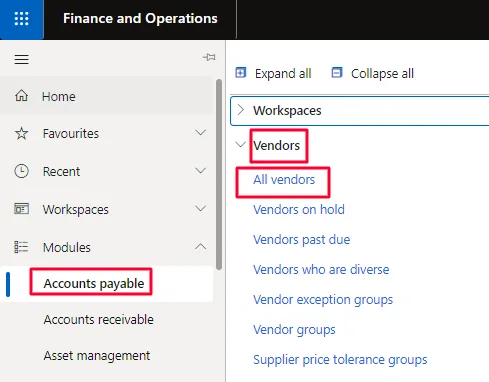
- Go to Accounts payable module > Vendors > All Vendors to open the list of all the vendors.
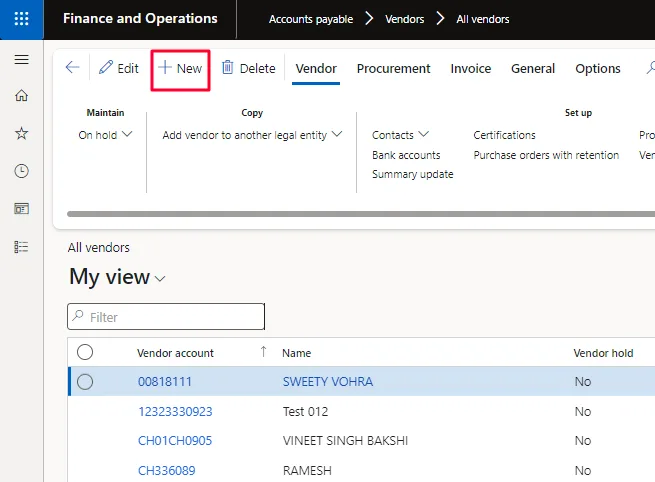
- Click New to create a new vendor card.
- A New vendor card is opened > Fill all the details of the vendor in the vendor card.
- Fill out the necessary details of the vendor card.
- Save the vendor card.
Points to note while creating the record:
- The vendor account number is generated automatically or entered manually, depending on the number sequence configured in Accounts payable parameters. Manual numbering allows meaningful codes but must be governed by a naming convention to remain usable.
- The Type field (Organization or Person) determines the kind of global address book record created and the name fields available. It should be set correctly at creation, because changing it after transactions exist is disruptive.
- Vendor group is mandatory and should never be treated as a formality: it supplies the posting profile used to derive the vendor control account.
- Before creating a record, search the Global Address Book for the party. Duplicate vendors for the same PAN or GSTIN fragment TDS threshold accumulation, distort ageing and spend analysis, and create reconciliation effort at year end.
- Where the vendor approval workflow is enabled, the new record (or changes to protected fields) is routed for approval before it takes effect, and imported data behaves according to the Data entity behavior setting: allow changes without approval, reject changes, or create change proposals.
Reference: Vendor workflow – Microsoft Learn
Details on the vendor card.
Now let us go through the vendor card details tab wise.
General tab
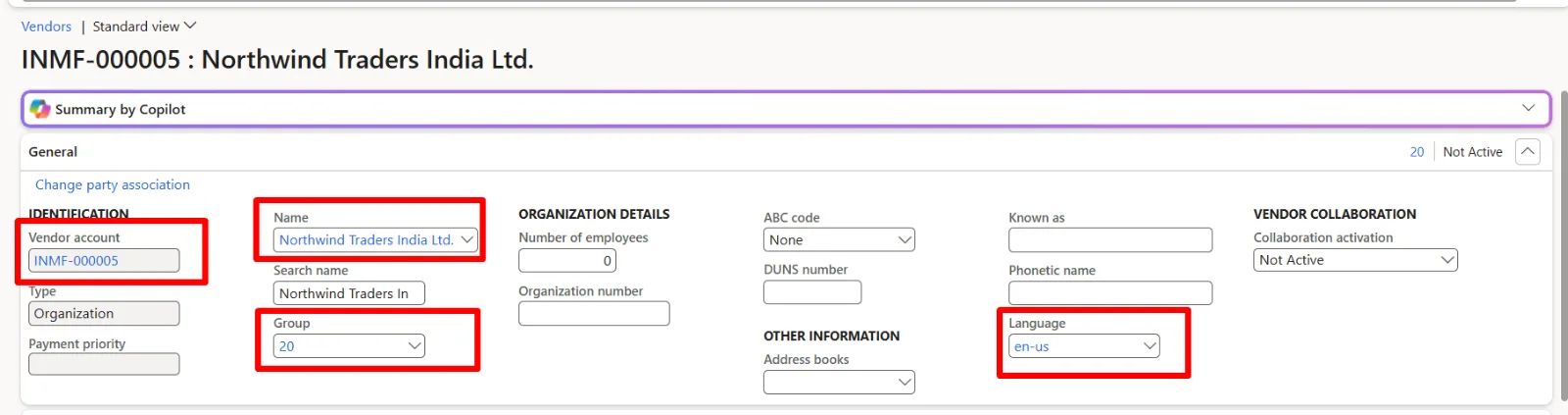
The General FastTab identifies the vendor and drives several downstream defaults. The fields commonly maintained are:
- Vendor account – the unique identifier of the vendor within the legal entity.
- Name – selected from or written to the global address book party record.
- Search name – an alternate short name used for quick lookup; useful where the legal name differs from the trade name.
- Type – Organization or Person.
- Group – the vendor group; drives posting profile and default terms.
- Address books – restricts and organises the party record for security and reporting.
- Known as / Phonetic name – secondary or commonly used name of the supplier.
- DUNS number – external unique identifier issued by Dun & Bradstreet, where used.
- Language – the language in which purchase orders, remittance advices and other external documents are printed for this vendor.
- Vendor hold – blocks the vendor for further processing. The options are No (no hold), Invoice (no invoices can be posted), Payment (no payments can be generated), Requisition (purchase requisitions cannot be created or converted), All (hold for all transaction types), and Never (exempt from automatic holds). A reason and a release date can be recorded.
- One-time vendor – used for occasional suppliers created from a template; not intended for recurring trade.
- Collaboration activation – enables the vendor collaboration portal for the supplier and determines whether accepted purchase orders are auto-confirmed.
- Party ID – the link to the underlying global address book record.
Address
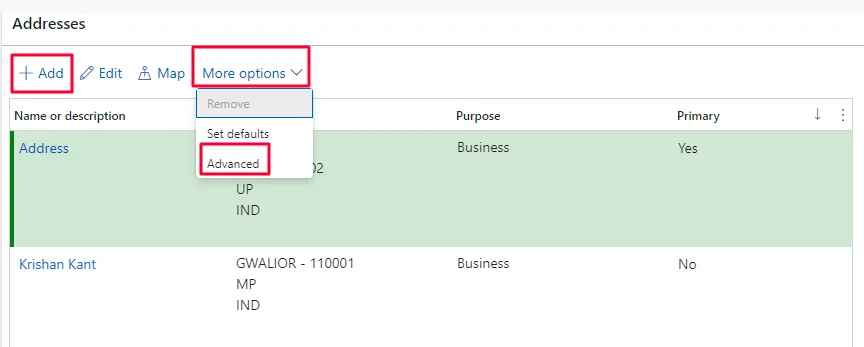
How addresses behave in Dynamics 365
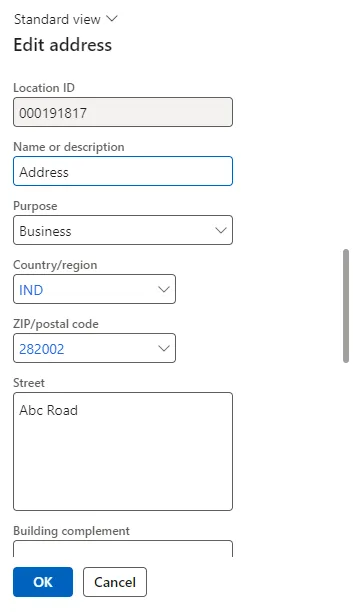
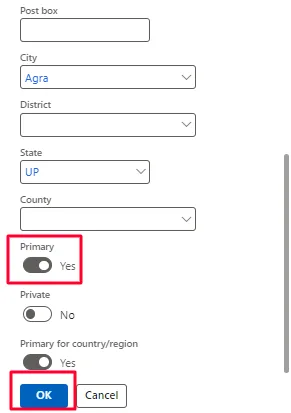
- Addresses are purpose driven. A single address can serve several purposes (Invoice, Delivery, Business, Payment, Statement), and one address is marked primary for each purpose. Purchase orders, invoices and remittances pick the address by purpose, so incomplete purposes are a frequent cause of documents printing the wrong address.
- Addresses are date effective. Editing an address creates a new effective record rather than overwriting history, so documents posted earlier continue to show the address that was valid at the time.
- Country/region and ZIP/postal code drive the defaulting of city, district and state. For India, every state must carry the correct state code, and union territories must be flagged, on Organization administration > Global address book > Addresses > Address setup. GST place of supply and the intra-state versus inter-state determination depend on it.
- Is primary marks the default address of the vendor; Is private restricts visibility to roles permitted to see private addresses; Is primary for the country is used where a party holds several addresses in the same country.
- Registration IDs (More options > Advanced > Registration ID) hold statutory identifiers maintained against the party or address, based on registration types and categories set up per country/region.
GST registration (GSTIN) on the vendor address – India
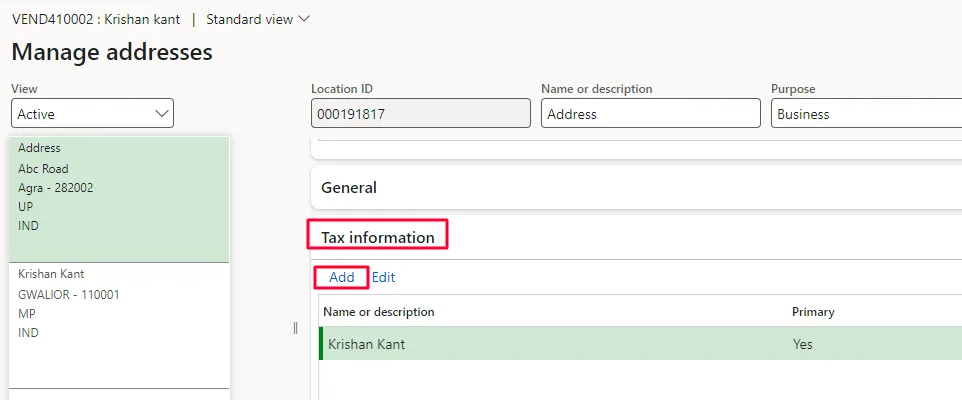
The GSTIN is attached to the vendor address, not to the vendor header, because GST determination depends on the state of the transacting address. The sequence is:
- Create the vendor GSTIN first at Tax > Setup > Sales tax > Enterprise tax registration numbers, with Tax type = GST and Registration number type = Vendor. Until this record exists, the number will not appear in the drop-down on the vendor address.
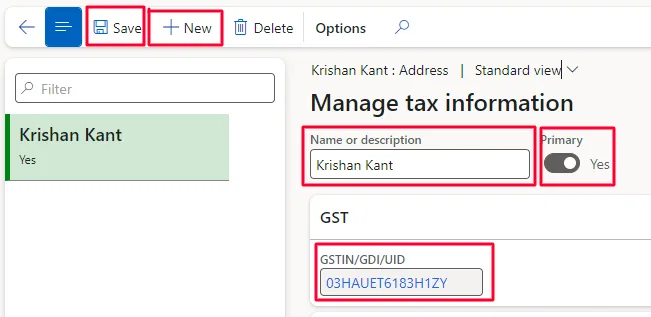
- On the vendor, open Addresses > More options > Advanced > Tax information > Add, enter a name for the tax information record, mark it primary where applicable, and select the GSTIN.
- For a supplier registered in several states, maintain one address per state with its own GSTIN and tax information record, so that the correct registration is picked on each transaction.
- Where separate document number sequences are required by registration, assign the GST reference number sequence group to the address.
- For unregistered or composition suppliers, no GSTIN is captured; the reverse-charge and ineligible-credit behaviour is then driven by the tax setup and by the GST composition scheme flag on the Tax information FastTab.
References:
- Create a GSTIN master – https://learn.microsoft.com/en-us/dynamics365/finance/localizations/india/apac-ind-gst-create-gstin-master
- Define GSTINs and reference number sequences – https://learn.microsoft.com/en-us/dynamics365/finance/localizations/india/apac-ind-GST-define-gstin-numbers-number-sequences
- Attach the GSTIN to a tax registration group – https://learn.microsoft.com/en-us/dynamics365/finance/localizations/india/apac-ind-gst-attach-gstin-tax-registration-group
- Set up and use registration IDs – https://learn.microsoft.com/en-us/dynamics365/fin-ops-core/dev-itpro/organization-administration/registration-ids
Contact information
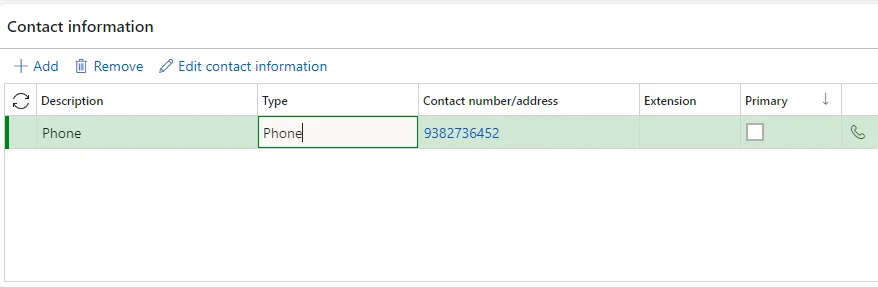
Following are the types of contact information is available that can be stored under contact information.
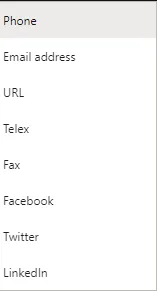
- Each line has a type (phone, extension, mobile phone, email, URL, fax, telex or social media), a description, a purpose (business, home, other) and flags for primary and private.
- The primary email address is the destination used when purchase orders and remittance advices are emailed, and when a vendor collaboration user is invited. It should be a controlled mailbox of the supplier rather than an individual's address.
- Contact information stored here belongs to the party. Named individuals at the supplier are maintained separately as contacts (Vendor > Contacts), each with their own address and contact details.
- Changes to contact details are shared across every legal entity in which the party is used.
Miscellaneous details

The Miscellaneous details FastTab groups the control and classification fields that do not belong to a specific functional area. Depending on the version and the features enabled, this typically includes the vendor hold status with its reason code and release date, the one-time vendor flag, the line of business and segment/subsegment classification, the number sequence group, and statistics or ABC classification used for vendor reporting. The exact field list should be confirmed against the environment.
Vendor profile

The Vendor profile FastTab carries the qualitative and compliance attributes of the supplier that are used for vendor evaluation, classification and statutory reporting rather than for transaction processing. In Indian implementations this area is frequently used, together with registration IDs, to record MSME/Udyam registration details, which are needed to identify micro and small enterprise suppliers for payment-timeline monitoring and MSME reporting.
Purchasing demographics

Purchasing demographics records the procurement-side attributes of the vendor, such as the buyer group or purchasing agent responsible for the relationship and the segmentation used for spend analysis and vendor performance reporting. These fields do not affect posting, but they drive filtering and analysis across procurement reports and workspaces, so they should be populated consistently.
Invoice and delivery
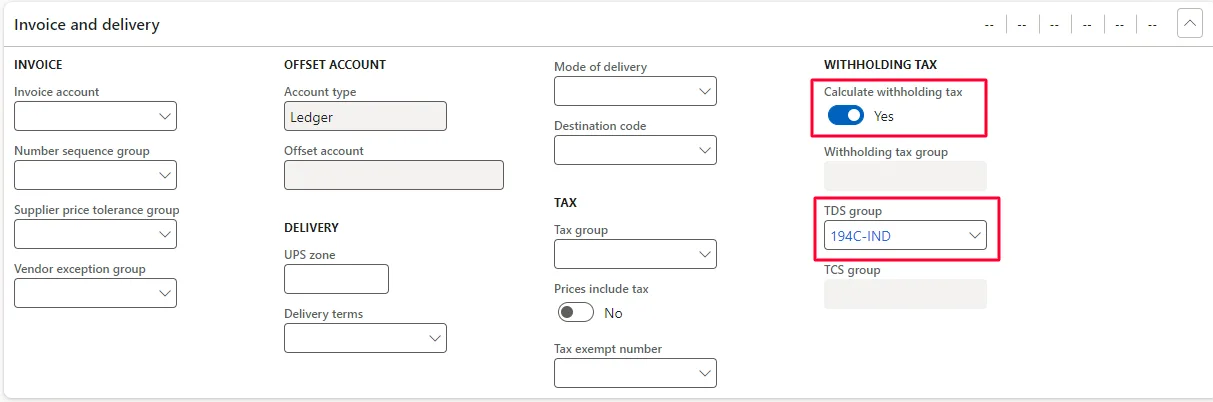
The Invoice and delivery FastTab carries the tax and document-control defaults that flow to every purchase order and vendor invoice for the supplier.
Sales tax
- Sales tax group – defaults to purchase documents and, combined with the item sales tax group, determines the TAX calculated.
- Prices include sales tax – set to Yes only where the agreed prices are tax inclusive.
- Tax exempt number / registration – used where an exemption applies.
Withholding tax (TDS/TCS) – India
- Set Calculate withholding tax to Yes for vendors from whom tax is to be deducted at source.
- Select the default TDS group. TDS on a purchase invoice is calculated on the basis of the default TDS group defined for the vendor. When a TDS group is selected, the Withholding tax group and TCS group fields become unavailable.
- Threshold and exception threshold amounts defined on the withholding tax components govern when deduction starts; accumulation is tracked per vendor, so duplicate vendor records break threshold monitoring.
- For section 194Q, the initial threshold already achieved by a vendor can be recorded at Tax > Setup > Withholding tax > Initial threshold achieved values.
- Higher deduction for non-filers (section 206AB) is handled through an additional threshold definition or a separate withholding tax code and group attached to the vendor.
Invoice and matching
- Invoice account – where invoices are received from and paid to a different account (for example a parent company or a factoring arrangement).
- Invoice matching – the matching policy for the vendor: not required, two-way (price) or three-way (price and quantity) matching, with price tolerance percentages driving the matching discrepancy warnings raised during invoice entry.
Delivery
- Delivery terms (Incoterms), Mode of delivery and Delivery reason default to the purchase order and influence landed-cost and transfer-of-title treatment.
- Delivery address, over-delivery and under-delivery percentages, and lead time default to the purchase order lines.
References:
- TDS group, PAN and TAN information setup for vendors and customers – https://learn.microsoft.com/en-us/dynamics365/finance/localizations/india/apac-ind-TDS-TDS-group-PAN-and-TAN-information-setup-for-vendors-and-customers
- TDS on purchases of goods (section 194Q) – https://learn.microsoft.com/en-us/dynamics365/finance/localizations/india/ind-tds-purchases-goods
- Post TDS/TCS on non-filers at a higher rate of tax – https://learn.microsoft.com/en-us/dynamics365/finance/localizations/india/post-tds-tcs-non-filers-higher-tax
Purchase order defaults
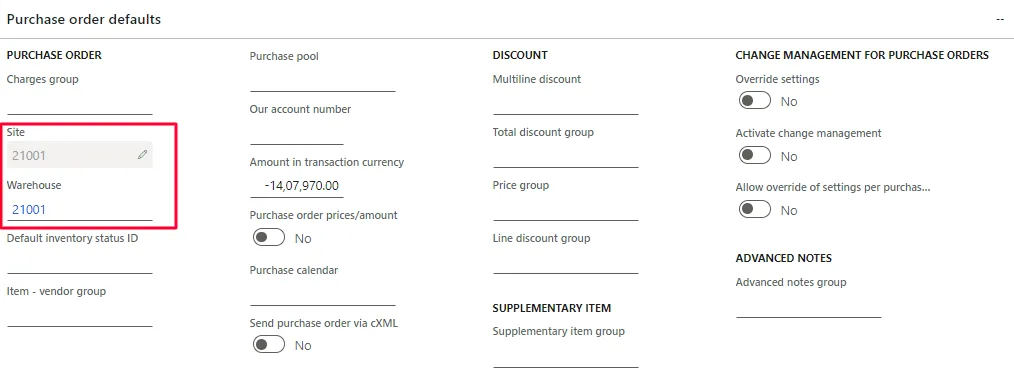
- The site and warehouse entered here default to purchase orders raised for the vendor and flow from the order header to the lines.
- These defaults matter beyond convenience: the warehouse address determines the company registration number and the place of supply used in GST determination, and the site usually carries default financial dimensions. An incorrect default produces tax and dimension errors that are only detected at posting.
- Other defaults maintained in this area, depending on the configuration, include the currency, the buyer group and the procurement category or catalogue applicable to the vendor.
- Defaults can always be overridden on the purchase order; they are a productivity and accuracy control, not a restriction.
Payment
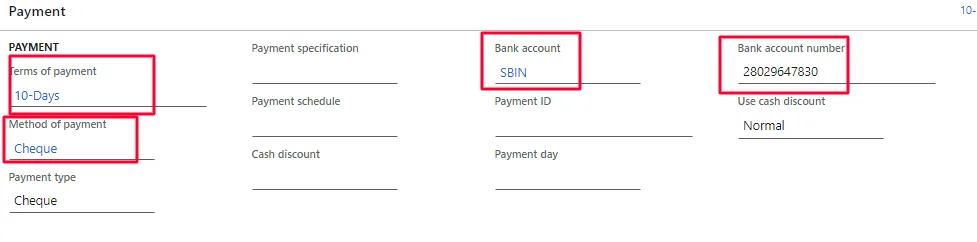
The Payment FastTab governs how and when the vendor is paid.
- Terms of payment – determines the due date of the invoice. Terms can be net days, current month, a specific day of the month, or a combination with payment days.
- Method of payment – determines the payment instrument and the file format used (cheque, bank transfer, electronic payment), the offset account, and whether a vendor bank account is mandatory for the payment.
- Payment specification – the sub-type of the payment format, where the bank requires one.
- Payment schedule – used where the invoice is to be settled in instalments.
- Cash discount and discount grace period – the early-settlement discount that applies by default to the vendor's invoices.
- Bank account – the default vendor bank account used in payment journals and payment files. The account must first be created under Vendor > Set up > Bank accounts.
- Payment fee and payment day – used where the bank charges are recovered or payments are restricted to defined days.
Where payments are generated on a recurring cycle, these defaults are also what the automated payment proposal relies on to select and group invoices.
Reference: Automate vendor payment proposals – Microsoft Learn
Retail
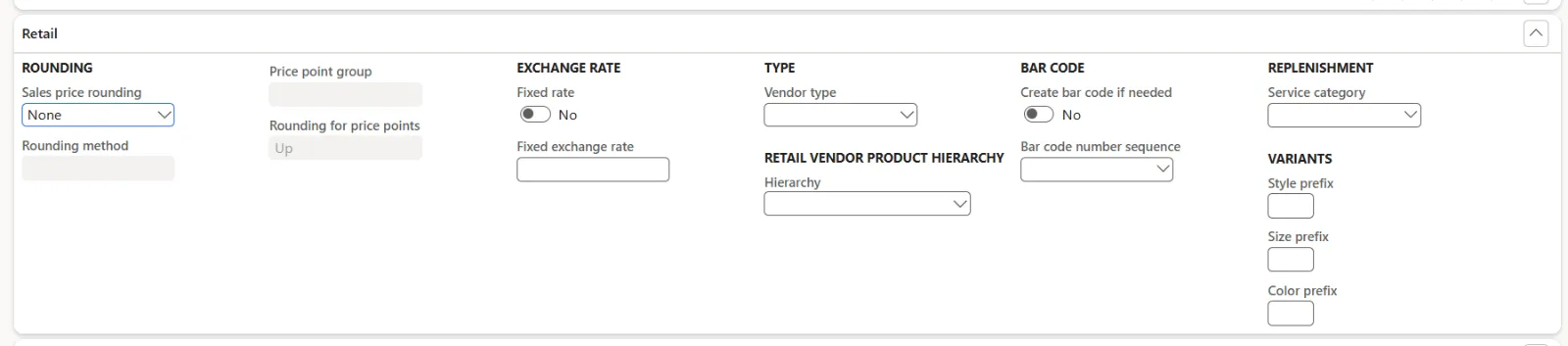
The Retail FastTab is relevant where Dynamics 365 Commerce is deployed. It holds the retail-specific attributes of the vendor, such as the vendor's use in replenishment and assortment processes and the attributes exposed to retail catalogues and channel operations. For a finance-only implementation these fields can be left at their defaults.
Financial dimensions
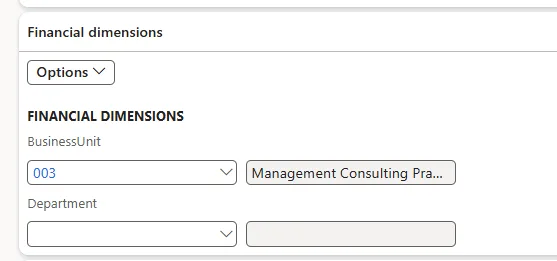
Default financial dimensions on the vendor flow to purchase orders, vendor invoices and payments, and are used to post the vendor balance by dimension according to the posting profile and the ledger dimension link.
- Set only the dimensions that are genuinely an attribute of the supplier, such as the branch or sub-branch through which the vendor is managed. Dimensions that belong to the expenditure, such as cost centre or project, should come from the expense line, not from the vendor.
- For vendor invoices that are linked to a purchase order, the default dimension on the invoice line comes from the purchase order line. For invoices that are not linked to a purchase order, the dimensions are merged in the priority sequence dimension link, then invoice header, then item.
- The values selected must be valid for the account structure and any advanced rules; an invalid combination blocks posting.
- Changes to the default dimensions apply to new documents only; existing open documents retain the values captured when they were created.
Reference: Vendor invoices overview – Microsoft Learn
Tax Information
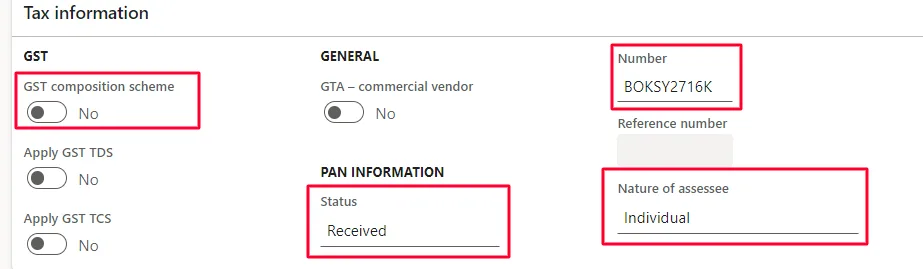
The Tax information FastTab holds the India statutory attributes of the vendor that drive GST treatment and TDS computation.
- GST composition scheme – set to Yes where the supplier is registered under the composition scheme. Such suppliers do not charge GST that is creditable, so the flag affects tax applicability and input tax credit.
- PAN information > Status – Received, Applied or Not available. Select Received to record the PAN. Where the status is Applied, the acknowledgement is captured in the reference number field.
- Number – the PAN of the vendor. Where the PAN is not available, tax is deducted at the higher rate prescribed under section 206AA, so PAN capture is a control point, not a formality.
- Nature of assessee – Company, HUF, Firm, Individual, AOP, BOI, Local authority or Others. This classification is used in the TDS computation and in the statutory returns.
- Threshold accumulation for TDS is tracked against the vendor and its PAN, which is why duplicate vendor records for the same PAN must be avoided or merged.
Reference: TDS group, PAN and TAN information setup for vendors and customers – Microsoft Learn
Vendor Bank Details
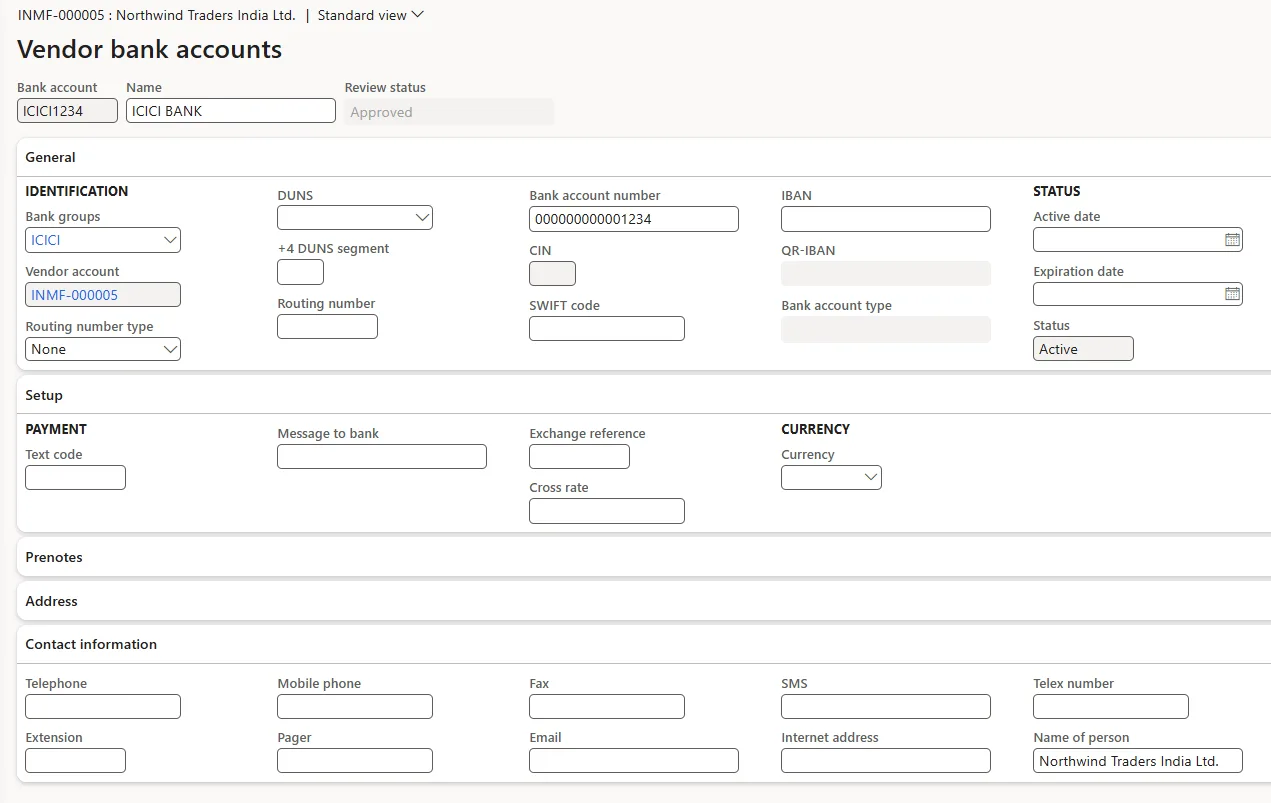
Vendor bank accounts are maintained at Accounts payable > Vendors > All vendors > select the vendor > Vendor tab > Set up > Bank accounts, and the account to be used by default is then selected on the Payment FastTab.
- Bank account ID and name – the internal identifier and description of the account.
- Bank groups – links the account to the bank master; the bank group carries the bank's own details and is required for payment file generation.
- Bank account number, IFSC code, SWIFT code and IBAN – for Indian NEFT, RTGS and IMPS payment files the IFSC code and the beneficiary account number are mandatory, and the beneficiary name must match the supplier's bank records or the payment is returned.
- Currency and active from/to dates – restrict the account to the currency and period in which it is valid.
- Address and contact details of the bank branch, where the payment format requires them.
Control considerations
- Changes to vendor bank details are one of the highest fraud risks in the purchase-to-pay cycle. Access to create and amend bank accounts should be restricted and separated from invoice entry and payment release.
- The vendor bank account workflow allows approval to be required for new bank accounts, for updates to existing accounts, or for both, with the specific fields that require approval selected on Accounts payable parameters. Imported records behave according to the data entity behaviour selected.
- Independent verification of bank details with the supplier, outside email, should be part of the onboarding and amendment procedure.
Reference: Vendor bank account workflow – Microsoft Learn
Vendor Certificates
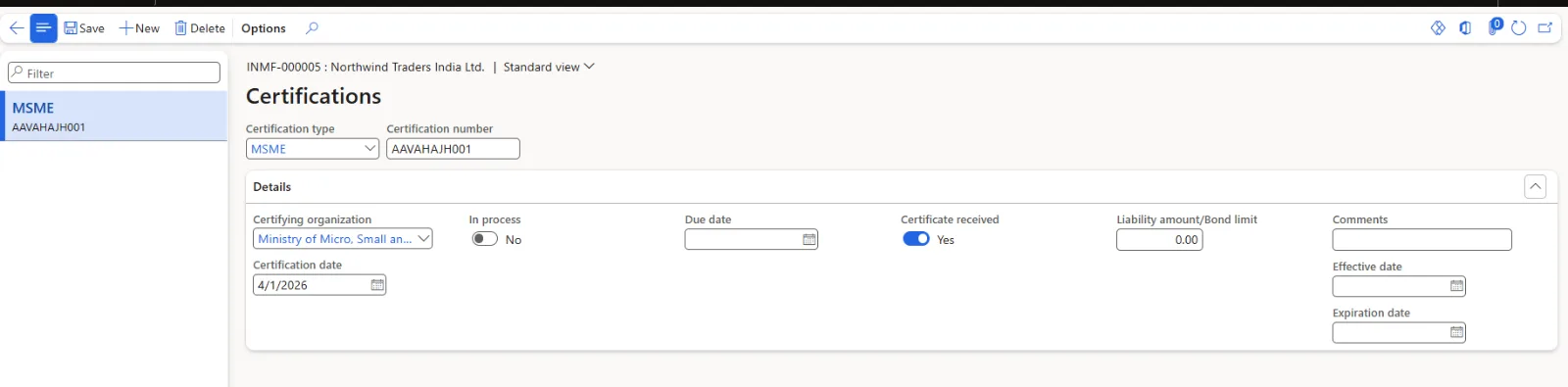
Vendor certificates record the compliance documents held for the supplier, together with their validity dates, so that expiring certifications can be monitored. Where vendor collaboration is in use, suppliers can maintain and submit their own certification records for review.
Vendor Hold and Lifecycle Management
Vendors are never deleted once they carry transactions. The lifecycle is managed through the hold status:
- No – no hold is applied.
- Invoice – invoices cannot be posted for the vendor.
- Payment – payments cannot be generated for the vendor.
- Requisition – purchase requisitions cannot be created, and existing requisition lines cannot be converted to purchase orders.
- All – the vendor is on hold for all transaction types, including requisitions, invoices and payments.
- Never – the vendor is exempt from automatic holds.
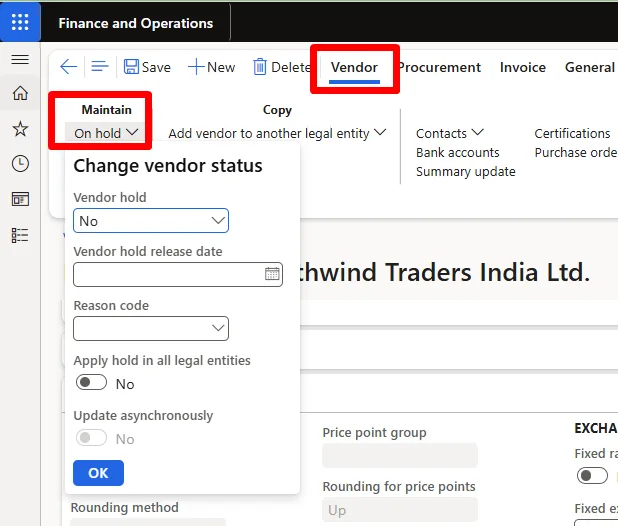
A reason code and a release date should be recorded with every hold so that the block is auditable and self-releasing where it is temporary. Blocking at vendor level is preferable to workarounds such as removing the bank account or changing the payment method.
Reference: Set up vendor accounts – Microsoft Learn
Approvals and Change Control
Two standard workflows protect the vendor master:
- Vendor workflow – enabled on Accounts payable parameters > General > Vendor approval. The fields that require approval are selected individually, and the Proposed vendor changes workflow is configured under Accounts payable > Setup > Accounts payable workflows. Imported data can be set to bypass approval, to be rejected, or to create change proposals for review.
- Vendor bank account workflow – enabled separately, with create and update approvals configured independently and the protected fields selected on the parameters page.
Where these workflows are not deployed, the equivalent control must be achieved through security roles, segregation of duties rules and periodic review of the vendor master change log.
Vendor Collaboration and Onboarding
Vendor collaboration gives suppliers without EDI a secure interface into Dynamics 365. Through it, a vendor can confirm purchase orders, respond to requests for quotation, submit invoices, view consignment inventory and maintain parts of its own master data.
- The feature is enabled per vendor through the Collaboration activation field on the General FastTab, which also decides whether purchase orders accepted without change are auto-confirmed.
- Prospective suppliers can register through vendor collaboration requests, which procurement reviews and approves; on approval the vendor record is created in the vendor master, removing manual data entry and transcription error.
- Vendor users are provisioned through a user request workflow, with an external security role assigned to the supplier's users.
- Self-maintained supplier data still passes through the vendor approval workflow where one is configured, so control over protected fields such as bank details is retained.
Reference: Vendor collaboration with external vendors – Microsoft Learn
Duplicate Parties and Merging Records
- Global address book parameters control whether the system checks for and notifies duplicate party records, and whether identifiers such as the DUNS number must be unique.
- Where the same supplier has been created more than once, the party records can be selected on the Global address book page and merged, which consolidates the address and contact data behind the vendor accounts.
- Where a supplier trades with several legal entities, mapping the vendor accounts to a single party allows consolidated enquiry: the Vendor transactions list page shows transactions for all vendor accounts that share the same party.
- Duplicates should be identified on PAN, GSTIN, bank account number and name similarity, and addressed before go-live rather than after balances accumulate.
Data Migration and Integration
Vendor master data is normally loaded through the Data management framework. The commonly used entities and their sequence are:
- Vendors V2 – the vendor header, including group, currency, tax and payment defaults.
- Vendor postal addresses and vendor contact information – loaded after the header.
- Vendor bank accounts – loaded after the header, and then referenced back on the vendor as the default payment bank account.
- Tax registration records (GSTIN) and withholding tax attributes are loaded through the relevant localisation entities, after the enterprise tax registration numbers exist.
Where approval workflows are enabled, the Data entity behavior setting determines whether an import updates records directly, is rejected, or raises change proposals. This should be set deliberately before a migration run, and reviewed again before go-live.
Leading Practices and Common Pitfalls
- Complete the dependent setup before creating vendors: vendor groups, posting profiles, terms and methods of payment, GSTIN masters and TDS structures.
- Create the vendor GSTIN under enterprise tax registration numbers first; it will not be selectable on the vendor address otherwise.
- Attach the GSTIN to the correct state address and mark the primary tax information record. For multi-state suppliers, maintain one address per state.
- Maintain state codes and union territory flags for all Indian states, without which place of supply and the CGST/SGST versus IGST determination fail.
- Capture PAN at creation. A missing PAN attracts deduction at the higher rate and is far harder to correct once invoices are posted.
- Avoid duplicate vendors for the same PAN; duplicates fragment TDS threshold accumulation and distort spend analysis.
- Keep the vendor group and posting profile aligned with the chart of accounts design, so that the vendor control account reconciles to the subledger without manual adjustment.
- Put bank detail changes behind workflow and verify them independently with the supplier.
- Use vendor hold with a reason code rather than deleting or defacing records.
- Set default financial dimensions only where they are an attribute of the vendor.
- Establish a periodic vendor master review: inactive vendors, expired certificates, missing PAN or GSTIN, and vendors without transactions for a defined period.
Reference Links – Microsoft Learn
Vendor master and accounts payable
- Set up vendor accounts – https://learn.microsoft.com/en-us/dynamics365/supply-chain/procurement/set-up-vendor-accounts
- Global address book overview – https://learn.microsoft.com/en-us/dynamics365/fin-ops-core/dev-itpro/organization-administration/overview-global-address-book
- Set up and use registration IDs – https://learn.microsoft.com/en-us/dynamics365/fin-ops-core/dev-itpro/organization-administration/registration-ids
- Vendor posting profiles – https://learn.microsoft.com/en-us/dynamics365/finance/accounts-payable/vendor-posting-profiles
- Vendor workflow – https://learn.microsoft.com/en-us/dynamics365/finance/accounts-payable/vendor-workflow
- Vendor bank account workflow – https://learn.microsoft.com/en-us/dynamics365/finance/accounts-payable/vendor-bank-account-workflow
- Vendor invoices overview – https://learn.microsoft.com/en-us/dynamics365/finance/accounts-payable/vendor-invoices-overview
- Vendor transactions list page – https://learn.microsoft.com/en-us/dynamics365/finance/accounts-payable/vendor-transaction-list-page
- Automate vendor payment proposals – https://learn.microsoft.com/en-us/dynamics365/finance/accounts-payable/automate-vendor-payment-proposal
- Vendor collaboration with external vendors – https://learn.microsoft.com/en-us/dynamics365/supply-chain/procurement/vendor-collaboration-work-external-vendors
India localisation – GST
- India Goods and Services Tax (GST) overview – https://learn.microsoft.com/en-us/dynamics365/finance/localizations/india/apac-ind-gst
- Create a GSTIN master – https://learn.microsoft.com/en-us/dynamics365/finance/localizations/india/apac-ind-gst-create-gstin-master
- Define GSTINs and reference number sequences – https://learn.microsoft.com/en-us/dynamics365/finance/localizations/india/apac-ind-GST-define-gstin-numbers-number-sequences
- Attach the GSTIN to a tax registration group – https://learn.microsoft.com/en-us/dynamics365/finance/localizations/india/apac-ind-gst-attach-gstin-tax-registration-group
- Set up GST reference number groups – https://learn.microsoft.com/en-us/dynamics365/finance/localizations/india/apac-ind-gst-reference-groups
India localisation – TDS and TCS
- TDS group, PAN and TAN information setup for vendors and customers – https://learn.microsoft.com/en-us/dynamics365/finance/localizations/india/apac-ind-TDS-TDS-group-PAN-and-TAN-information-setup-for-vendors-and-customers
- Set up tax components for the TDS tax type – https://learn.microsoft.com/en-us/dynamics365/finance/localizations/india/apac-ind-tds-tax-components-setup-for-tds-tax-type
- Set up withholding tax component groups for the TDS tax type – https://learn.microsoft.com/en-us/dynamics365/finance/localizations/india/apac-ind-tds-withholding-tax-component-groups-setup-for-tds-tax-type
- Set up withholding tax authorities for the TDS tax type – https://learn.microsoft.com/en-us/dynamics365/finance/localizations/india/apac-ind-tds-withholding-tax-authorities-setup-for-tds-tax-type
- Set up withholding tax reporting codes for the TDS tax type – https://learn.microsoft.com/en-us/dynamics365/finance/localizations/india/apac-ind-TDS-Withholding-tax-reporting-codes-setup-for-TDS-tax-type
- TDS on purchases of goods (section 194Q) – https://learn.microsoft.com/en-us/dynamics365/finance/localizations/india/ind-tds-purchases-goods
- Post TDS/TCS on non-filers at a higher rate of tax – https://learn.microsoft.com/en-us/dynamics365/finance/localizations/india/post-tds-tcs-non-filers-higher-tax
- Settle TDS payments to TDS authority vendors and generate the TDS challan – https://learn.microsoft.com/en-us/dynamics365/finance/localizations/india/apac-ind-TDS-Settle-TDS-payments-to-TDS-authority-vendors-and-generate-TDS-challan
Training modules
- Configure Accounts payable in Dynamics 365 Finance – https://learn.microsoft.com/en-us/training/modules/configure-accounts-payable-dyn365-finance/
- Configure and manage vendor collaboration in Dynamics 365 Supply Chain Management – https://learn.microsoft.com/en-us/training/modules/configure-manage-vendor-collaboration-dyn365-supply-chain-mgmt
Reference Links – Community Blogs and Articles
The following third-party sources are widely used in the Dynamics community. They are not maintained by Microsoft and should be validated against the product documentation and against the version in use.
- Dynamics Tips – How to create a vendor: a training guide – https://dynamics-tips.com/how-to-create-a-vendor-a-training-guide/
- Dynamics 365 Lady – Getting started: global address books – http://www.dynamics365lady.com/2022/01/getting-started-global-address-books.html
- Dynamics Community blog – Advanced vendor collaboration and vendor onboarding – https://community.dynamics.com/blogs/post/?postid=48939293-8b6b-4984-8ab9-12c736ae7f0a
- Dynamics Community blog – Global address book and address books (MB-300 notes) – https://community.dynamics.com/blogs/post/?postid=944d3067-4b3e-4d8c-ac10-d8fe440b62ba
- GFE AX blog – Vendor collaboration in Dynamics 365 for Finance and Operations – https://gfeaxblog.wordpress.com/2018/05/16/vendor-collaboration-in-microsoft-dynamics-365-for-finance-and-operations/
- Configuring Indian GST in Dynamics 365 Finance and Operations – https://mahmoodulhassan.com/configuring-indian-gst-in-microsoft-dynamics-365-finance-s-operations/
- Sikich – Dynamics 365 vendor collaboration setup and functionality – https://www.sikich.com/insight/dynamics-365-vendor-collaboration-setup-functionality/