Fixed assets Configurations
Fixed assets are items of value, such as buildings, vehicles, land, and equipment, which are owned by an individual or organization.
You can set up and enter acquisition information for fixed assets and then manage them by depreciating them and setting a capitalization threshold to determine depreciation. You can calculate adjustments to the fixed assets and dispose of them.
We will cover the Fixed Asset in two parts i.e., configurations part & transaction part.
This Blog will be related to Fixed Asset configurations for Fixed assets transaction’s part refer to - https://msd365fo.aayushdynamics.workers.dev/posts/acquire-to-dispose-end-to-end-cycle
Setup part
Setup Parameter:
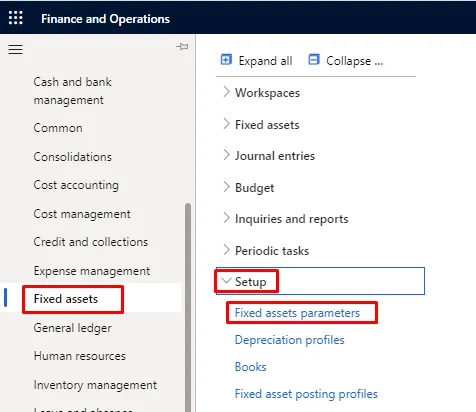
Path: Fixed assets🡪 Setup🡪 Fixed assets parameters🡪 Fixed assets
Fixed Asset Parameters page
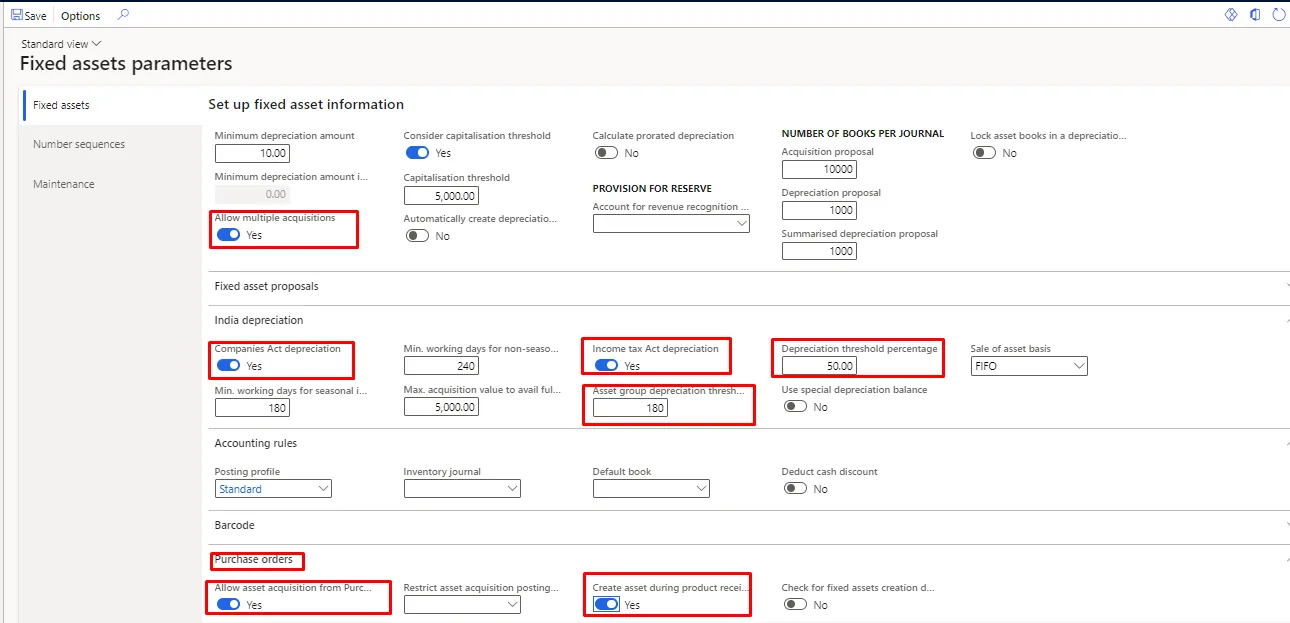
Allow multiple acquisitions | Mark this check box so that you can have an unlimited number of acquisition transactions for each asset. |
Consider capitalization threshold | Select this option to require that the acquisition price of a fixed asset on a vendor invoice is automatically verified to make sure that it meets or exceeds the amount that is required to depreciate the fixed asset. For example, a fixed asset group has a capitalization threshold of 5,000. When you post a vendor invoice that has a fixed asset in that group, the acquisition transaction that is created can be verified to make sure that the acquisition price is at least 5,000. If the acquisition price meets the threshold, the Depreciation option will be selected automatically on the Books page for the book that is selected for the fixed asset. |
Capitalization threshold | Fill in the capitalization threshold amount. |
Company act depreciation | Mark this check box to run depreciation as per company act in the posting layer, Current. |
Income tax Act depreciation | Mark, this check box to run depreciation as per the income tax act in the posting layer, tax |
Posting profile | Select the default posting profile to use when you post transactions. This is a mandatory field. |
Allow asset acquisition from Purchasing | Mark the check box as True, to allow the posting of an asset acquisition transaction from Purchasing when a vendor invoice that includes a new or existing fixed asset is posted. |
Restrict asset acquisition posting to a user group | select a user group so that only members of this group can post asset acquisition transactions directly from Purchasing when you post a vendor invoice that includes a new or existing fixed asset. Note: This parameter is available only if Allow asset acquisition from accounts payable parameter is selected. |
Create assets during product receipt or invoice posting | Mark check as true so that users can create a new fixed asset when a product receipt is posted, or when a vendor invoice is posted if the fixed asset is not created when the product receipt is posted. |
Journal name:
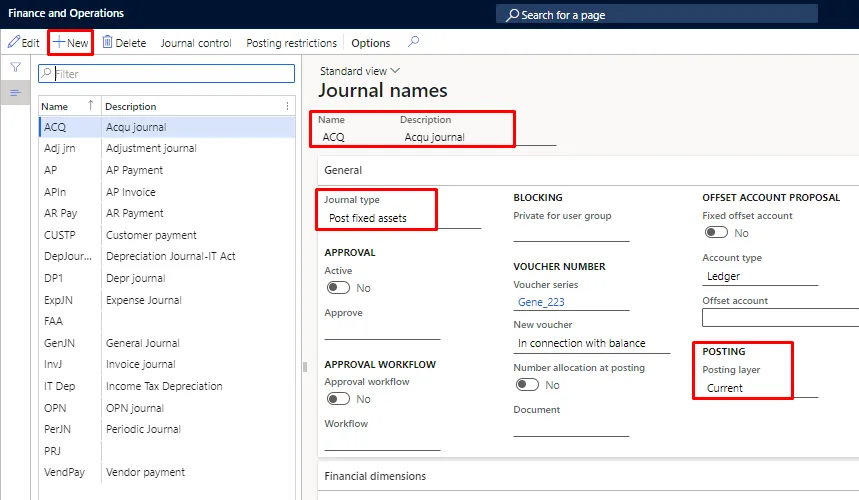
To record fixed asset transactions using journals, we need to create a ‘journal name’ using the journal type Post fixed assets in the setup of the General ledger module. Following are the reference journal name.
- Acquisition as per companies act (Posting layer, current)
- Depreciation as per companies act (Posting layer, current)
- Depreciation as per income tax act (Posting layer, tax)
Path: General ledger🡪 Journal Setup🡪 Journal names
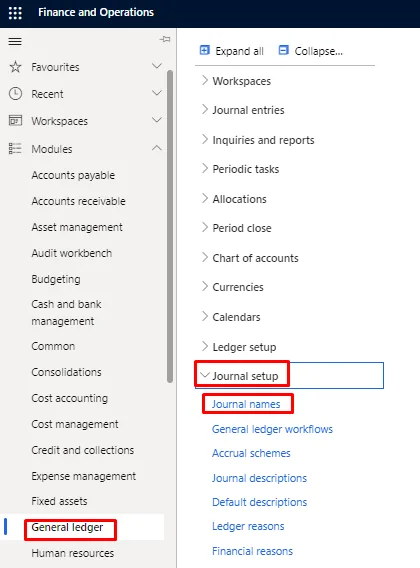
Below screen will appear. For creating the new journal name, click on new button.
Depreciation profiles:
The purpose of a depreciation profile is to allocate, or accrue, the depreciable value of a fixed asset into multiple periods.
You can create an unlimited number of depreciation profiles. You also can create various depreciation profiles with the same depreciation method for different calculations. For example, you can create several profiles for reducing balance, such as 10 percent, 15 percent, and 30 percent.
In D365, you can create depreciation profiles for Income Tax as well as Companies Act.
Path: Fixed assets🡪 Setup🡪 Depreciation profiles
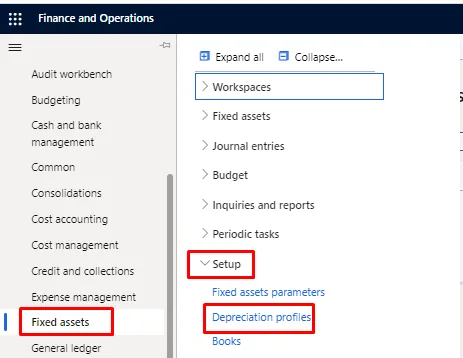
Press “New” and fill necessary fields. Select Depreciation method and Depreciation year.
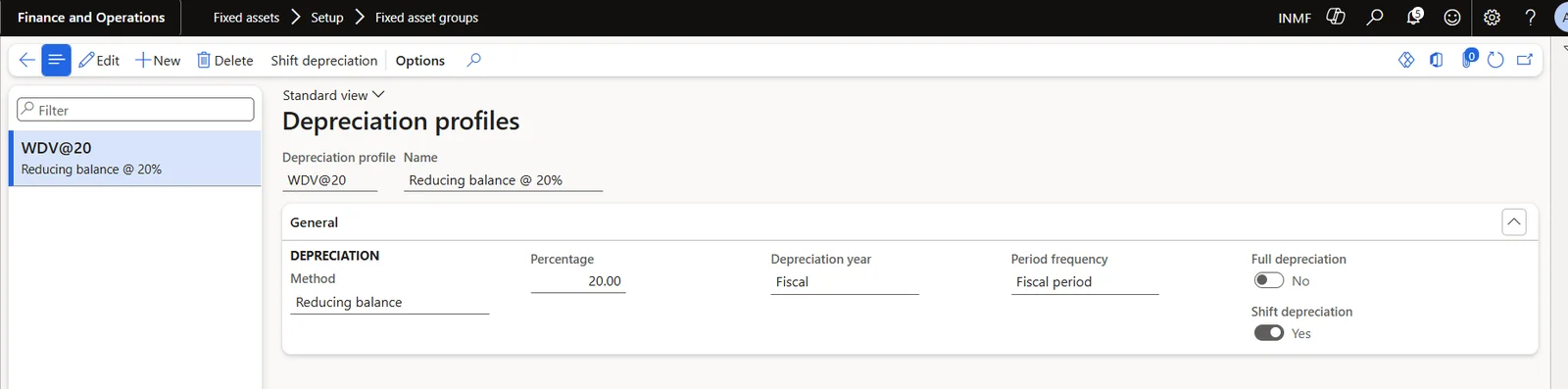
In our example, the depreciation profile ‘WDV@20’ is created with the Reducing balance method at 20% for the Company Act book, and ‘WDV@15’ (Reducing balance at 15%) is used for the Income Tax Act book.
Note: - For each FA group, different depreciation profiles needs to be created for Company Act & Income Tax Act.
Fixed asset Books:
As per Indian law companies should maintain two books for every fixed asset as per Company act and Income tax act. Difference between both in D365 is:
Company Act: All transactions “Acquisition, Depreciation etc…” will be posted in current layer.
Income Tax Act: All transactions “Acquisition, Depreciation etc…” will be posted in tax layer.
Path for creating Fixed Asset Books: - Fixed assets🡪 Setup🡪 Books.
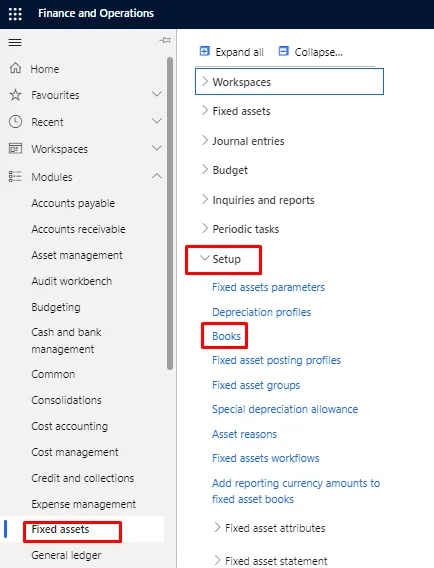
Press “New” and fill the required details.
For creating the FA book for IT Act: -
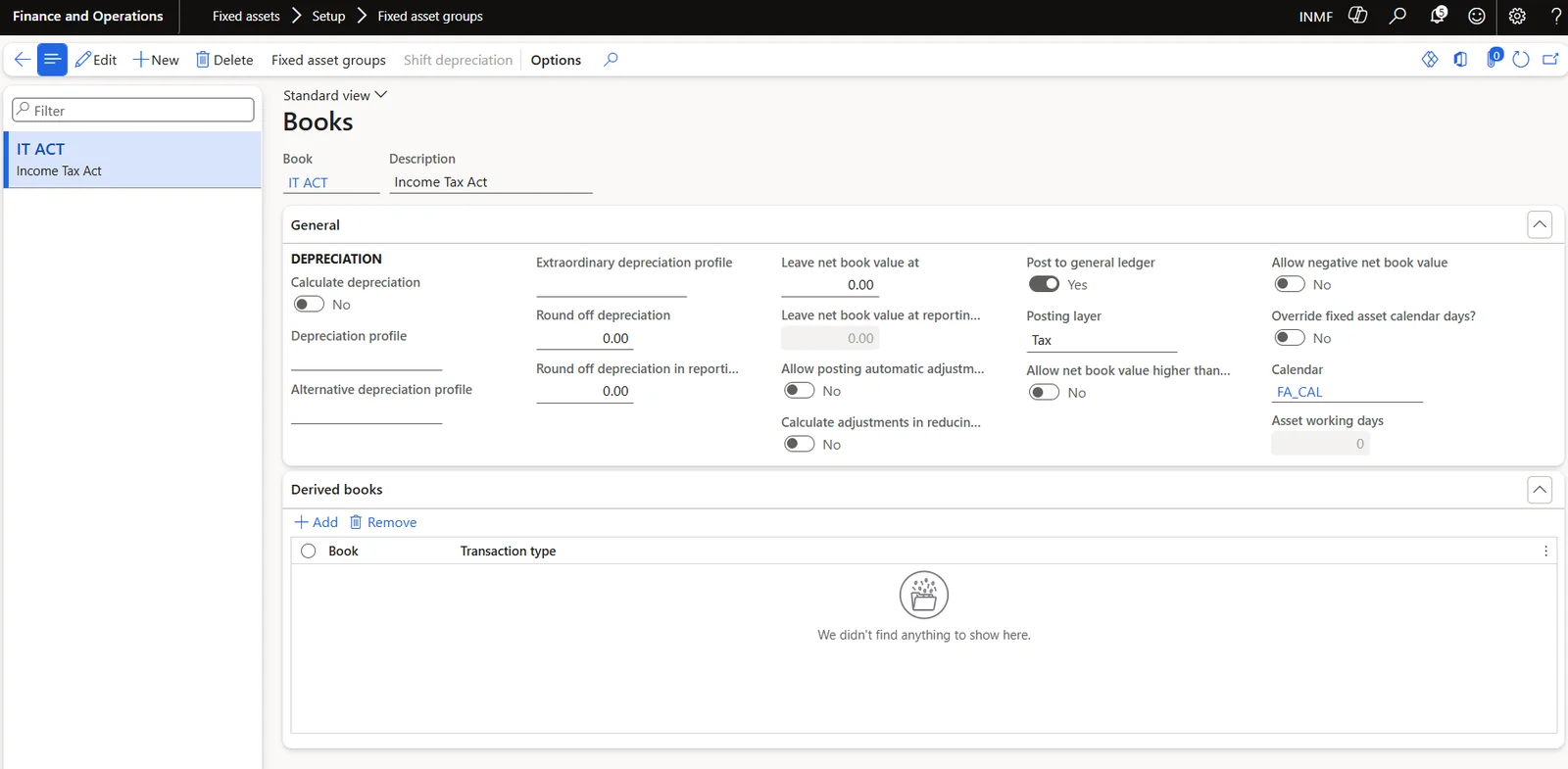
Note: - While creating FA Book for Income Tax Act, below points must be keep in mind: -
- Calculate Depreciation Boolean should be disabled because in case of Income Tax, depreciation is used to calculate on Block of fixed assets & not on individual asset.
- Posting layer will be ‘Tax”.
- If we have different depreciation rates for different FA groups, separate Books needs to be created.
For creating FA book for Company Act: -
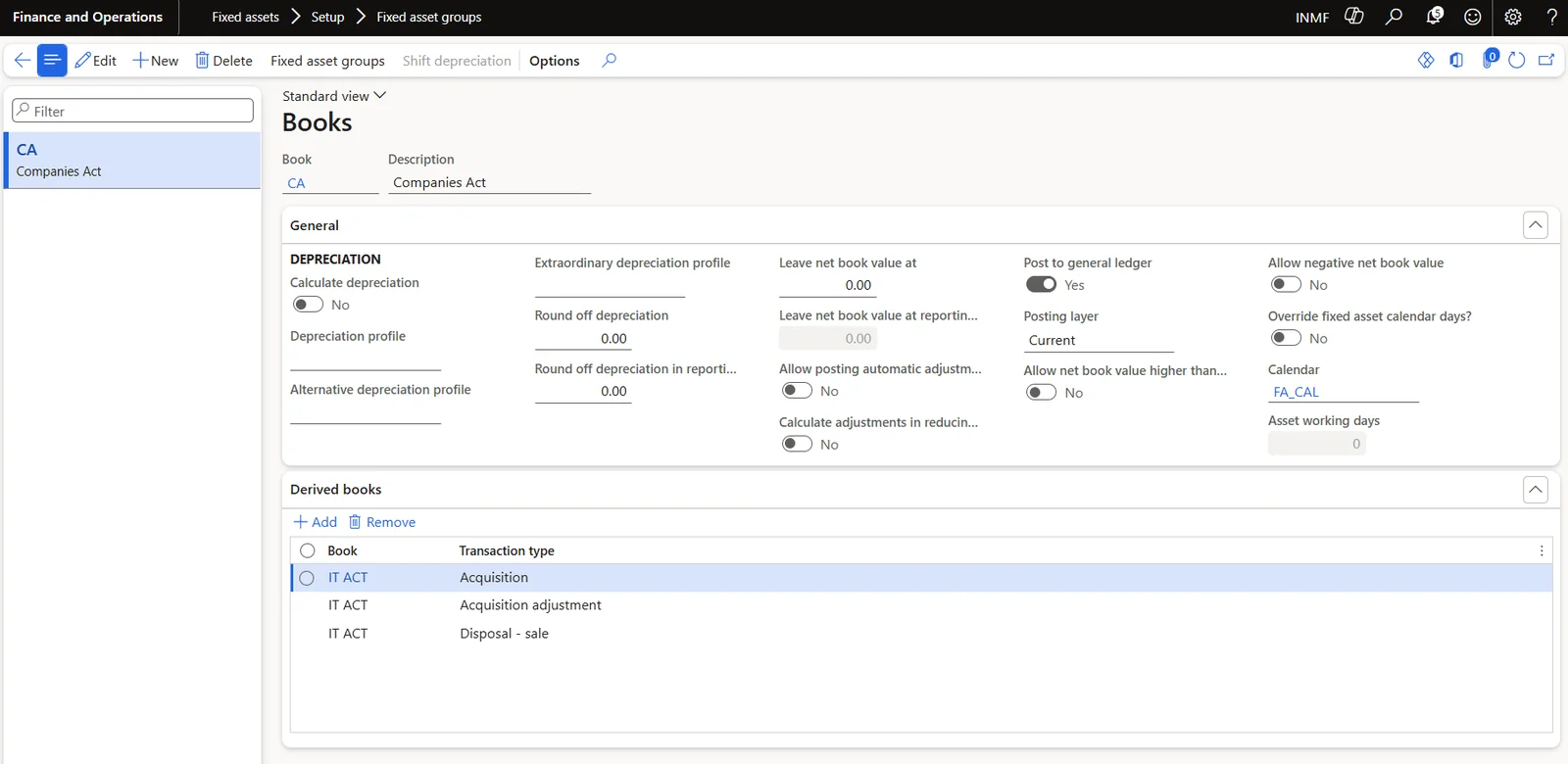
In our example, the ‘IT ACT’ book is attached as a derived book on the ‘CA’ book for Acquisition, Acquisition adjustment and Disposal - sale, so these transactions are posted to both the books automatically.
Note: - While creating FA Book for Company Act, below points must be keep in mind: -
- Calculate Depreciation Boolean should be enabled.
- Posting layer will be ‘current”.
- If we have different depreciation rates for different FA groups, separate Books needs to be created.
- Calendar will be ‘day based’ because in Company Act, depreciation is applicable on day basis.
- Attach the derived books as ‘Income Tax book’ for Acquisition & disposal. Derived book for depreciation cannot be attached as the depreciation rates as per Company Act & Income Tax Act will be different.
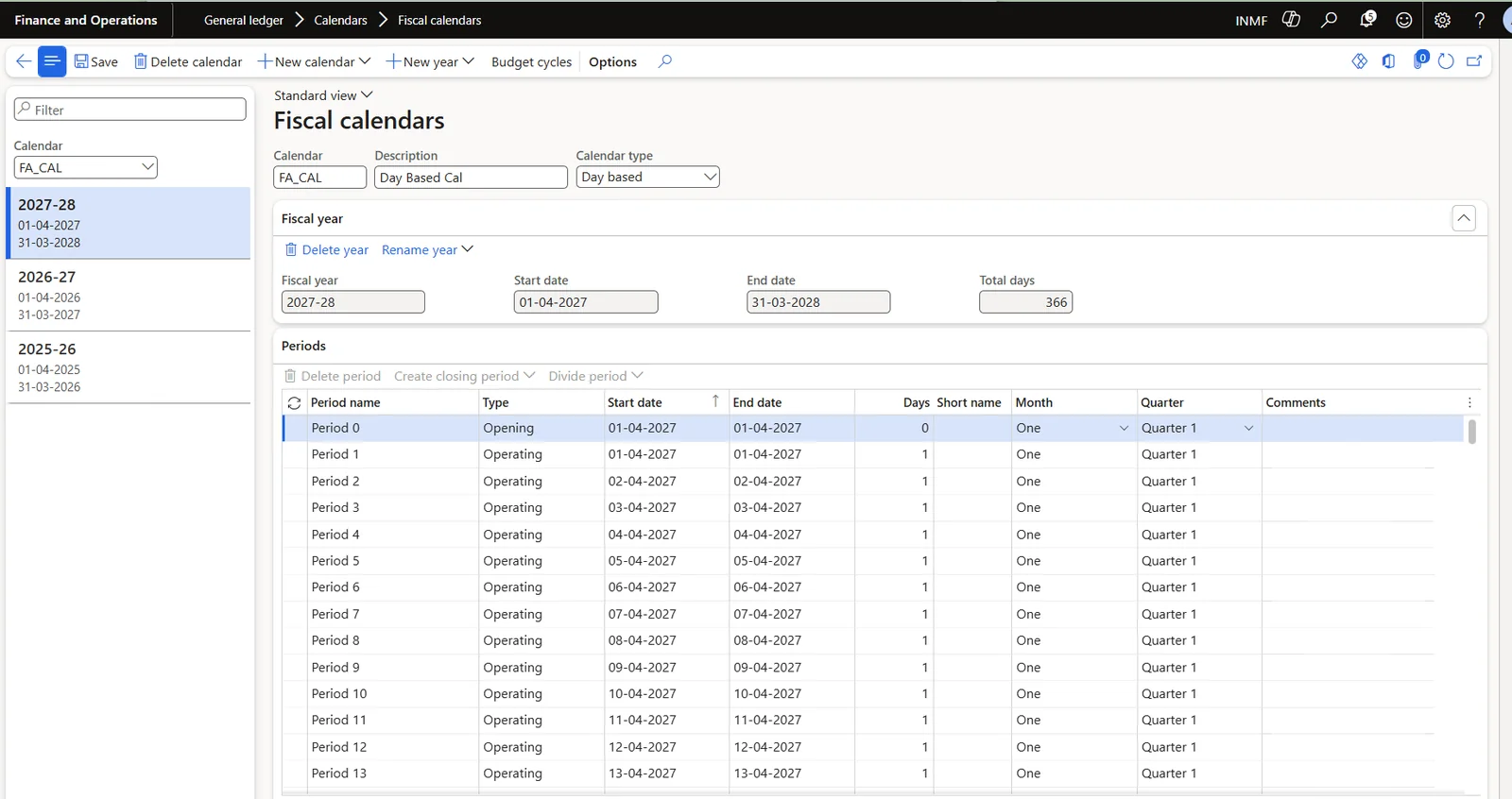
The calendar ‘FA_CAL’ attached to both the books is a day based fiscal calendar. For creating the calendar, follow the below path and select the calendar type as ‘Day based’.
Path: General ledger🡪 Calendars🡪 Fiscal calendars
Fixed asset groups:
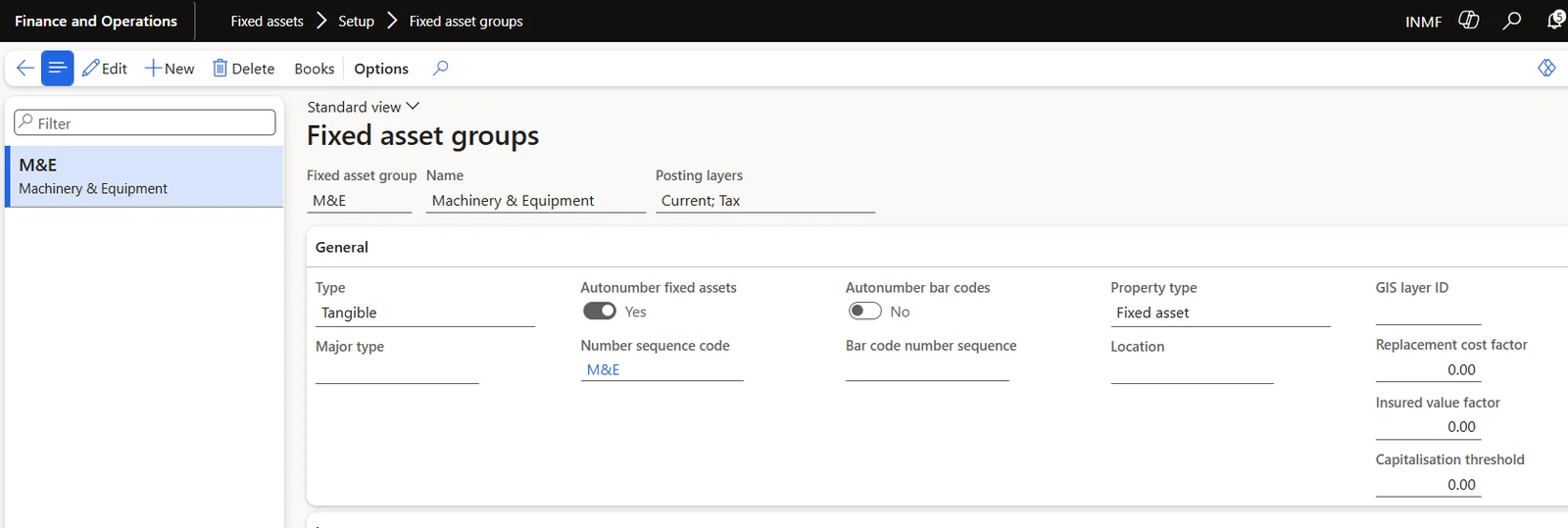
The Fixed Asset group determines the Type of assets in the group. Auto number sequencing of FA group can be configured.
The Fixed asset group also determines the Books to be maintained for the assets in the group. When assigning a book to a group, addition details are determined for the book and group combination including Service life. The Fixed asset groups are also used to define the Fixed asset posting profiles. This means the accounting for assets within a group, by transaction, will be the same.
Path: Fixed assets🡪 Setup🡪 Fixed asset groups
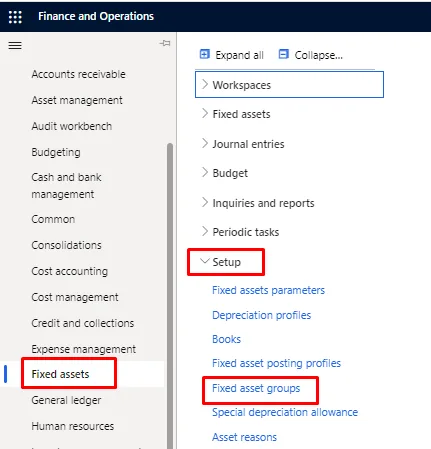
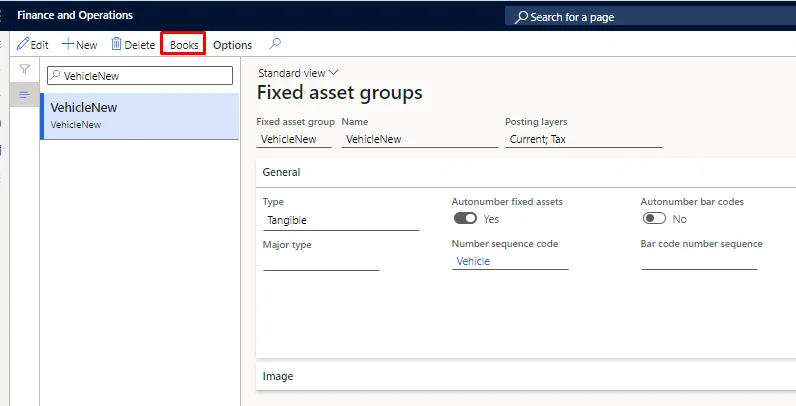
Press “New” and fill the required details and select the “Book”.
For defining the books under FA group, click on Books at the action pane.
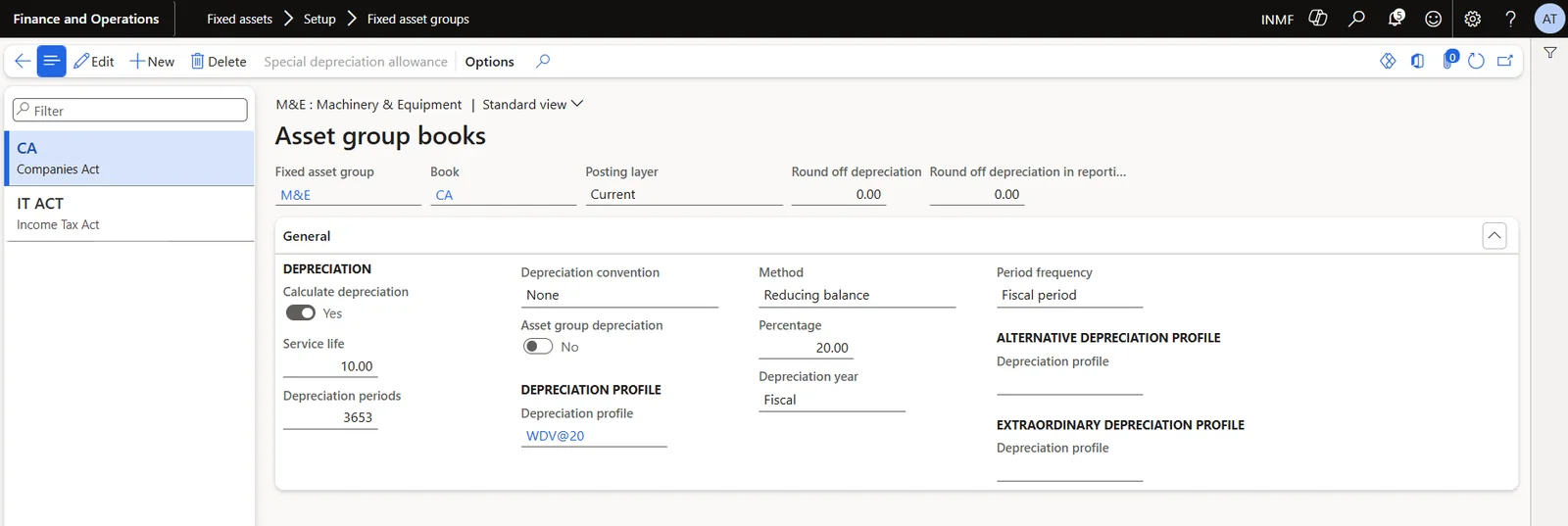
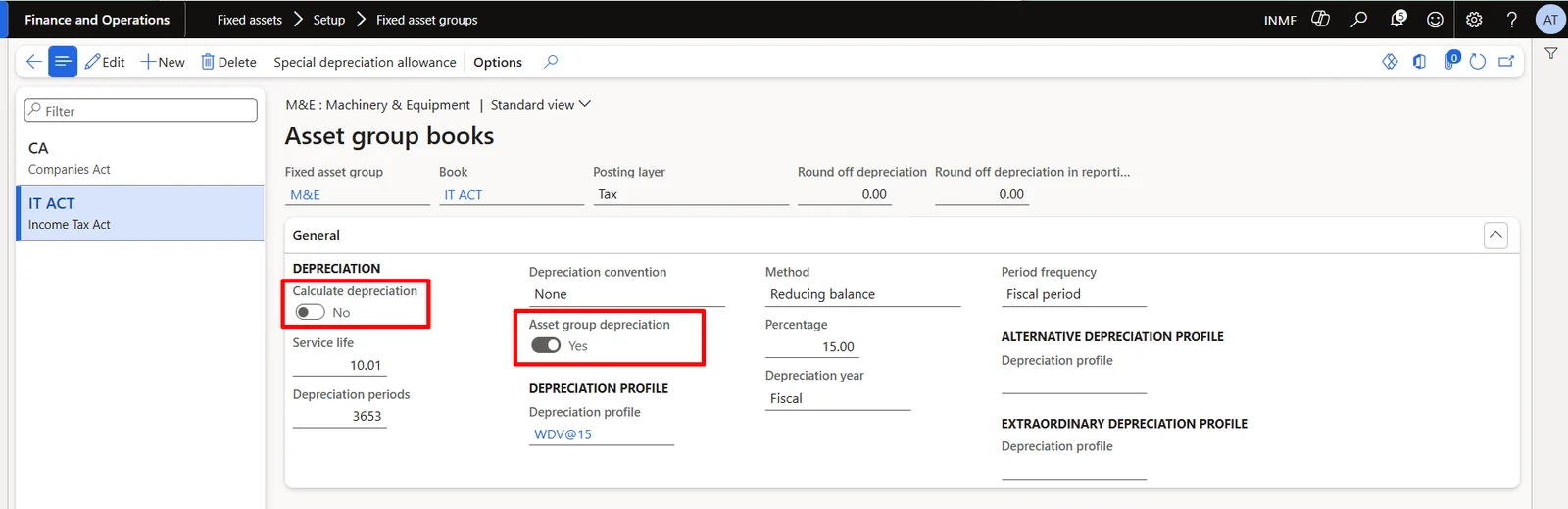
Both the Books i.e., Company Act as well as the Income Tax Act will be attached at the FA group. In our example, the ‘M&E’ group has the ‘CA’ book with depreciation profile ‘WDV@20’ and the ‘IT ACT’ book with depreciation profile ‘WDV@15’.
Note: - While attaching the FA book for Income Tax Act, make sure to enable the ‘Asset group depreciation’ Boolean. This Boolean will control the depreciation for Income Tax Act.
Fixed asset posting profiles:
Posting profiles specify the ledger accounts that are affected when fixed asset transactions are posted. You can select different ledger accounts for each type of asset transaction.
For each transaction type, set up a ledger account and an offset account. If the ledger account is the part of the fixed asset transaction that changes the value of fixed the asset, enter a balance sheet account. If the offset account is for the fixed asset income or expenditure, enter a profit and loss account.
Posting profile for Transaction type, Acquisition, Depreciation & Disposal-sale etc. is the minimum requirement.
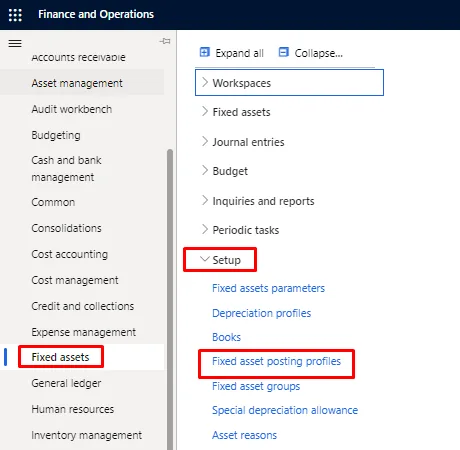
Path: Fixed assets🡪 Setup🡪 Fixed asset posting profiles
Define the main accounts under Acquisition section for Company Book and Income Tax Book.
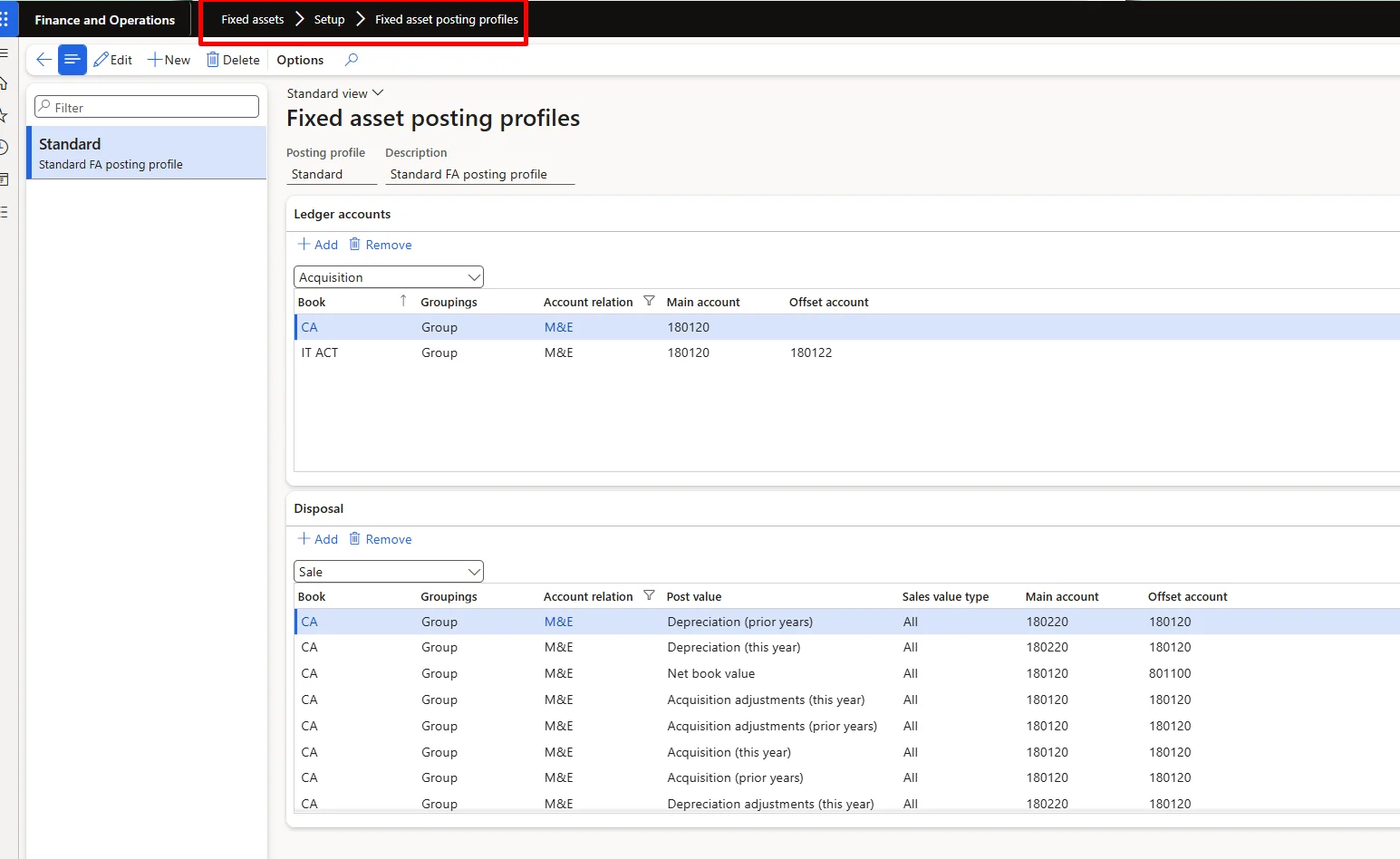
In our example, acquisition is posted to 180120 Machine & Equipment for both the books, with 180122 Fix assets control GL as the offset account for the ‘IT ACT’ book. The same screen also shows the Disposal - sale setup, which is explained below.
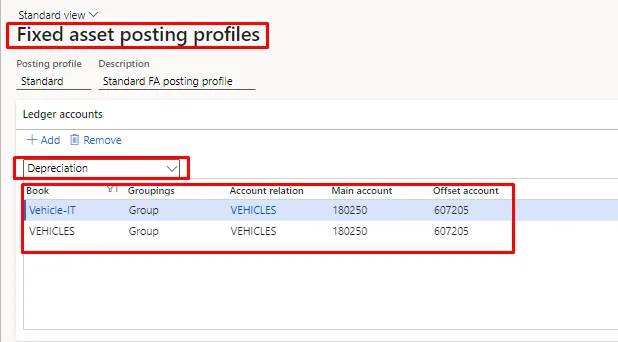
Define the main accounts & offset accounts under Depreciation section for Company Book and Income Tax Book.
Define the main accounts & offset accounts under Disposal-sale section for Company Book and Income Tax Book, as shown in the lower part of the posting profile screenshot above. In our example, accumulated depreciation (180220) is reversed against 180120 Machine & Equipment, and the net book value is posted to 801100 Gain & Loss - Disposal of Assets.
Post value | Account Type |
Acquisition value | Acquisition |
Depreciation (this year) | Depreciation |
Depreciation (prior years) | Accumulated Dep |
Net book value | Gain/Loss from sale of FA |
Fixed Asset posting profile.
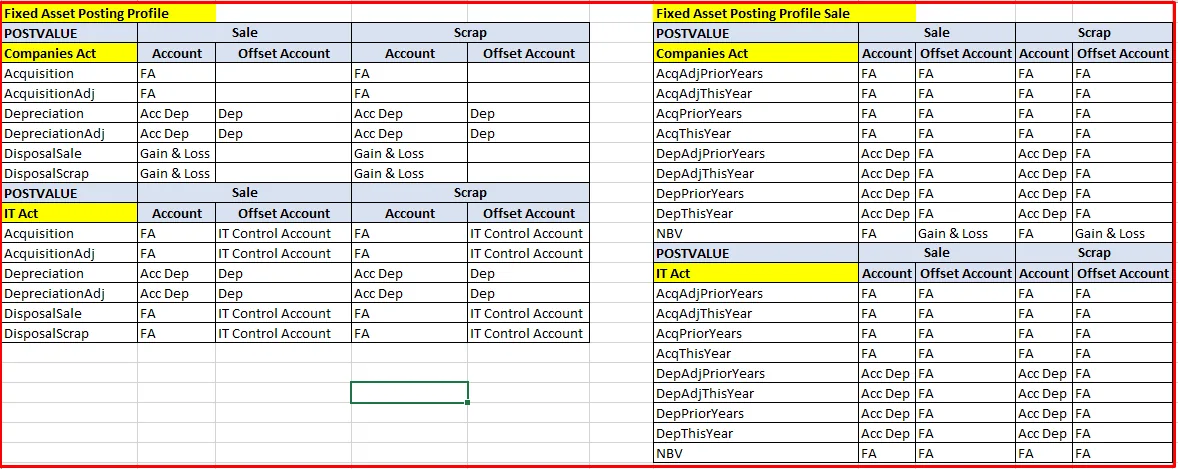
Creation of Fixed assets:
Path: Fixed assets🡪 Fixed assets🡪 Fixed assets
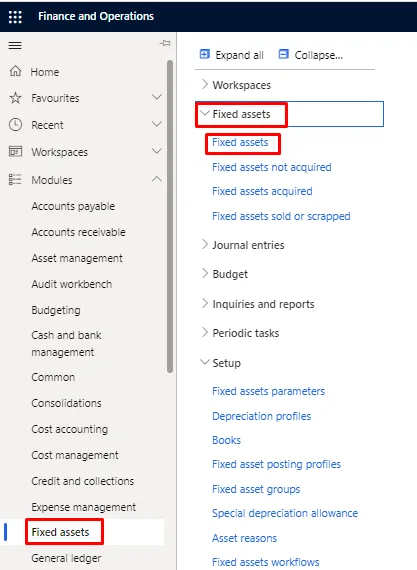
Below screen will appear. Click on New button to create a new Fixed Asset.
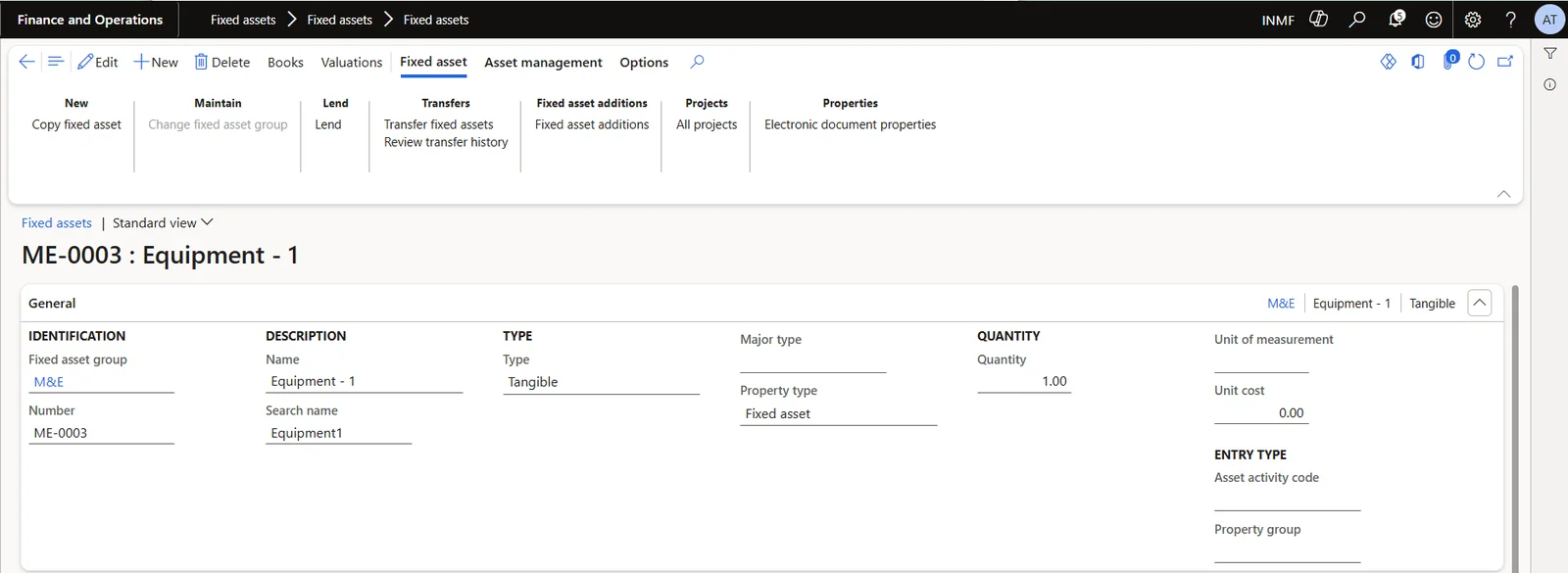
In the Fixed asset group field, enter or select a value.
(The Number will default if you have enabled Auto number fixed assets functionality in the Fixed assets parameters and the Fixed asset group. If not, you must enter a unique number to identify the fixed asset.)
In the Name field, type a value.
(Enter the additional information that your business needs for this asset.)
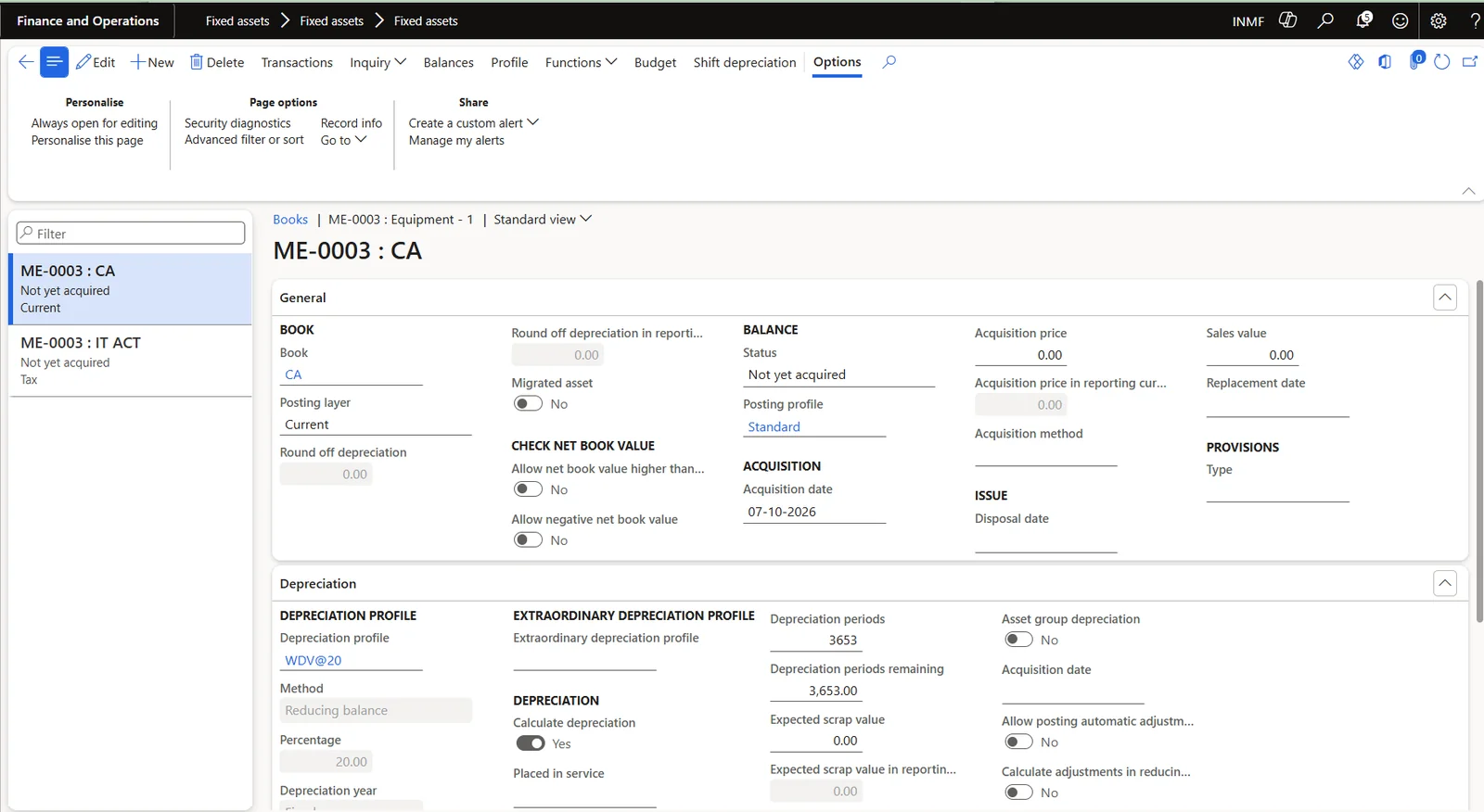
Once the fixed asset is saved, the books attached to its fixed asset group are created on the asset. Click on ‘Books’ at the action pane to view them. In our example, ME-0003 has both the ‘CA’ and ‘IT ACT’ books.